Topic: Purchase Pricing

The Purchase Pricing Engine provides a simplified, single point of capture and maintenance for purchase prices, enabling configuration, data-driven supplier price lists, group-based pricing control and automated best-price selection at requisition and purchase order entry.
It extends the principles established by the Sales Pricing Engine to the Purchasing domain.

Exploring
 Where it fits in?
The Purchase Pricing Engine provides a simplified, single point of capture and maintenance for purchase prices, enabling configuration, data-driven supplier price lists, group-based pricing control and automated best-price selection at requisition and purchase order entry.
It extends the principles established by the Sales Pricing Engine to the Purchasing domain.
The engine introduces Purchase Price Groups (to manage pricing across suppliers or supplier families), Purchase Price Lists (multiple pricing methods per Stock code, with effective dates and status), exception pricing (fallback method), and priority overrides that can supersede a raw best-price outcome for governance and policy control.
The Purchase Pricing Engine forms part of the Purchase Orders and Requisitions processes. It is activated by a company-level setup option, after which purchase programs behave according to the engine's rules.
Benefits
-
Centralized governance is achieved by configuring purchase pricing methods once, then applying consistently across requisitions, purchase orders.
-
Automated best price selection across active lists, honoring quantity breaks, lead times, and priorities.
-
Adding policies and controls with various statuses (Blank - Active, R - In review, H - On hold), priority per list, security activities, and eSignatures for approval and updates.
-
The Purchase Pricing Engine provides supplier-centric flexibility by linking suppliers to groups, attaching multiple lists (including multi-currency), and applying exception methods (e.g., last price paid) when no list price is provided.
-
Price Management increases back-office efficiencies by providing procurement managers with the ability to better implement and support complex price structures and assign multiple price lists to suppliers, allowing for flexibility in the design of pricing structures.
-
Purchase price flexibility is achieved by using price groups, which manage price lists for suppliers.
Functionality
-
Multiple Purchase Price Lists can be applied to a Purchase Price Group, allowing you to define rules (effective dates, currencies, statuses, and priorities) for supplier and stock code combinations.
-
Purchase Price Groups can be associated with supplier and stock codes, with group-level policies (e.g., minimum order quantity and order multiples) controlling whether a selected list is accepted, warned, or rejected during Requisition and Purchase Order Entry
-
Best price is automatically determined for the specified group, supplier, stock code, quantity, and date. Priority-ranked lists override the lowest calculated price, and multi-currency comparisons are performed by converting candidate prices to local currency.
-
Exception pricing ensures continuity when no valid price list exists, using configured fallbacks with operator security governing whether manual pricing is permitted.
-
The Purchase Pricing Engine functionality is available in Requisition Entry (Program List > Purchase Orders > Requisition System > Transaction Processing), and Purchase Order Entry (Program List > Purchase Orders > Purchase Order Processing), adding header line fields for Purchase Price Groups and Purchase Price List(s), supporting best price review/browse, and providing full price list history and audit capabilities.
The programs related to this feature are accessed from the Program List of the Syspro menu:
- Program List > Purchase Orders > Purchase Pricing Engine
Terminology
Best price
This indicates the lowest valid purchase price across ACTIVE lists that match supplier/stock/qty/date, unless a higher-priority list is present, in which case the higher-priority list overrides best price.
Purchase Price group
Purchase Price Groups link one or more suppliers to shared pricing rules (lists, exceptions, group-level policies) used to assign prices and discounts to a specific group of suppliers.
A Purchase Price Group can have multiple price rules, linked to price lists. The group is captured on purchase order headers and drives downstream price determination.
Purchase Price list
This indicates a dated collection of stock codes with prices, in a specified price basis (Stocking/Alternate/Purchase Price UOM)
A price method is specified for each price list, which may be a flat price (list price), a discounted price, or a quantity-discounted price.
You can define statuses against a Purchase Price List, such as Blank - Active, R - In review or H - On hold.
Only price lists that have a status of Blank - Active are included when the Purchase Price Query determines the best price.
Purchase Pricing engine
The Purchase Pricing Engine provides a simplified, single point of capture and maintenance for purchase prices, enabling configuration, data-driven supplier price lists, group-based pricing control and automated best-price selection at requisition and purchase order entry.
It extends the principles established by the Sales Pricing Engine to the Purchasing domain.
Exception Pricing method
This method determines fallback approaches when no valid price list exists for the group/stock: Current inventory cost, Last price paid to supplier, Purchase price, Manual, or None (where applicable, ABC, foreign currency, and FIFO/LIFO may force Manual.)
To use the Purchase Pricing Engine, the Exception Pricing method must be specified against a Purchase Price Group using the Purchase Price Group Maintenance program.
Anchor price list
The Anchor price list is the List price price list that serves as the basis for all derived purchase pricing methods (i.e. Discount list price (%), List price less Chain, List price less value, Mark-up price list, List price less % for QDB). It provides the reference unit price against which sequential % discounts, fixed value deductions, mark-ups, or QDB % breaks are calculated.
It gets defined and maintained in the Purchase Price List Maintenance program by selecting Price method = List price for the anchor list price, and then referencing that list as the Base Purchase price list on derived lists.
The Anchor price list is a basis list - not necessarily linked to the group itself; the derived list is what you typically link to the Purchase Price Group, where Priority (0-9) and group policies governs selection at runtime
Starting
Prerequisites
Setup Options
Setup Options > Preferences > Distribution > Purchase Orders
Default pricing method for entry
Indicate the default pricing method to use during Purchase Order Entry. This can be based on the current inventory cost price (this defaults
to a pricing method of Manual when capturing a stocked
purchase order line if Activity Based Costing is required, or the order is
for a foreign currency supplier, or FIFO or LIFO costing is implemented), the
last price paid to the supplier, the purchase price defined for the
supplier
This must be defined as Purchase Price Group
Electronic Signatures
To use this feature, the following eSignatures must be defined accordingly in the Electronic Signature Configuration Setup program (as this allows for the various functions in the related programs):
-
Add Purchase price group list e.net
-
PO Add Price Group e.net
-
Change Purchase price list e.net
-
PO Change Price Group e.net
-
Delete Purchase price group list e.net
-
PO Delete Price Group e.net
-
Add Purchase price list e.net
-
Change Purchase price list e.net
-
Delete Purchase price list e.net
-
Add Purchase price list detail line
-
Add Purchase price list detail line e.net
-
Change Purchase price list detail line
-
Change Purchase price list detail line e.net
-
Delete Purchase price list detail line
-
Delete Purchase price list detail line e.net
-
Purge Purchase price list
-
Purge Purchase price list e.net
-
Update Purchase Price list expiry date e.net
-
PO Add purchase order
-
PO Add purchase order e.net
-
PO Maintain purchase order
-
PO Maintain purchase order e.net
-
PO Cancel purchase order
-
PO Cancel purchase order e.net
-
PO Add purchase order merchandise line
-
PO Add purchase order merchandise line e.net
-
PO Change purchase order merchandise line
-
PO Change purchase order merchandise line e.net
-
PO Cancel purchase order line
-
PO Cancel purchase order line e.net
-
PO Requisition add line
-
PO Requisition add line e.net
-
PO Requisition change line
-
PO Requisition change line e.net
-
AP Supplier added
-
AP Supplier changed
-
AP Supplier deleted
-
Update Purchase price list expiry date
Operator Activities
To use certain aspects of this feature, the following operator activities must be defined within the Operator Maintenance program:
-
PO Allow change to Purchase Price Group during entry
-
PO Allow manual pricing when no Purchase Price Group
-
PO Allow change to Purchase Price List during entry
-
PO Allow manual pricing when no Purchase Price List
-
PO Allow change to Purchase Price Group during maintenance
-
PO Allow change to Purchase Price List during maintenance
Security
You can secure this feature by implementing a range of controls against the affected programs. Although not all these controls are applicable to each feature, they include the following:
- You restrict operator access to activities within a program using the Operator Maintenance program.
- You can restrict operator access to the fields within a program (configured using the Operator Maintenance program).
- You can restrict operator access to functions within a program using passwords (configured using the Password Definition program). When defined, the password must be entered before you can access the function.
- You can restrict access to the eSignature transactions within a program at operator, group, role or company level (configured using the Electronic Signature Configuration Setup program). Electronic Signatures provide security access, transaction logging and event triggering that gives you greater control over your system changes.
- You can restrict operator access to programs by assigning them to groups and applying access control against the group (configured using the Operator Groups program).
- You can restrict operator access to programs by assigning them to roles and applying access control against the role (configured using the Role Management program).
Restrictions and Limits
-
When the Purchase Pricing Engine is active, legacy supplier-contract utilities (e.g., import/purge/global expiry of contract prices) are not available, and the new price list tools must be used instead.
-
Return to Supplier replacements continue to use the original RTS price path (and the Purchase Pricing Engine logic is bypassed).
Solving
Error messages
Purchase order setup pricing method
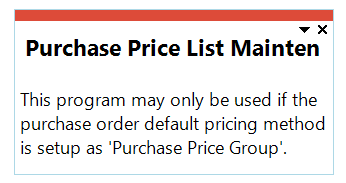
Cause
This message is displayed when you attempt to open the following programs before the Default pricing method for entry setup option has been configured.
-
Purchase Price List Query
-
Purchase Price Query
-
Purchase Price Group Query
-
Purchase Price List History
-
Purchase Price List Detailed History
-
Purchase Price Expiry Date Update and Purge
-
Purchase Price Group List
-
Purchase Price Lists
-
Purchase Pricing List
-
Purchase Price History List
-
Purchase Price List Maintenance
-
Purchase Price Group Maintenance
Solution
Ensure that the Default pricing method for entry setup option is defined as Purchase Price Group within the Setup Options (Syspro Ribbon bar > Setup > Setup Options > Preferences) before attempting to use any of the Purchase Pricing Engine programs.
FAQs
How do I enable and configure the Purchase Pricing Engine?
To start using the Purchase Pricing Engine, enable it at company level, define Purchase Price Group(s), capturing Purchase Price List(s) (and status), and configure exception pricing on each group. Thereafter, assign suppliers to groups and proceed with Requisitions and Purchase orders.
Follow these steps to set up the Purchase Pricing Engine:
-
Ensure that you have configured the Electronic Signatures within the Electronic Signature Configuration Setup program.
-
Define the Default pricing method for entry setup option as Purchase Price Groups under setup option (Setup Options > Configuration > Distribution > Sales Orders).
-
Create a price list and capture price list details:
A Purchase Price Listis a prerequisite to linking to Purchase Price Groups.-
Access the Purchase Price List Maintenance (Program List > Purchase Orders > Purchase Pricing Engine > Setup) program.
-
Create a new price list and capture the price list header information.
-
Header information required:
-
Description: The price list description indicates to which price list the supplier is linked.
-
Start Date: This indicates the date on which the price list comes into effect.
-
Expiry Date: This indicates the date on which the price list expires and is no longer valid.
-
Status: This indicates the status (Blank - Active, H - On hold, R - In review) of the price list. Only price lists that have a status of Blank - Active are included when the Price Query determines the best price.
-
-
Select the Main Price List Detail icon to add price list details at the Price List Details Entrylistview.
Use the Price List Details Selection pane to add a range of items e.g., stock codes, product classes, etc. to the listview. -
Capture the Base price if not linked to an Anchor price list.
It is recommended that you identify one list to act as your anchor / base price list, as this becomes the foundational 'base cost' reference for all other lists. -
Capture all other relevant price list detail information such as:
-
Stock Code
-
Basis price list
-
Price Unit of measure
-
Lead time
-
Discounts
-
Mark-up %
-
Minimum order qty
-
etc.
When capturing the Min order quantity, the Purchase Order or Requisition must have this minimum threshold to use this price exception in the price group. -
-
Save your changes.
-
-
Linking price lists with an anchor price list (base cost)
-
The first price list that is created must be the anchor / base price list as this becomes your foundational 'base cost' reference for all other lists.
-
Create a price list and ensure the Price method is set to List Price.
-
Always use this price list as your effective list price. This price is applied when there is no Purchase Price Group configured determining the stock code's price.
-
-
Create a Purchase Price Group and capture price group details:
-
Access the Purchase Price Group Maintenance (Program List > Purchase Orders > Purchase Pricing Engine > Setup) program.
-
Create a new price group and capture the price group header detail.
-
Define the Exception pricing Method (None, Current inventory cost, Last price paid to supplier, Purchase price, Manual) required as the fallback if no purchase price list is defined.
-
Define the Order vs minimum order quantity action (Warn, Reject). When the order quantity is lower than the Min order quantity, Warn alerts the operator but keeps the Purchase Price List available for selection, while Reject removes that Purchase Price List from selection and the Purchase Pricing Engine continues to the next valid list (or the configured exception pricing method).
-
Min order quantity is defined in the Purchase Price List Maintenance program (Program List > Purchase Orders > Purchase Pricing Engine > Setup)
-
Define the Order vs order quantity multiple action (Warn, Reject). When the order quantity is not in the required multiple (example: 2, 4, 6, 8, etc). Warn alerts the operator but keeps the Purchase Price List available for selection, while Reject removes that Purchase Price List from selection and the Purchase Pricing Engine continues to the next valid list (or configured exception pricing method).
-
Save the header information.
-
Select Main Details.
-
Define Purchase Price List for the Purchase Price Group by selecting the required filter options under the Purchase Price List Selection pane for Pricing method and Dates.
-
Depending on the filter options the linkedPurchase Price Listwill display in the Purchase Price Lists pane.
-
Save you change.
-
-
Link the Purchase Price List to a Purchase Price Group:
The Purchase Price List must have already been created under the Purchase Price List Maintenance (Program List > Purchase Orders > Purchase Pricing Engine > Setup) program.- Select the Maintain Details icon
- Define the Purchase Price List for the Purchase Price Group by selecting the required filter options under the Purchase Price List Selection pane for Pricing method and Dates.
- Depending on the filter options the linked Purchase Price List will display in the Purchase Price list pane.
-
Save your changes.
-
Link Supplier to Purchase Price Group:
-
Access the AP Supplier Maintenance program.
-
Select a Supplier.
-
In the Purchase Details panel, locate the header Purchase price group information.
-
Select the applicable Purchase Price Group from the lookup.
-
Save your changes.
-
How do I approve Purchase Price List changes?
Use the Status (Blank - Active, R - In review, H - On hold) in the Purchase Price List Maintenance program, operator activities, and eSignatures to control who may change status and when such lists participate in pricing.
Can I compare prices across other groups or suppliers?
The Purchase Price Query (Program List > Purchase Orders > Purchase Pricing Engine) program supports selection by supplier or by group (All/Single) and shows applicable prices with lead times for decision-making.
What happens to legacy supplier-contract pricing tools when the Purchase Pricing Engine is active?
If theDefault pricing method for entry setup option is defined as Purchase Price Group the following legacy programs are disabled and replaced with the Purchase Pricing Engine price list tools and queries.
-
Contract Price Maintenance
-
Supplier Contract Prices by Supplier
-
Import Supplier Contract Prices
-
Purge of Expired Prices
-
Global Expiry Date Update
-
AP Contract Price List
-
Contract Pricing Export
-
Contract Pricing Import
What determines the applied price on a PO line?
The Purchase Pricing Engine checks the header group, finds valid active lists for stock/quantity/dates and apply rejections for Min Order/Order Multipe (as per the Purchase Price Group rules, it honors priority overrides, and returns the Best Price. If no Purchase Price List is valid, the exception method is applied. If no exception method is configured, manual pricing rules will apply.
Which query shows linked Purchase Price Groups, Purchase Price Lists and pricing for a specific stock code and supplier?
-
Access the Purchase Price Query program (Program List > Purchase Orders > Purchase Pricing Engine)
-
Choose to review by Supplier or by Purchase Price Group. This setting enables the relevant selector and disables the others.
-
Set your selection criteria for Stock code, start/expiry date, quantity.
-
Select Start Processing to view the results.
-
Inspect the Purchase Price ListDetail listview to see the Purchase Price Group, Purchase Price List, Price, Price method, etc.
-
Use Change Criteria to compare different quantities or dates, or to switch the Supplier or Purchase Price Group.
Which date takes precedence, the date against the Purchase Price Group or the Purchase Price List?
The Purchase Price List start and expiry dates drive price selection. The Purchase Price Group dates are used only to filter the Purchase Price Lists that are valid within a specified date range, simplifying a selection of Purchase Price Lists within the Purchase Price Group Maintenance program (Program List > Purchase Orders > Purchase Pricing Engine > Setup)
What is the difference between the Warn and Reject actions on Purchase Price Group?
The Warn and Reject actions control how the Purchase Pricing Engine responds when an order does not meet a group-level policy (the Min order quantity or Order quantity multiple defined on the Purchase Price Lists).
Warn retains the Purchase Price List as a valid candidate and displays a message, leaving the price in the mix for selection.
Reject removes that Purchase Price List from the candidate pool. The lookup does not stop or block the transaction, it continues to the next available Purchase Price List. If no other valid list is found, the engine falls back to the Exception pricing method configured against the Purchase Price Group.
Using
Process
Purchase Pricing Engine architecture
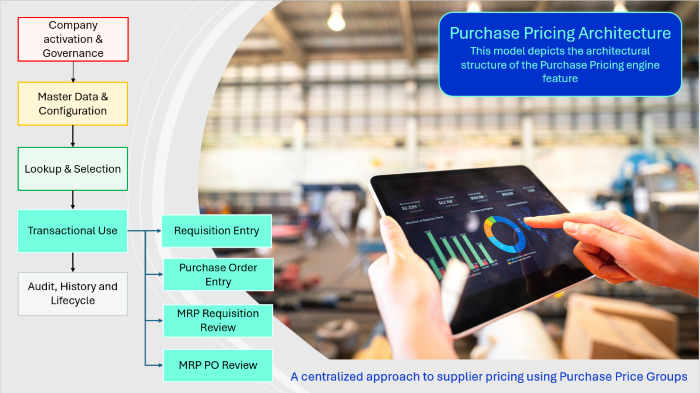
Considerations
-
Suppliers are linked directly to a Purchase Price Group (captured in the Suppliers program.
-
A Purchase Price Group links one or more Purchase Price List and defines group-level policies with Warn or Reject behavior.
-
The Purchase Pricing Engine evaluates all active and date-valid Purchase Price Lists for the supplier / group / stock code context, and applies QDB where applicable, and then enforces Priority on the Purchase Price Group anPurchase Price List link.
-
Purchase Price Lists are controlled by effective Start and Expiry dates and by an assigned price method (for example, flt price, list less % or quantity discount breaks).
-
A stock code can exist on multiplePurchase Price List and multiple lists can be linked to aPurchase Price Group. However, you must avoid overlapping Start/Expiry ranges for the same list within the same group, prevent duplicate group-list links , and honor Basis price list dependencies for derived methods (for example, Less chain, Less value, Mark-up, and Less % for QDB)
-
Each supplier hold one default Purchase Price Group on its master. Operator activities control whether an operator may override thePurchase Price Group (or Purchase Price List) during entry or maintenance, and eSignatures govern who can add, change, or delete groups, lists , and group-list links.
Configuration and setup of the Purchase Pricing Engine
-
Company activation and Governance
-
Ensure that you have enabled the Purchase Pricing Engine under company setup. (Syspro Ribbon bar > Setup > Setup Options > Preferences Default pricing method for entry = Purchase Price Groups).
-
Ensure that you have configured the relevant eSignatures, as configuration and setup are denied by default if disabled (Electronic Signature Configuration Setup(Program List > Administration > Electronic Signatures)).
-
-
Master data and configuration
-
Create a Purchase Price List and capture price list details using the Purchase Price List Maintenance program (Program List > Purchase Orders > Purchase Pricing Engine > Setup). Load the required stock lines including QDB, lead times, min qty, order multiples.
-
Create the Purchase Price Group (with exception method, quantity rules, etc.) with price group rules (price lists) using the Purchase Price Group Maintenance (Program List > Purchase Orders > Purchase Pricing Engine > Setup)
You can select the price list when capturing the price group rules. -
Link Supplier to a Purchase Price Group.
-
-
Lookup and selection
-
Use the PO Purchase Price List Lookup (Program List > Purchase Orders > Purchase Pricing Engine > Lookup) program to confirm the Purchase Price Group, Supplier, Stock code, etc. to evaluate all Active, date-valid price lists, and select Best Price.
-
If no Purchase Price List, the configured Exception pricing is applied as configured within the .Purchase Price Group Maintenance (Program List > Purchase Orders > Purchase Pricing Engine > Setup) program.
-
-
Transactional use
-
During Requisition Entry (Program List > Purchase Orders > Requisition System > Transaction Processing) and Purchase Order Entry (Program List > Purchase Orders > Purchase Order Processing) the Purchase Pricing Engine automatically selects the applicable Purchase Price List, with review/override options governed by operator activities.
-
The Best Price, based on automated rules, will be visible in the Requisition Review and Purchase Order Review programs, and columns Purchase Price Group and Purchase Price List can be dragged, using the Field Chooser, onto the grid.
-
-
Audit, history and lifecycle
-
Use the Purchase Price List History (Program List > Purchase Orders > Purchase Pricing Engine) and Purchase Price List Detailed History (Program List > Purchase Orders > Purchase Pricing Engine) programs to review Purchase Price list header/line amendment journals.
-
Use the Purchase Price Expiry Date Update and Purge (Program List > Purchase Orders > Purchase Pricing Engine > Transaction Processing) programs to bulk update or purge lists.
-
Purchase order price determination process
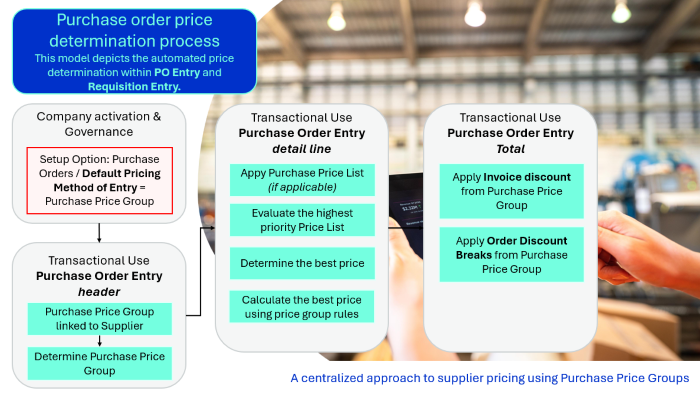
Considerations
-
Purchase order header:
-
The Purchase Price Group linked to the Supplier in the purchase order header is used to determine the best price.
-
-
Purchase order line:
-
The Purchase Price Listlinked to the Purchase Price Group will be displayed depending on the applied pricing cluster.
-
Changes to quantity and P/order date may trigger a re-evaluation with warnings when a different list is recommended.
-
The Costing Method will always be displayed as Manual, as this is not retained. The Purchase Price List is retained.
-
Should there be noPurchase Price List found, an exception notification will be displayed, and based on the setup option configured in the Exception pricing method field (within Purchase Price Group Maintenance program), the pricing would revert to the current inventory cost.
-
When maintaining the detail line and changing the date, to something where there is either no price list or a new price list, an exception message will display.
-
If no price list is available, the current inventory cost will be used as per the Purchase Price Group (within Purchase Price Group Maintenance program) setup.
-
The same scenario applies when viewing or updating a Purchase Order via the Purchase Order Review program. Once the Purchase Order has been created, the details are available to be viewed in the PO Purchase Order Query program.
-
The following occurs when the system evaluates price rules against the price group:
-
When adding P/order quantity, the Purchase Pricing Engine query will run through the price lists linked to the Purchase Price Group and return the assigned Purchase price list and correct price.
-
-
Purchase Requisition price determination process
Considerations
-
The Purchase Price Group field is updated based on the Purchase Price Group configured in the Suppliers program.
-
A requisition can be created without a supplier, however, it will only default to a Purchase Price Group once a supplier has been added.
-
Once the supplier/group/stock/quantity/date are known, the system suggests the Best Price.
-
A valid, available Purchase Price Group and price list will only populate in the Pricing and Costs tab once the quantity has been added.
-
The operator may review alternatives via Best Price/Price List browse subject to security.
-
The process is invoked when creating the requisition from the Requisition Review program. Only once the requisition is created, will the details be available for viewing in the Requisition Query program.
Status Codes
Purchase Price list statuses
The following indicates the possible status codes that can be assigned to a Purchase Price List within the Purchase Price List Maintenance (Program List > Purchase Orders > Purchase Pricing Engine > Setup) program.
| Status | Description |
|---|---|
|
Blank - Active |
This indicates that the price list is effective and will be included when the Purchase Price Query program determines the best price. When the effective dates of a price list have lapsed, the status of that price list remains as Blank - Active, however it is no longer considered when determining the best price. |
|
H - On hold |
This indicates that a price list is retired and won't be considered when determining the best price. |
|
R - In review |
This indicates that the price list was created, but has not yet been used or is currently in the process of being updated or approved. A price list with this status won't be considered when determining the best price. |
Considerations:
-
The status of all existing Purchase Price Lists defaults to Blank - Active.
-
The status of newly created price list using the List price price method, defaults to R - In review.
Affected programs
The following indicates areas in the product that may be affected by implementing this feature:
Setup programs
Purchase Price List Maintenance
Program List > Purchase Orders > Purchase Pricing Engine > Setup
This program lets you create and maintain Purchase Price Lists that the Purchase Pricing Engine uses to manage supplier pricing.
A Purchase Price List consists of a purchase price or a discounted purchase price for a grouping of stock codes. The price list will be applied to a Purchase Price Group.
-
The new program lets you create and maintain Purchase Price List.
Purchase Price Group Maintenance
Program List > Purchase Orders > Purchase Pricing Engine > Setup
This program lets you create and maintain Purchase Price Groups used by the Purchase Pricing Engine to manage supplier pricing.
A Purchase Price Group links one or more suppliers to shared pricing rules (Purchase Price List) and this group-list relationships drive price determination in Requisition and Purchase Order processing.
Batch programs
Purchase Price Expiry Date Update and Purge
Program List > Purchase Orders > Purchase Pricing Engine > Transaction Processing
This program lets you update the expiry dates of Purchase Price Lists or purge expired lists.
-
The new program lets you update or purge Purchase price lists.
Global Expiry Date Update
You use this program to change the expiry date for a range of supplier price contracts.
The following indicates areas of this program which are affected by this feature:
-
When the default Default pricing method for entry setup option has been set to Purchase Price Group, this program will not be available.
Transaction Processing programs
Suppliers
Program List > Purchase Orders > Setup
You use this program to capture and maintain details of suppliers required within the system.
The following indicates areas of this program which are affected by this feature:
-
When the default Default pricing method for entry setup option has been set to Purchase price group the following new fields are enabled under the Purchasing Detail Pane:
-
Purchase price group
-
Purchase price group description
-
-
When the default Default pricing method for entry setup option has been set to Purchase price group and the Purchase Price Group has been entered the following field will be disabled:
-
Line discount code under the Supplier Detail pane.
-
Purchase Order Entry
Program List > Purchase Orders > Purchase Order Processing
This program lets you raise and maintain purchase orders against your suppliers.
The following indicates areas of this program which are affected by this feature:
-
When the default Default pricing method for entry setup option has been set to Purchase price group the following new field is enabled under the Purchase Order Header pane.
-
Purchase price group
-
The Purchase Price Group field will default to the group setup against the Supplier in Suppliers (Program List > Accounts Payable > Setup
-
This field will be disabled if the Purchase order was raised from a BPO or the operator activity (PO Allow change to Purchase Price Group during entry) does not allow changes.
-
-
Purchase price list
-
This field will be enabled under the Stocked Line pane.
-
Indicate the best Purchase Price List linked to the Purchase Price Group.
-
This field will be disabled if the Purchase order was raised from a BPO or the operator activity (PO Allow change to Purchase Price List during entry) does not allow changes.
-
Should neither Purchase Price Group exception method nor a Purchase Price List be returned and the operator is allowed access to PO Allow manual pricing when no Purchase Price Group, PO Allow manual pricing when no Purchase Price List entering manual pricing is allowed.
-
Should neither Purchase Price Group exception nor a Purchase Price List be returned and the operator is denied access to PO Allow manual pricing when no Purchase Price List the line will be saved with a zero price.
-
-
Purchase Order Header Information
This program cannot be run standalone. It is accessed from functions in various SYSPRO programs.
-
Purchase Order Entry
Select the P/order Header option from the toolbar.
The following indicates areas of this program which are affected by this feature:
-
When the default Default pricing method for entry setup option has been set to Purchase price group the following new field is enabled under Order Information.
-
Purchase Price Group
-
The field will default to the Purchase Price Group setup against the entered Supplier.
-
The field will be disabled if activity PO Allow change to Purchase Price Group during entry is set to denied.
-
The field will be disabled if the purchase order was raised from a BPO.
-
The field will be disabled if the program is called during order maintenance and activity PO Allow change to Purchase Price Group during maintenance is set to denied.
-
-
Purchase price group description
-
This field indicate the Purchase Price Group description.
-
-
PO Creation
This program cannot be run standalone. It is accessed from functions in various SYSPRO programs.
This program lets you create a purchase order for both bought-out and non-stocked items for a specific sales order, or from the Multi-level Trial Kitting program.
The following indicates areas of this program which are affected by this feature:
-
A change has been made to the Supplier field. The Supplier linked to a stock code will be displayed by default.
Requisition Entry Maintenance
This program cannot be run standalone. It is accessed from functions in various SYSPRO programs.
This program lets you create and maintain purchase order requisitions.
The following indicates areas of this program which are affected by this feature:
-
When the default Default pricing method for entry setup option has been set to Purchase price group the following new fields are enabled under Detailed Information:
-
Purchase price group
-
Purchase price list
-
-
These fields will be disabled if the item is non-stocked, the Requisition Type is not Normal or the operator activity (PO Allow change to Purchase Price List during entry, PO Allow manual pricing when no Purchase Price List) does not allow it.
Requisition Create Purchase Orders
Program List > Purchase Orders > Requisition System > Transaction Processing
This program lets you create purchase orders from requisition lines.
The following indicates areas of this program which are affected by this feature:
-
New columns are added to the listview. Use the Field Chooser to view these columns:
-
Purchase Price Group
-
Preferred price group
-
-
When the default Default pricing method for entry setup option has been set to Purchase price group the following checkbox will be visible and enabled in the Criteria Pane:
-
Requisition Pricing | Always apply price group exception [unselected]
-
Purchase Order Review
You use this program to review and update live purchase orders and suggested purchase order requisitions that require corrective action to meet what has been planned within the snapshot files.
The following indicates areas of this program which are affected by this feature:
-
When the default Default pricing method for entry setup option has been set to Purchase price group the following checkbox will be visible and enabled in the Review Criteria Pane:
-
Requisition/purchase order creation | Always apply price group exception [unselected]
-
Requisition Review
You use this program to review and update live and suggested purchase order requisitions that require corrective action to meet what has been planned within the snapshot files.
The following indicates areas of this program which are affected by this feature:
-
When the default Default pricing method for entry setup option has been set to Purchase price group the following checkbox will be visible and enabled in the Criteria Pane:
-
Requisition Pricing | Always apply price group exception [unselected]
-
Purchase Order Query
Program List > Purchase Orders
This program lets you view details of purchase orders (including canceled and completed orders) that have not yet been purged.
The following indicates areas of this program which are affected by this feature:
-
New column is added to the listview. Use the Field Chooser to view these columns:
-
Purchase price list
-
Requisition Query
You use this program to view detailed purchase order requisition information.
The following indicates areas of this program which are affected by this feature:
-
New columns are added to the Detail Lines listview. Use the Field Chooser to view these columns:
-
Purchase price list
-
Preferred price group
-
Inventory Query
Program List > Inventory
This program lets you view static details held on file against your stock items, as well as any transactions that have been processed against them.
The following indicates areas of this program which are affected by this feature:
-
When the default Default pricing method for entry setup option has been set to Purchase price group the Supplier's contract hyperlink on the Distribution pane will be disabled.
-
A new Purchase Price Query is added to the Distribution pane, calling the Purchase Price Query program.
Supplier Query
Program List > Accounts Payable
This program lets you view data relating to your suppliers in the in the Accounts Payable module.
The following indicates areas of this program which are affected by this feature:
-
New field can be added on to the query under Supplier Information using the Field Selector.
-
Purchase price group
-
Contract Maintenance
You use this program to record the basic agreement between you and a customer.
The following indicates areas of this program which are affected by this feature:
-
When the default Default pricing method for entry setup option has been set to Purchase price group and a new contract is created or existing contract maintained the Purchase Price Query program will be called when selecting the Query hyperlink in the Purchase price list prices column in the listview.
Contract Price Maintenance
You use this program to create and change contract prices for selected suppliers.
The following indicates areas of this program which are affected by this feature:
-
When the default Default pricing method for entry setup option has been set to Purchase Price Group, this program will not be available.
Contract Pricing Import
You use this program to import a Sales Order contract pricing file that has been exported from another site using the Contract Pricing Export program.
The following indicates areas of this program which are affected by this feature:
-
When the default Default pricing method for entry setup option has been set to Purchase Price Group, this program will not be available.
Report programs
Purchase Price History List
Program List > Purchase Orders > Purchase Pricing Engine > Reports
This program lets you generate a report indicating the changes made to the Purchase Price List header (e.g. effective dates, statuses, and descriptions of price lists)
Purchase Pricing List
Program List > Purchase Orders > Purchase Pricing Engine > Reports
This program lets you generate a report, listing all the purchase prices.
Purchase Price Lists
Program List > Purchase Orders > Purchase Pricing Engine > Reports
This program lets you generate a report listing the details of all the Purchase Price Lists, indicating the Purchase Price Listheader information (e.g. effective dates, statuses, and descriptions of Purchase Price Lists)
Purchase Price Group List
Program List > Purchase Orders > Purchase Pricing Engine > Reports
This program lets you generate a report listing the details of all the Purchase Price Groups, indicating the Purchase Price Group header information (e.g. Description, Exception pricing method, Order quantity actions).
Import Supplier Contract Prices
Program List > Purchase Orders > Supplier-Stock Cross Reference > Setup
You use this program to import supplier contract price information from 3rd party application software.
The following indicates areas of this program which are affected by this feature:
-
When the default Default pricing method for entry setup option has been set to Purchase Price Group, this program will not be available.
AP Contract Price List
You use this program to generate a report of all supplier/stock code cross reference information currently defined.
The following indicates areas of this program which are affected by this feature:
-
When the default Default pricing method for entry setup option has been set to Purchase Price Group, this program will not be available.
Query programs
Purchase Price List Query
Program List > Purchase Orders > Purchase Pricing Engine
This program lets you view Purchase Price Lists and their associated detail lines.
Purchase Price Group Query
Program List > Purchase Orders > Purchase Pricing Engine
This program lets you view rules defined against a Purchase Price Group, as well as the suppliers that are linked to that group.
Purchase Price Query
Program List > Purchase Orders > Purchase Pricing Engine
This program lets you view purchase pricing information to determine the best price.
Purchase Price List Detailed History
Program List > Purchase Orders > Purchase Pricing Engine
This program lets you query a Purchase Price List and view changes made to the Purchase Price List detail lines (e.g. Basis price list, Price UOM, Discount %, etc.)
Purchase Price List History
Program List > Purchase Orders > Purchase Pricing Engine
This program lets you query a Purchase Price List and view changes made to the Purchase Price List header. (e.g. Price basis, Price method, Start and Expiry date, Status, etc)
Browse programs
Purchase Price List Browse
Program List > Purchase Orders > Purchase Pricing Engine > Browses
This program lets you browse and view details of existing price lists.
Purchase Price Group Browse
Program List > Purchase Orders > Purchase Pricing Engine > Browses
This program lets you browse and view details of existing Purchase Price Groups.
Supplier Contract Prices by Supplier
You use this program to review supplier contract prices by supplier code and to add or delete pricing contracts for a supplier stock code cross reference.
The following indicates areas of this program which are affected by this feature:
-
When the default Default pricing method for entry setup option has been set to Purchase Price Group, this program will not be available.
PO Browse on Contract Prices
You use this program to view details of supplier contract prices currently defined.
The following indicates areas of this program which are affected by this feature:
-
When the default Default pricing method for entry setup option has been set to Purchase Price Group, this program will not be available.
Affected business objects
The following indicates the business objects that are affected by this feature:
Setup objects
Purchase Price List Master Setup
The Purchase Price List Master Setup business object was primarily written to create, maintain, and delete purchase price list master records. This business object is unavailable when the default pricing method is set to Purchase price group.
Purchase Price List Detail Setup
The Purchase Price List Detail Setup business object was primarily written to create, maintain, and delete purchase price list detail records. This business object is unavailable when the default pricing method is set to Purchase price group.
Purchase price group Setup
The Purchase price group Setup business object lets you create, maintain and delete purchase price group records.
Purchase Price Group Details Setup
The Purchase Price Group Details Setup business object lets you create, maintain and delete purchase price list records. The business object is unavailable when the default pricing method is set to Purchase price group.
AP Supplier Maintenance
The AP Supplier Maintenance business object lets you add, update or delete suppliers.
PO Supplier Contract
The PO Supplier Contract business object lets you add, change and delete supplier contracts.
Transaction objects
RTS Accept/Reject business object
The RTS Accept/Reject business object business object lets you accept or reject the RTS transaction.
PO Purchase Order Import
The PO Purchase Order Import business object is used to add a new purchase order and change or cancel an existing purchase order. Multiple orders can be passed to this object with any combination of the add, cancel and change requests. The input for each order is made up of header information and individual detail lines.
PO Requisition Entry
The PO Requisition Entry business object enables a new requisition to be captured or an existing requisition line to be changed.
PO Requisition Approve Clear
The PO Requisition Approve Clear business object enables a specific requisition line or all lines associated with a requisition to be approved and for approval to be cleared from a specific requisition line or all lines associated with a requisition.
In both cases, the business object ensures that only a valid requisition user can approve requisitions or clear approval.
Create P/orders from Requisitions
The Create P/orders from Requisitions business object will allow users to create purchase orders (or multiples thereof) from approved requisitions.
Purchase Price List Expiry Date Update and Purge
The Purchase Price List Expiry Date Update and Purge business object lets you update the expiry date on purchase price lists in bulk, or purge expired price lists that are no longer in use, both scoped to the price lists that match your selected options and filters.
Purchase Price List Detail Copy Function
The Purchase Price List Detail Copy Function business object lets you copy all the detail lines from one existing Purchase Price List to another, transferring the complete set of stock code, price, price method, and quantity break data from a source list to a target list that has no detail lines yet. It is the mechanism behind the Copy function on the Purchase Price List Maintenance program.
Query objects
Purchase Price List Query
The Purchase Price List Query business object lets you query purchase price list records. The business object is unavailable when the default pricing method is set to Purchase price group.
Purchase Price Group Query
The Purchase Price Group Query business object lets you query purchase price group records. The business object is unavailable when the default pricing method is set to Purchase price group.
Purchase Price Query
The Purchase Price Query business object was written to query purchase price records. The business object is unavailable when the default pricing method is set to Purchase price group.
Preferred Supplier Query
The Preferred Supplier Query business object lets you query preferred suppliers for sourcing policies against a stock code/warehouse.
AP Supplier Query
The AP Supplier Query business object lets you view supplier information.
PO Supplier Contract Prices Query
The PO Supplier Contract Prices Query business object is designed for use with the SRS report “Purchase Orders Supplier Contracts”.
Purchase Order Query
The Purchase Order Query business object lets you query purchase orders and returns purchase order header and detail line information.
PO Requisition Query
The PO Requisition Query business object returns a list of requisitions.
Purchase Price List Amendment Journal
The Purchase Price List Amendment Journal. business object lets you query the purchase price list amendment journals, a complete audit trail of every addition, update, and deletion made to purchase price list managed through the Purchase Pricing Engine.
Copyright © 2026 Syspro PTY Ltd.