Purchase Price Group Maintenance

This program lets you create and maintain Purchase Price Groups used by the Purchase Pricing Engine to manage supplier pricing.
A Purchase Price Group links one or more suppliers to shared pricing rules (Purchase Price List) and this group-list relationships drive price determination in Requisition and Purchase Order processing.
Exploring
 Where it fits in?
This program lets you create and maintain Purchase Price Groups used by the Purchase Pricing Engine to manage supplier pricing.
A Purchase Price Group links one or more suppliers to shared pricing rules (Purchase Price List) and this group-list relationships drive price determination in Requisition and Purchase Order processing.
Things you can do in this program include:
-
Create a new Purchase Price Group and configure its exception pricing method (fallback pricing method).
-
Maintain an existing Purchase Price Group's header and linked Purchase Price List (add/change/remove links)
-
Delete a Purchase Price Group (subject to dependency checks on active suppliers and active purchase orders)
This program is accessed from the Program List of the Syspro menu:
Program List > Purchase Orders > Purchase Pricing Engine > Setup
Terminology
Purchase Pricing engine
The Purchase Pricing Engine provides a simplified, single point of capture and maintenance for purchase prices, enabling configuration, data-driven supplier price lists, group-based pricing control and automated best-price selection at requisition and purchase order entry.
It extends the principles established by the Sales Pricing Engine to the Purchasing domain.
Purchase Price list
This indicates a dated collection of stock codes with prices, in a specified price basis (Stocking/Alternate/Purchase Price UOM)
A price method is specified for each price list, which may be a flat price (list price), a discounted price, or a quantity-discounted price.
You can define statuses against a Purchase Price List, such as Blank - Active, R - In review or H - On hold.
Only price lists that have a status of Blank - Active are included when the Purchase Price Query determines the best price.
Exception Pricing method
This method determines fallback approaches when no valid price list exists for the group/stock: Current inventory cost, Last price paid to supplier, Purchase price, Manual, or None (where applicable, ABC, foreign currency, and FIFO/LIFO may force Manual.)
To use the Purchase Pricing Engine, the Exception Pricing method must be specified against a Purchase Price Group using the Purchase Price Group Maintenance program.
Priority (0-9)
This indicates the ranking on the group-list link. 9 is highest and overrides the lowest computed price when valid.
Starting
Prerequisites
To use this program, the following setup option(s) must be configured appropriately:
Setup Options
Setup Options > Preferences > Distribution > Purchase Orders
-
Default Pricing Method for Entry
This must be defined as Purchase Price Group
This will enable the Purchase Pricing Engine behavior and exposes the Purchase Pricing Engine menu under the Program List.
Security
Activities
You restrict operator access to activities within a program using the Operator Maintenance program.
The following activities affect how lists/exeptions are applied during entry and maintenance in the Requisition Entry and Purchase Order Entry programs.
PO Allow change to Purchase Price Group during entry
Controls whether an operator can override the Purchase Price Group on new transactions during entry (e.g. when capturing a Purchase Order line or a Requisition line) so that a different group (with different linked Purchase price lists) can be applied. When Denied (the default), the group defaults from the supplier and cannot be changed at entry.
PO Allow change to Purchase Price Group during maintenance
Permits changing the Purchase Price Group when maintaining an existing Purchase Order or a Requisition, subject to document status rules (e.g. The Purchase Order must be in status 0 - Order in process)
PO Allow change to Purchase Price List during entry
Permits overriding the selected Purchase Price List during Purchase Order or Requisition line entry, instead of accepting the list returned by PO Purchase Price List Lookup. When set to Denied (default), the list is locked.
PO Allow change to Purchase Price List during maintenance
Permits changing the Purchase Price List on an existing Purchase Order or Requisition line while maintaining the document, subject to document status rules (e.g. The Purchase Order must be in status 0 - Order in process)
The Purchase Pricing Engine then re-validates and , if different, applies the newly selected list's pricing.
PO Allow manual pricing when no Purchase Price Group
Controls whether the operator may continue with manual pricing when a Purchase Price Group is missing or invalid for the supplier. When Denied (default), entry cannot continue if no valid group is available.
PO Allow manual pricing when no Purchase Price List
Controls whether the operator may enter a manual price when no valid price list is found, after checking the Purchase Price Group's exception pricing method. When Denied (default), the line is saved with a zero price (or the transaction is blocked).
When Allowed, and PO Purchase Price List Lookup returns no Purchase price list and the Purchase group exception is not applicable, the operator can enter a manual price when using following programs:
-
Purchase Order Entry
-
Requisition Create Purchase Orders
-
Requisition Entry Maintenance
-
PO Creation
eSignatures
You can restrict access to the eSignature transactions within a program at operator, group, role or company level (configured using the Electronic Signature Configuration Setup program).
Electronic Signatures provide security access, transaction logging and event triggering that gives you greater control over your system changes.
-
PO Add Price Group
-
PO Add Price Group e.net
-
PO Change Price Group
-
PO Change Price Group e.net
-
PO Delete Price Group
-
PO Delete Price Group e.net
-
Add Purchase price group list e.net
-
Change Purchase price group list e.net
-
Delete Purchase price group list e.net
Groups
You can restrict operator access to programs by assigning them to groups and applying access control against the group (configured using the Operator Groups program).
Roles
You can restrict operator access to programs by assigning them to roles and applying access control against the role (configured using the Role Management program).
Configuring
The following configuration options in Syspro may affect processing within this program or feature, including whether certain fields and options are accessible.
Purchase Orders Preferences
Setup Options > Preferences > Distribution > Purchase Orders
-
Default Pricing Method for Entry
-
This must be defined as Purchase Price Group
Restrictions and Limits
-
The program prevents deletion of the group-list link when referenced by an active Purchase order. The Purchase Price List is never deleted, only the link is considered for removal.
-
You cannot link duplicated or overlapping Purchase Price Lists to the same group. When adding a Purchase Price List, the program validates against the PorPriceListMaster and PorPriceListDetail tables to block duplicates and disallow overlapping Start/Expiry date ranges for the same list within the group.
-
Pricing method, Supplier, Currency, Start date and Expiry date derive from the Purchase Price List Maintenance (Program List > Purchase Orders > Purchase Pricing Engine > Setup) and are not editable on the group-list link (only fields such as Priority and Description can be maintained here).
-
Priority accepts values 0-9 and defaults to 0. 9 indicates the highest priority.
Other considerations
Integration
- Group header add/change/delete actions are processed by business object Purchase price group Setup
- Group-list linking (add/change/delete) is processed by business object Purchase Price Group Details Setup
Journals
- When adding, changing, or deleting Purchase Price Group details the business object Purchase Price Group Details Setup will be used to process the action.
Solving
Error messages
Purchase order setup pricing method
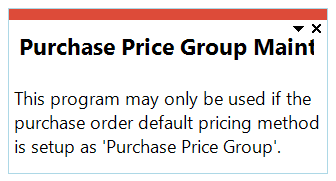
Cause
This message is displayed when you attempt to open any of the following programs before the Default pricing method for entry setup option has been configured.
-
Purchase Price List Maintenance
-
Purchase Price List Browse
-
Purchase Price Group Maintenance
-
Purchase Price Group Browse
-
PO Purchase Price List Lookup
-
Purchase Price List Query
-
Purchase Price Group Query
-
Purchase Price Query
-
Purchase Price List Expiry Date Update and Purge
-
Purchase Price List History
-
Purchase Price List Detailed History
Solution
Ensure that the Default pricing method for entry setup option is defined as Purchase price group within the Setup Options program (
Setup Options > Preferences > Distribution > Purchase Orders
) before attempting to use any of these programs.
FAQs
Why can't I remove a Purchase Price List from the group?.
The group-list link is in use on an active purchase order or your eSignature for delete is denied.
-
From Purchase Order Query, filter by Price Group and (optionally) Price List to locate open orders referencing the link.
-
Complete or close the affected PO lines or reprice those lines to a different price list.
-
Return to the Purchase Price Group Maintenance program listview and select Delete.
-
If the Delete action is disabled, request the relevant eSignature (Delete Purchase price group list e.net).
Why is Maintain Details disabled when I add a new group?
The detail pane is locked until the group header is saved, ensuring a valid key exists.
-
Complete the header information, by entering a Description, Exception pricing method, and order quantity actions.
-
Select Save.
-
The listview and selection panes are enabled
-
Click Maintain Details.
-
It is also disabled when eSignatures aren't enabled. (Add Purchase price group list e.net, Change Purchase price group list e.net)
Why do I get a date overlap or duplicate message when linking a price list?
When you attempt to link a Purchase Price List that either already exists for the group or whose Start/Expiry dates overlap with an existing linked Purchase Price List.
-
Start by reviewing existing links in the Purchase Price Group Maintenance program and review the Start/Expiry dates for existing linked Purchase Price lists.
-
Update the Purchase Price List(s) in the Purchase Price List Maintenance program to remove overlaps.
-
Confirm no overlaps warnings appear and click Save on the listview toolbar.
Why am I blocked from deleting a Purchase Price Group?
Deletion is prevented if the group is linked to active Suppliers (not On Hold), referenced on active Purchase Orders, or eSignatures denies deletion.
-
Start by checking the Purchase Price Group linked to the Supplier. In the Suppliers program, browse the suppliers linked to the group. Reassign them to another group or place them On Hold as appropriate.
-
Check for active Purchase Orders. Use the Purchase Order Query program to confirm there are no open orders referencing the group. First close or complete them or reprice as required.
-
If the Delete button remains disabled, request for the Delete Purchase price group list e.net eSignature to be enabled.
Using
Hints and Tips
-
Columns in a listview are sometimes hidden by default. You can reinstate them using the Field Chooser option from the context-sensitive menu (displayed by right-clicking a header column header in the listview). Select and drag the required column to a position in the listview header.
-
Fields on a pane are sometimes removed by default. You can reinstate them using the Field Selector option from the context-sensitive menu (displayed by right-clicking any field in the pane). Select and drag the required fields onto the pane.
The captions for fields are also sometimes hidden. You can select the Show Captions option from the context-sensitive menu to see a list of them. Click on the relevant caption to reinstate it to the form.
If the Show Captions option is grayed out, it means no captions are hidden for that form.
-
Press Ctrl+F1 within a listview or form to view a complete list of functions available.
Process
Create the Purchase Price group and price group rules:
-
Access the Purchase Price Group Maintenance (Program List > Purchase Orders > Purchase Pricing Engine > Setup) program.
-
Create new price group and capture the price group header details.
-
Define the Price Group Name and Description in the Purchase Price Group Maintenance header.
-
Define the Exception Pricing Method (None, Current inventory cost, Last price paid to supplier, Purchase price, Manual) required as the fallback if no Purchase Price List is defined.
-
Define the Order vs minimum order quantity action (Warn, Reject), meaning if the order is lower than the Min order quantity, then a warning will pop up, or it can be rejected. (Min order quantity is defined in the Purchase Price List Maintenance (Program List > Purchase Orders > Purchase Pricing Engine > Setup) program).
-
Define the Order vs order quantity multiple action (Warn, Reject), meaning if the order is in multiples (example: 2, 4, 6, etc.) a warning will pop up, or it will be rejected.
-
-
Save the header information.
-
Define the Purchase Price Lists for the Purchase Price Group.The Purchase Price List must already be created under the Purchase Price List Maintenance (Program List > Purchase Orders > Purchase Pricing Engine > Setup) program.
-
Select the Maintain Details icon.
-
Define thePurchase Price Lists for the Purchase Price Group by selecting the required filter options under the Purchase Price Lists Selection pane for Pricing method and Dates.
-
Depending on the filter options the linked Purchase Price Lists will display in the Purchase Price List pane.
-
-
Save your changes.
Referencing


 Purchase Price Group
This lets you enter or select a unique Purchase Price Group code.
 Maintain Details
This lets you delete or change Purchase Price Group detail. This option is disabled for new groups until the header information is saved. When selected, this will disable the header pane and allow access to the Purchase Price Group Details Entry pane. It becomes enabled when an existing item is entered for maintenance.
Purchase Price Group Header
| Field | Description |
|---|---|
|
Price Group |
This indicates the unique price group code selected. |
|
Description |
This indicates a unique description for the price group. |
|
Exception pricing method |
This indicates an alternative price suggestion if a stock code does not exist on any Purchase Price List for this Purchase Price Group. The following options exist: Current inventory cost
Uses the current unit cost of the stocked item as the fallback purchase price. This defaults to Manual when a stocked PO line requires Activity Based Costing, or the supplier is in a foreign currency, or FIFO/LIFO costing is in implemented. Last price paid to supplier
Applies the most recent purchase price recorded for the same supplier-stock code combination. Purchase price
Applies the default purchase price held against the supplier-stock code record. Manual
Requires the operator to capture the price manually at entry time. This is subject to Operator Activities and eSignatures permissions. Operator Activities
eSignature
None
No fallback is applied when no valid list price exists. Pricing then fails over to manual only if the operator is permitted. |
|
Order vs. minimum order quantity action |
This will govern the action required when a Purchase Price List has a Minimum Order Quantity greater than the Order quantity, and this Purchase Price List is selected in Requisitions or Purchase Orders.
|
|
Order vs order quantity multiple action |
Governs behavior when a selected price list's Order multiple does not match the line Order quantity.
|
Purchase Price Lists Options pane| Field | Description |
|---|---|
|
Price method |
This lets you select the pricing method on which the price list is based: List Price
This assigns the list price to the stock code (as displayed at the List Price field in the Stock Code Maintenance (Program List > Inventory > Setup) program. This is the default price method. There can only be one effective list price per stock code, as this price is applied when there is no price group determining the stock code's price. Therefore, the start and expiry dates per price list for a stock code mustn't overlap.
Discount list price(%)
This assigns a discount percentage that is subtracted from an existing Pist Price list. This enables column Discount %1 in the Purchase Price ListDetaillistview This option can only be used with an existing List Price type price list
List price less Chain
This assigns chain discount percentages that are applied to an existing List Price list. This enables columns Discount %1, Discount %2, and Discount %3 in the Purchase Price ListDetaillistview This option can only be used with an existing List Price type price list
List price less value
This assigns a discount value to an existing List Price list. This enables column Discount in the Purchase Price ListDetaillistview This option can only be used with an existing List Price type price list
Mark-up price list
This assigns a mark-up percentage to an existing List Price list. This enables column Mark-up % in the Purchase Price ListDetaillistview This option can only be used with an existing List Price type price list
List price for QDB
This assigns a List Price based on quantity discount breaks that have been defined. List price less % for QDB
This assigns a discount percentage to the price on the List Price, according to the quantity discount breaks that have been defined. This enables the hyperlink to quantity Discount Breaks in the Purchase Price ListDetaillistview |
|
Dates |
This lets you select the From start date and the To expiry date. |
|
Include expired price lists |
This lets you include all expired price lists in the listview. |
Purchase Price Lists Listview
| Field | Description |
|---|---|
|
Purchase price list |
This indicates the unique purchase price list selected. |
|
Description |
This indicates the description of the Purchase Price List |
|
Price Method |
Read only field indicating the selected Exception pricing method |
|
Supplier |
Read only field indication the Supplier link to the Purchase Price Group |
|
Currency |
Read only field indicating the Purchase Price List currency. |
|
Start date |
Read only field displaying from the Purchase Price List header to indicate Start date The Purchase Price List start and expiry dates drives the price selection. This date is used to filter on price lists that's valid within in specific date range to simplify the selection of Purchase Price List within the Purchase Price Group Maintenance program.
To maintain the Start date against a price list, you need to open the Purchase Price List Maintenance (Program List > Purchase Orders > Purchase Pricing Engine > Setup) |
|
Expiry date |
Read only field displaying from the Purchase Price List header to indicate Expiry date The Purchase Price List start and expiry dates drives the price selection. This date is used to filter on price lists that's valid within in specific date range to simplify the selection of Purchase Price List within the Purchase Price Group Maintenance program.
To maintain the Expiry date against a price list, you need to open the Purchase Price List Maintenance (Program List > Purchase Orders > Purchase Pricing Engine > Setup) |
| Priority | Sets the selection precedence for this list within the group. 9 indicates the highest priority and overrides the computed lowest price when the list is valid. |
Copyright © 2026 Syspro PTY Ltd.