Purchase Price List Detailed History

This program lets you query a Purchase Price List and view changes made to the Purchase Price List detail lines (e.g. Basis price list, Price UOM, Discount %, etc.)
Exploring
 Where it fits in?
This program lets you query a Purchase Price List and view changes made to the Purchase Price List detail lines (e.g. Basis price list, Price UOM, Discount %, etc.)
Things you can do in this program include:
-
Review a full, field-level audit trail for Purchase Price List details per price list and stock code. View Action, Date, Field Description and Before/After values for each amendment.
-
Purge selected history matching your filters.
This program is accessed from the Program List of the Syspro menu:
Program List > Purchase Orders > Purchase Pricing Engine
Terminology
Purchase Pricing engine
The Purchase Pricing Engine provides a simplified, single point of capture and maintenance for purchase prices, enabling configuration, data-driven supplier price lists, group-based pricing control and automated best-price selection at requisition and purchase order entry.
It extends the principles established by the Sales Pricing Engine to the Purchasing domain.
Purchase Price list
This indicates a dated collection of stock codes with prices, in a specified price basis (Stocking/Alternate/Purchase Price UOM)
A price method is specified for each price list, which may be a flat price (list price), a discounted price, or a quantity-discounted price.
You can define statuses against a Purchase Price List, such as Blank - Active, R - In review or H - On hold.
Only price lists that have a status of Blank - Active are included when the Purchase Price Query determines the best price.
Purchase Price group
Purchase Price Groups link one or more suppliers to shared pricing rules (lists, exceptions, group-level policies) used to assign prices and discounts to a specific group of suppliers.
A Purchase Price Group can have multiple price rules, linked to price lists. The group is captured on purchase order headers and drives downstream price determination.
Starting
Prerequisites
To use this program, the following setup option(s) must be configured appropriately:
Setup Options
Setup Options > Preferences > Distribution > Purchase Orders
Default pricing method for entry
Indicate the default pricing method to use during Purchase Order Entry. This can be based on the current inventory cost price (this defaults
to a pricing method of Manual when capturing a stocked
purchase order line if Activity Based Costing is required, or the order is
for a foreign currency supplier, or FIFO or LIFO costing is implemented), the
last price paid to the supplier, the purchase price defined for the
supplier
This must be defined as Purchase Price Group
This will enable the Purchase Pricing Engine behavior and exposes the Purchase Pricing Engine menu under the Program List.
Security
Groups
You can restrict operator access to programs by assigning them to groups and applying access control against the group (configured using the Operator Groups program).
Roles
You can restrict operator access to programs by assigning them to roles and applying access control against the role (configured using the Role Management program).
Solving
Error messages
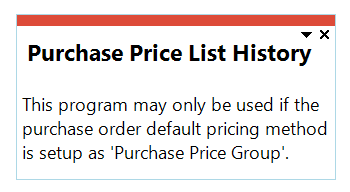
Purchase order setup pricing method
Cause
This message is displayed when you attempt to open this browse program before the Default pricing method for entry setup option has been configured.
Solution
Ensure that theDefault pricing method for entry setup option is defined as Purchase Price Group within the Setup Options (Syspro Ribbon bar > Setup > Setup Options > Preferences) before attempting to use any of the Purchase Pricing Engine programs.
FAQs
Where can I view the changes made to Purchase Price List records?
Changes made to Purchase Price List header records can be viewed within Purchase Price List History program (Program List > Purchase Orders > Purchase Pricing Engine)
Changes made to Purchase Price List detail line records can be viewed within the Purchase Price List Detailed History program (Program List > Purchase Orders > Purchase Pricing Engine)
Referencing
 Include Additional Details
When deselected, the History entries only display the Purchase Price List, Action and Date columns in the listview
When selected, all the listview column details are displayed.
 Reset
Reset
This resets the selection criteria to the default.
Purchase Price List Detailed History Options pane
| Field | Description |
|---|---|
|
Amendment date selection |
This lets you select a date range for which you want to view Purchase Price Listchanges. Indicate an Amendment date selection criteria of:
From date
Enter a From date if selection criteria Range or Single was selected. To date
Enter a To date if selection criteria Range was selected. |
|
Price lists |
Price list selection
This lets you select the Purchase Price List(s) for which you want to view changes. Indicate a Price list selection criteria of:
From purchase price list
Enter a From purchase price list if selection criteria Range or Single was selected. To purchase price list
Enter a To purchase price list if selection criteria Range was selected. List of purchase price lists
Define List of Items, select the Define list hyperlink, if Price list selection criteria List was selected. |
|
Operators |
Operator selection
This lets you select the operator which you want to view price list changes. Indicate a Operator selection criteria of:
From operator
Enter a From operator if selection criteria Single was selected. |
| Stock code |
Stock code selection
This lets you select the Stock code(s) for which you want to view changes. Indicate a Stock code selection criteria of:
From stock code
Enter a From stock code if selection criteria Range or Single was selected. To stock code
Enter a To stock code if selection criteria Range was selected. List of stock codes
Define List of Items, select Define list hyperlink, if Stock code selection criteria List was selected. |
|
Delete journal tables |
Indicate whether the amendment journal history table can be purged. |
Purchase Price List Detailed History Listview
| Field | Description |
|---|---|
|
Purchase price list |
This indicate the Purchase Price List. |
| Stock code | This indicate the Stock codes linked with the Purchase Price List. |
|
Action |
This indicate the type of amendment recorded for the Purchase Price List (e.g. Added, Changed, Deleted) as captured by the amendment journal framework. |
|
Date |
This indicate the system date and time when the change was applied and written to the journal. |
|
Field description |
This indicates the caption of the field on the Purchase Price List record that was changed. (e.g. Status, Start date, Expiry date, Description) This column will only display if the Include Additional Details check box is selected.
|
|
Before change |
This indicate the previous value held in the Field description prior to the amendment. This column will only display if the Include Additional Details check box is selected.
|
|
After change |
This indicate the new value stored in the Field description after the amendment. This column will only display if the Include Additional Details check box is selected.
|
|
Operator |
This indicates the operator code or name of the person who performed the change. This column will only display if the Include Additional Details check box is selected.
|
Copyright © 2026 Syspro PTY Ltd.