Purchase Price Query

This program lets you view purchase pricing information to determine the best price.
Exploring
 Where it fits in?
This program lets you view purchase pricing information to determine the best price.
Things you can do in this program include:
-
Evaluatebest price for group/supplier/stock/quantity/date context and view all eligible Purchase Price List and lead times.
-
Inspect price method and its relationship to the price basis and (where used) drill into Quantity Discount Breaks (QDB).
-
Confirm price list participation by checking the Status and effective dates.
This program is accessed from the Program List of the Syspro menu:
Program List > Purchase Orders > Purchase Pricing Engine
Terminology
Purchase Pricing engine
The Purchase Pricing Engine provides a simplified, single point of capture and maintenance for purchase prices, enabling configuration, data-driven supplier price lists, group-based pricing control and automated best-price selection at requisition and purchase order entry.
It extends the principles established by the Sales Pricing Engine to the Purchasing domain.
Purchase Price group
Purchase Price Groups link one or more suppliers to shared pricing rules (lists, exceptions, group-level policies) used to assign prices and discounts to a specific group of suppliers.
A Purchase Price Group can have multiple price rules, linked to price lists. The group is captured on purchase order headers and drives downstream price determination.
Purchase Price list
This indicates a dated collection of stock codes with prices, in a specified price basis (Stocking/Alternate/Purchase Price UOM)
A price method is specified for each price list, which may be a flat price (list price), a discounted price, or a quantity-discounted price.
You can define statuses against a Purchase Price List, such as Blank - Active, R - In review or H - On hold.
Only price lists that have a status of Blank - Active are included when the Purchase Price Query determines the best price.
Best price
This indicates the lowest valid purchase price across ACTIVE lists that match supplier/stock/qty/date, unless a higher-priority list is present, in which case the higher-priority list overrides best price.
Purchase Pricing method
The pricing method determines how the purchase price is calculated for each stock code in the Purchase Price List. It gets configured with in the Purchase Price List Maintenance program.
The available methods are:
-
List price
-
Discounted list price %
-
List price less Chain
-
List price less value
-
Mark-up price list
-
List price for QDB
-
List price less % for QDB
Starting
Prerequisites
To use this program, the following setup option(s) must be configured appropriately:
Setup Options
Setup Options > Preferences > Distribution > Purchase Orders
Default pricing method for entry
Indicate the default pricing method to use during Purchase Order Entry. This can be based on the current inventory cost price (this defaults
to a pricing method of Manual when capturing a stocked
purchase order line if Activity Based Costing is required, or the order is
for a foreign currency supplier, or FIFO or LIFO costing is implemented), the
last price paid to the supplier, the purchase price defined for the
supplier
This must be defined as Purchase Price Group
This will enable the Purchase Pricing Engine behavior and exposes the Purchase Pricing Engine menu under the Program List.
Security
Groups
You can restrict operator access to programs by assigning them to groups and applying access control against the group (configured using the Operator Groups program).
Roles
You can restrict operator access to programs by assigning them to roles and applying access control against the role (configured using the Role Management program).
Configuring
The following configuration options in Syspro may affect processing within this program or feature, including whether certain fields and options are accessible.
Setup Options
The Setup Options program lets you configure how Syspro behaves across all modules. These settings can affect processing within this program.
Purchase Orders Preferences
Setup Options > Preferences > Distribution > Purchase Orders
Default pricing method for entry
Indicate the default pricing method to use during Purchase Order Entry. This can be based on the current inventory cost price (this defaults
to a pricing method of Manual when capturing a stocked
purchase order line if Activity Based Costing is required, or the order is
for a foreign currency supplier, or FIFO or LIFO costing is implemented), the
last price paid to the supplier, the purchase price defined for the
supplier
This must be defined as Purchase Price Group
Solving
Error messages
Purchase order setup pricing method
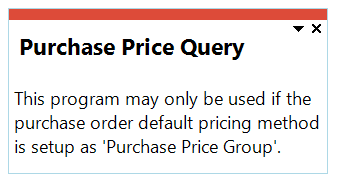
Cause
This message is displayed when you attempt to open this program before the Default pricing method for entry setup option has been configured.
Solution
Ensure that the Default pricing method for entry setup option is defined as Purchase Price Group within the Setup Options program (Syspro Ribbon bar > Setup > Setup Options > Preferences) before attempting to use any of the Purchase Pricing Engine programs.
Using
Hints and Tips
-
Columns in a listview are sometimes hidden by default. You can reinstate them using the Field Chooser option from the context-sensitive menu (displayed by right-clicking a header column header in the listview). Select and drag the required column to a position in the listview header.
-
Fields on a pane are sometimes removed by default. You can reinstate them using the Field Selector option from the context-sensitive menu (displayed by right-clicking any field in the pane). Select and drag the required fields onto the pane.
The captions for fields are also sometimes hidden. You can select the Show Captions option from the context-sensitive menu to see a list of them. Click on the relevant caption to reinstate it to the form.
If the Show Captions option is grayed out, it means no captions are hidden for that form.
-
Press Ctrl+F1 within a listview or form to view a complete list of functions available.
Referencing
 Change Criteria
This lets you change the currently configured review criteria.
Criteria
Choose to review by Supplier or by Purchase price groups. The setting enables the relevant selector below and disables the other.
| Field | Description |
|---|---|
|
Supplier |
Supplier selection
This lets you select All or Single Supplier. Supplier
This lets you browse and select a Single Supplier. |
|
Purchase price groups |
Purchase price group selection
This lets you select All or Single Purchase price group. Purchase price group
This lets you browse and select a Single Purchase price group. |
|
Stock codes |
Stock code selection
This lets you select All or Single Stock codes. Stock code
This lets you browse and select a Single Stock code. |
|
From start date |
This lets you enter a valid start date when the Purchase Price List came into effect. |
|
To expiry date |
This lets you enter a valid expiry date of thePurchase Price List. |
|
Quantity |
This lets you select a specified quantity for which you want to view the pricing information |
|
Show only active price lists |
This lets you view Purchase Price Lists with a status of Blank - Active |
| Apply exception pricing method | This lets you view the default Purchase Price Group exception method. |
Supplier Details
| Field | Description |
|---|---|
|
Supplier details |
Supplier
This display the Supplier code. Supplier name
This display the Supplier name. Currency
This display the Supplier default currency. Supplier class
This display the Supplier class. |
|
Supplier address |
Building
This display the Supplier's building name. Street
This display the Supplier's street name. City
This display the Supplier's city name. Locality
This display the Supplier's locality. Country
This display the Supplier's country name. Zip
This display the Supplier's zip code. Geolocation
This display the Supplier's geolocation.. |
Price group details
| Field | Description |
|---|---|
|
Description |
This indicates a unique description for the Purchase Price Group. |
|
Exception pricing method |
This indicates an alternative price suggestion if a stock code does not exist on any Purchase Price Lists for thisPurchase Price Group. |
|
Order qty vs. minimum order qty action |
This indicate the action required when a Purchase Price Lists has a Minimum Order Quantity greater than the Order quantity, and this Purchase Price Lists is selected in Requisitions or Purchase Orders. |
|
Order qty vs. order qty multiple action |
This indicate the action required when a selected price list's order multiple does not match the line order quantity. |
Purchase Price Details Listview
| Field | Description |
|---|---|
| Purchase price group | This indicates the uniquePurchase Price Group code. |
| Purchase price list | This indicates the unique Purchase Price Lists. |
| Stock code | This indicate the stock code included in the Purchase Price Group |
| Warehouse | This indicates the warehouse of the stock codes included in the Purchase Price Group |
| Price | This indicates the actual price of the stock code. This is enabled for List Price and List price for QDB. |
| Extended price | This indicates the base price less the selected discount. |
| Lead time | This default to the supplier stock code reference or if the Price List is by currency, then it will default to the Inventory Master Replenishment. |
| Minimum order qty | This indicates the minimum order quantity. |
| Order multiplier | This indicates the quantity multiplier. |
| Price UOM | This indicates the Price UOM. |
| Basis price |
This indicates the unit of measure on which the entire price list is based:
|
| Basis price list |
This indicate the basis price list to which the discount, mark-up percentage or quantity discount break in this price list is applied. This is enabled for all price list except List Price and List Price for QDB. A base price list is required for the following price methods.
|
| Closing date | This indicates the close date for the Purchase Price. |
| Discount %1 |
This indicates the first discount percentage. This apply to the Discount list price(%) and List price less Chain price method. |
| Discount %2 |
This indicates the second discount percentage. This apply to the List price less Chain price method. |
| Discount %3 |
This indicates the third discount percentage. This apply to the List price less Chain price method. |
| Discount value |
This indicate the discount value. This apply to the List price less value price method. |
| Markup % |
This indicates the mark-up percentage. This applies to the Mark-up price list price method. |
| Price comment | This display any price comments. |
| Priority |
This indicates the priority for the Purchase Price List. 9 indicates the highest priority and overrides the computed lowest price when the list is valid. |
| Quantity discount |
This lets you view the Quantity Discount Breaks (QDBs) This applies to the List price for QDB and List price less % for QDB methods. |
| Start date | This indicates the date on which the price list comes into effect. |
| Supplier | This indicate the Supplier the Purchase Price List are linked too. |
Copyright © 2026 Syspro PTY Ltd.