Topic: Sales Order Rules Compliance and Draft Order Control

When the AI Sales Order Rules Engine agent (within Syspro Torque ) flags a sales order, operators need one place to see what is wrong and fix it before the order moves on.
The Sales Order Rules Compliance and Draft Order Control feature introduces a D - Draft sales order status (when enabling the Place orders in draft status setup option) that holds an order back until its validations pass and its warnings are approved, surfaces errors and warnings inline in the Sales Order Entry Express program, and list them in the Draft Order Review program where supervisors filter, correct, and bulk-approve flagged orders.

Exploring
 Where it fits in?
This feature is driven by the AI Sales Order Rules Engine agent (build and configured within Syspro Torque ), the parent engine that authors rules in natural language and validates orders.
Benefits
-
A D - Draft sales order status gates release until validations and approvals are satisfied.
-
Inline error and warning displays in Sales Order Entry Express, at header and line level, with an acceptance workflow.
-
A D - Draft order review report, (Draft Order Review) for supervisors to query, filter, drill into, and bulk-approve flagged orders.
-
Order processing is faster, because operators see what needs attention and fix it without moving between programs and reports.
-
Fewer non-compliant orders reach fulfillment, because a D - Draft order cannot commit stock, credit, or planned demand until it is released.
-
Every accepted warning is auditable, with the reason, notes, operator, and timestamp recorded in the AiaAgentAccAudit table.
Functionality
-
When your company is configured for it, new sales orders are created in a D - Draft status through Sales Order Entry Express and Sales Order Entry. A sales order with a D - Draft status commits no stock, adds no demand to planning, and counts towards no credit exposure. It can be moved to an active status only once it has no blocking errors.
-
In Sales Order Entry Express a header summary panel shows total error and warning counts with an expandable detail view. Affected lines carry badges and inline indicators, with a detail sidebar for the selected line. Errors show in red (blocking); warnings show in amber and can be accepted with a captured reason and notes. Validation refreshes when the operator asks the agent to re-evaluate, or on leaving and re-entering the order.
-
The Draft Order Review program allows supervisors to set filter criteria, run a review, and get a list of D - Draft orders with their errors and warning counts. Selecting a count drills into the individual issues raised by the agent. Warning-only orders can be checked and submitted for acceptance in a batch, which posts each one to the SO Change Order Status business object.
-
Operators can launch straight into Sales Order Entry Express from Draft Order Review to correct an order.
Difference between Draft and Suspense sales order statuses
The D - Draft order status, is a new, independent status value. It is not an extension of the existing credit S - In suspense status, and the existing Suspense logic is left untouched.
Sales orders in D - Draft status commits nothing and is excluded from credit and planning.
The programs related to this feature are accessed from the Program List of the Syspro menu:
Program List > Sales Orders > Sales Order Processing
The AI Sales Order Rules Engine agent related to the feature is accessed from Syspro Torque :
-
https://torque.sysprocloud.com/
Terminology
Draft status
A sales order status that holds an order for validation and approval before it is released to active status.
A sales order is placed in a D - Draft status at creation time, controlled by the Place orders in draft status setup option (Setup Options > Preferences > Distribution > Sales Orders)
Error (blocking)
A validation issue that prevents an order from being released. Errors must be corrected in Sales Order Entry Express (Program List > Sales Orders > Sales Order Processing)
Warning (non-blocking)
A validation that can be accepted with a reason and notes, allowing the order to be released.
Approval reason
The maintained list of reasons an operator selects from when accepting a warning in Draft Order Review.
Approval reasons are created in the AiaAgentAccReason table via the Syspro Torque Rules and the AI Sales Order Rules Engine agent
Starting
Prerequisites
To use this feature, the following setup option(s) must be enabled/defined:
Setup Options
Setup Options > Preferences > Distribution > Sales Orders
Place orders in draft status
Select this to place all new sales orders in D - Draft status when created. Orders remain in draft until they pass sales order rules engine validation and any required warning acceptance before being updated to 1 - Open order line, 2 - Open back order line or 8 - Line ready to invoice status.
When enabling this setup option, orders created through Sales Order Entry and Sales Order Entry Express default to a Draft status and can be viewed in this Draft Order Review program.
To use this feature, the following must be in place:
Syspro Torque
Syspro Torque is provisioned, with the Order Rules Engine agent and its rules configured.
Security
You can secure this feature by implementing a range of controls against the affected programs. Although not all these controls are applicable to each feature, they include the following:
- You restrict operator access to activities within a program using the Operator Maintenance program.
- You can restrict operator access to the fields within a program (configured using the Operator Maintenance program).
- You can restrict operator access to functions within a program using passwords (configured using the Password Definition program). When defined, the password must be entered before you can access the function.
- You can restrict access to the eSignature transactions within a program at operator, group, role or company level (configured using the Electronic Signature Configuration Setup program). Electronic Signatures provide security access, transaction logging and event triggering that gives you greater control over your system changes.
- You can restrict operator access to programs by assigning them to groups and applying access control against the group (configured using the Operator Groups program).
- You can restrict operator access to programs by assigning them to roles and applying access control against the role (configured using the Role Management program).
Configuring
The following configuration options in Syspro may affect processing within this program or feature, including whether certain fields and options are accessible.
Setup Options
The Setup Options program lets you configure how Syspro behaves across all modules. These settings can affect processing within this program.
Sales Orders Preferences
Setup Options > Preferences > Distribution > Sales Orders
Place orders in draft status
Select this to place all new sales orders in D - Draft status when created. Orders remain in draft until they pass sales order rules engine validation and any required warning acceptance before being updated to 1 - Open order line, 2 - Open back order line or 8 - Line ready to invoice status.
Restrictions and Limits
-
A D - Draft order can only change to active (1 - Open order line, 2 - Open back order line or 8 - Line ready to invoice) status. No other status transition is permitted from D - Draft.
-
An order with outstanding errors cannot be released. Errors must be corrected first.
-
A D - Draft order commits no stock. No allocations in the InvMaster table is written until the order is released.
-
D - Draft orders are excluded from credit exposure, MRP, and all planned demands.
-
Document printing (order acknowledgment, delivery notes, invoice) is blocked for D - Draft orders.
-
D - Draft orders are not available for load assignment, blanket release, or WIP billing until released.
Solving
FAQs
Can I release an order that still has warnings?
Yes, provided it has no errors. Open the Draft Order Review program (Program List > Sales Orders > Sales Order Processing ), where you must accept each warning with a reason and notes, which are recorded in the audit trail.
The Draft Order Review process is as follows:
-
In the Draft Order Review Criteria pane, choose your filters. Optionally, set Warnings only or Anomaly free only.
-
Select Start Review to load the Draft Orders listview with each order's error and warning counts.
The criteria pane locks until you select Change Criteria. -
Select Start Review to load the listview of D - Draft orders with error and warning counts.
-
Select an order's View Issues hyperlink, to open the a dialog and view each order's issue the agent raised.
-
Select Select All. Orders with blocking errors stay locked.
-
Select Accept Selected to submit checked, warning-only orders for acceptance.
-
Capture an approval reason (from the AiaAgentAccReason table) and notes.
When you choose Accept Selected, each checked order is submitted individually to the SO Change Order Status business object as a status change that releases it from D - Draft status to its target active status (1 - Open order line, 2 - Open back order line or 8 - Line ready to invoice.)
Each successful release is counted. When the run completes, the screen shows how many orders were accepted and reloads the list so the released orders drop out of the D - Draft view. Orders with blocking errors are unchecked and locked. Correct them in Sales Order Entry Express first, using the launch-in hyperlink, before approving them again.
Do draft orders affect customer credit or planning?
No. Draft orders are excluded from credit exposure, MRP, and planning demands. Credit and planning programs does not filter on D - Draft status.
Can I still edit a Draft order?
Yes. Draft orders are fully maintainable at Sales Order Entry Express header and line level so you can correct every issue the AI Sales Order Rules Engine agent raised.
Maintenance happens in the sales order entry programs:
-
Sales Order Entry Express is the primary correction program. Errors and warnings appear inline, at header level and line level. You edit lines directly in the grid and clear warnings with the Accept Warning action at both header and line level.
-
Sales Order Entry also supports D - Draft status, so draft orders can be entered and maintained at header and line level.
From the Draft Order Review program you do not edit the order directly. You drill into its validation issues and launch into Sales Order Entry Express to make the corrections.
How do programs identify a Draft order?
Programs can identify D - Draft orders by a single check. If SorMaster.OrderStatus = D (D - Draft).
When enabling the Place orders in draft status setup option, orders created through Sales Order Entry and Sales Order Entry Express default to a D - Draft status and can be viewed in the Draft Order Review program.
Using
Process
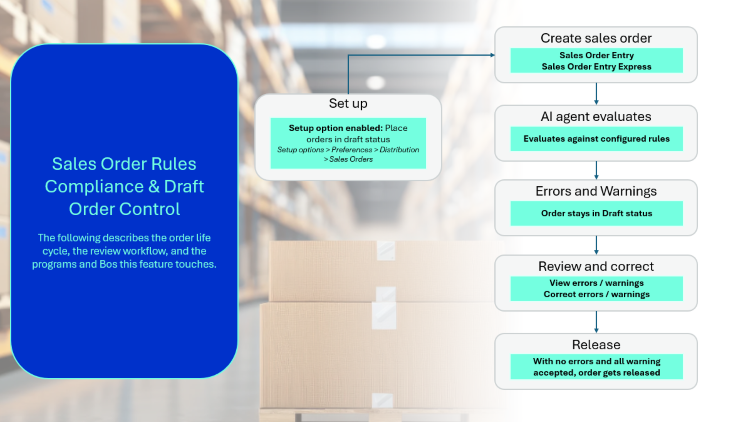
The draft sales order process from creation to release:
-
A sales order is created in Sales Order Entry Express, Sales Order Entry, or via the SO Sales Order Import business object.
-
If the Place orders in draft status setup option is enabled, the order is created in a D - Draft status.
-
The AI Sales Order Rules Engine agent evaluates the order against the configured rules and write any errors and warning to the SorMaster, SorDetail, and AiaAgentAnomalies tables.
-
If issues are found, the order remains in D - Draft status.
-
The operator corrects errors in Sales Order Entry Express, or a supervisor triages flagged orders in Draft Order Review and launches into Sales Order Entry Express to fix them.
-
The Draft Order Review process is as follows:
The program requires the Place orders in draft status setup option to be enabled. If it is not enabled, the program shows a message and exists.-
In the Draft Order Review Criteria pane, choose your filters. Optionally, set Warnings only or Anomaly free only.
-
Select Start Review to load the Draft Orders listview with each order's error and warning counts.
The criteria pane locks until you select Change Criteria. -
Select Start Review to load the listview of D - Draft orders with error and warning counts.
-
Select an order's View Issues hyperlink, to open the a dialog and view each order's issue the agent raised.
-
Select Select All. Orders with blocking errors stay locked.
-
Select Accept Selected to submit checked, warning-only orders for acceptance.
-
Capture an approval reason (from the AiaAgentAccReason table) and notes.
When you choose Accept Selected, each checked order is submitted individually to the SO Change Order Status business object as a status change that releases it from D - Draft status to its target active status (1 - Open order line, 2 - Open back order line or 8 - Line ready to invoice.)
Each successful release is counted. When the run completes, the screen shows how many orders were accepted and reloads the list so the released orders drop out of the D - Draft view. Orders with blocking errors are unchecked and locked. Correct them in Sales Order Entry Express first, using the launch-in hyperlink, before approving them again.
-
-
Any remaining warnings are accepted with a reason and notes, logged in the AiaAgentAccAudit table.
-
Stock, credit, and planning now apply.
Status Codes
Sales order status codes
Following the entry of a sales order document into the system, a status code is assigned to the order header indicating its progress within the system.
The status code held against an order determines which functions can be performed at that point, particularly during maintenance and printing.
The current order status is stored in the SorMaster table.
The status may also be stored in the SorMasterRep table, but may not be the same as the status in the SorMaster table.
For example:
For an SCT order, the status in the SorMasterRep table is the order status at the time of performing the transfer, whereas the order status in SorMaster is the current status.
The following are the possible statuses that can be assigned to a sales order header:
| Status | Description |
|---|---|
| 0 - Order in process |
The entered order is currently being maintained by another user or the End order function was not performed (e.g. a power failure occurred during the entry or maintenance of an order). This status can be reset to the previous status using the Order Maintenance function. |
| 1 - Open order line |
An order has been entered into the system. A delivery note must be printed before the order can be released for invoicing. Next status: 4 - In warehouse The following actions place an order into a status of 4 - In warehouse:
|
| 2 - Open back order |
An order or billing contains lines which could not be shipped owing to a stock shortage. The order or billing may have been partially invoiced, but there are remaining lines on back order. Releases for a Blanket Sales Order have been accepted. An order or billing has to pass through the invoicing process at least once to become an open order. You can cancel an order that is in a status 2 - Open back order providing that the order has been partially invoiced and the Cancel open order previously invoiced setup option is enabled (Setup Options > Preferences > Distribution > Sales Orders). Your configuration of the Back orders setup option affects how this status is updated (Setup Options > Preferences > Distribution > Sales Orders):
Next status:
|
| 3 - Released back order |
An open back order now has items to be shipped and has been released for delivery note printing. Billings are released into status 8 - To invoice, not status 3 - Released back order. The next delivery note print will produce a delivery note document. Your configuration of the Back orders setup option affects how this status is updated (Setup Options > Preferences > Distribution > Sales Orders):
Next status: 4 - In warehouse |
| 4 - In warehouse |
A delivery note has been printed for an open order or a released back order. Next status: 8 - To invoice |
| 8 - To invoice |
A billing has been entered. A back ordered billing has been released. An order in the warehouse has been released. Next status:
|
| 8 - To transfer |
A Supply Chain Transfer order has been entered. Next status: 9 - Complete |
| F - Forward order |
The order is indefinite and must be released before it is processed as a normal order. Next status: 1 - Open order line When releasing a Forward order, the quantity is placed in back order when any of the following are true:
|
| S - In suspense |
An order or billing has failed credit checking. An order or billing has been placed on hold. Next status: The order reverts to the status in process (0 - Order in process) prior to the order being suspended. |
| 9 - Complete |
A sales order has been fully invoiced and will be removed from file when the Order Purge program is run. When a Blanket Sales Order is complete in terms of invoicing, it is set to a status of S - In suspense while waiting for the next release. It is not set to a status of 9 - Complete. |
| * Cancelled |
An order was canceled during entry (i.e. before it was completely entered into the system) and will be removed from the file when the Order Purge program is run. |
| \ Cancelled |
An order was canceled prior to invoicing and will be removed from the file when the Order Purge program is run. |
| R - Released to picking |
Indicates that an order has been released to picking. An open order (status 1 - Open order line) which contains lines for picking, would typically move to a status R - Released to picking and then P - In picking. Sales orders can only be invoiced when the picking cycle has been completed. |
| P - In picking |
Indicates that the order is currently within the picking process. Once picking has completed, the order would return to a status 1 - Open order line, therefore enabling you to add additional lines if required, or proceed to the next required stage. |
|
D - Draft |
An order is held for validation and approval before it can be processed. Orders are created in this status when the Place orders in draft status setup option is enabled to place sales orders in draft on creation. The AI Sales Order Rules Engine agent evaluate the order and flags any errors and warnings, which you correct or accept in Draft Order Review.
You can release an order to status 1 - Open order line, 2 - Open back order line or 8 - Line ready to invoice only once it has no outstanding errors and any warnings have been accepted with a reason. While an order is in D - Draft, no stock is committed and the order is excluded from credit checking and demand planning. |
Affected programs
The following indicates areas in the product that may be affected by implementing this feature:
Setup programs
Setup Options
Setup Options > Preferences > Distribution > Sales Orders
Place orders in draft status
Select this to place all new sales orders in D - Draft status when created. Orders remain in draft until they pass sales order rules engine validation and any required warning acceptance before being updated to 1 - Open order line, 2 - Open back order line or 8 - Line ready to invoice status.
When enabling this setup option, orders created through Sales Order Entry and Sales Order Entry Express default to a Draft status and can be viewed in this Draft Order Review program.
Resource Explosion
The following indicates areas in the product that may be affected by implementing this feature:
-
Sales orders in status of S, 0, 2, 3, 4 or 8 are processed. Sales orders in D - Draft are not processed, as a Draft order carries no committed demand until it is released to an active status.
Transaction Processing programs
Sales Order Entry Express
Program List > Sales Orders > Sales Order Processing
You use this program to capture sales orders using a grid-style entry process.
The following indicates areas in the product that may be affected by implementing this feature:
-
On creation, when the Place orders in draft status setup option is enabled, the status defaults to D - Draft
-
Errors and warnings can be viewed within the Sales order draft issues field.
Sales Order Entry
Program List > Sales Orders > Sales Order Processing
This program lets you record and maintain various types of sales orders.
The following indicates areas in the product that may be affected by implementing this feature:
-
On creation, when the Place orders in draft status setup option is enabled, the status defaults to D - Draft
-
Errors and warnings can be viewed within the Draft issues field.
Inventory Demand Review
Inventory > Transaction Processing > Inventory Demand Review
You use this program to review demand for stock items from sales orders and job allocations (typically upon receiving a supply) and to reserve, allocate or issue quantities to satisfy these demands.
The following indicates areas in the product that may be affected by implementing this feature:
-
Sales orders in D - Draft status are excluded from demand review. A draft order carries no committed demand, so no stock is reserved, allocated, or issued against it until it is released to an active status.
Part Billings
Program List > Work in Progress > Job Postings
You use this program to invoice a customer based on work completed for a non-stocked job or to raise an asset in suspense for a capex requisition line linked to the job (see Asset Capex Items and Assets in Suspense).
The following indicates areas in the product that may be affected by implementing this feature:
-
You cannot part bill a job that is linked to a sales order in D - Draft status. A descriptive error is returned. Invoicing against a Draft sales order would raise an invoice before the order has been validated, so the linked order must first be released to an active status.
Job Receipts
Program List > Work in Progress > Job Postings
This program lets you receive a manufactured item into stock from a Work in Progress job.
The following indicates areas in the product that may be affected by implementing this feature:
-
If the linked sales order is in D - Draft status, the item is receipted into stock, but the sales order is not updated. No ship or reserve quantity is applied and no dispatch or invoice action is taken against a draft order. Release the order from D - Draft status to an active status before a job receipt can update it.
Load Planning Sales Order Lines
Sales Orders > Load Planning > Browses > Browse on Delivery Loads > Sales Order Lines for Route
You use this program to add sales order lines to a specific delivery route and load when the Basis of calculating load capacity is Ship quantity or Order quantity (Sales Orders Setup).
The following indicates areas in the product that may be affected by implementing this feature:
-
A sales order in D - Draft status cannot be added to a delivery route or load. A Draft order carries no committed quantities.
Batch programs
Draft Order Review
Program List > Sales Orders > Sales Order Processing
This program lets supervisors review, correct, and approve sales orders held in D - Draft status after the AI Sales Order Rules Engine agent has flagged them with errors or warnings. You set filter criteria, run a review, drill into the validation issues on any order, open Sales Order Entry Express to correct problems, and bulk-approve warning-only orders so they release to active status.
Initial Build Extract
Requirements Planning > Master Production Schedule > Setup > Initial Build Schedule Extract
You use this program to create a build schedule file by extracting any MPS items from both the forecast file and/or sales order files.
The following indicates areas in the product that may be affected by implementing this feature:
-
Sales orders in D - Draft status are excluded from build schedule extraction. A draft order must not drive the master production schedule until it is released to an active status.
Back Order Release
Sales Orders > Sales Order Processing > Back Order Release
You use this program to review and manually release order lines that were placed on back order during processing in the Sales Order Entry program. The order lines can be released to ship or to reserved, if you are reserving stock (Sales Orders Setup).
The following indicates areas in the product that may be affected by implementing this feature:
-
Orders in D - Draft status are automatically excluded. A draft order commits no stock and has no back-order quantities until it is released to an active status, so it cannot be released from back order here.
Back Order Review
Program List > Sales Orders > Sales Order Processing
This program lets you review sales orders that are on back order, and optionally create a supply to replenish the shortage.
The following indicates areas in the product that may be affected by implementing this feature:
-
Order lines for sales orders in D - Draft status are excluded from the review. A draft order commits no stock and has no back-order quantities until it is released to an active status, so it is excluded from the review.
Query programs
Customer Query
Program List > Accounts Receivable
This program lets you view data relating to your customers in the Accounts Receivable module.
The following indicates areas in the product that may be affected by implementing this feature:
-
Sales Orders in D - Draft status are not included in Order Value. A draft order does not contribute to the customer's outstanding order value or credit exposure until it is released to an active status.
Sales Order Query
Program List > Sales Orders
This program lets you view the latest information for sales orders captured or maintained.
The following indicates areas in the product that may be affected by implementing this feature:
-
Order status filter (under Options > Preferences) has been amended. Users can now filter the query to D - Draft orders (or select to exclude them).
Delivery Load Query
Sales Orders > Load Planning > Delivery Load Query
You use this program to view load planning delivery load information in order to track the status of a delivery load or the order on a specific load.
The following indicates areas in the product that may be affected by implementing this feature:
-
The Order Status field under Sales Order Line Details will include the D - Draft status.
A Draft order is excluded from load assignment (Load Planning Sales Order Lines), so it would not normally appear on a load. If a D - Draft is shown here, its status is labelled Draft so it is clearly identifiable.
Browse programs
SO Sales Orders
> Browse on Active Sales Orders
You use this program to view details of sales orders on file.
The following indicates areas in the product that may be affected by implementing this feature:
-
D - Draft orders has been added to the Options / Include list. You can only select to view D - Draft orders when you select Order from the Sequence menu.
Affected business objects
The following indicates the business objects that are affected by this feature:
Transaction objects
SO Sales Order Import
The SO Sales Order Import business object lets you add a new sales order and change or cancel an existing sales order.
Multiple orders can be passed to this object with any combination of the add, cancel and change requests. The input for each order is made up of header information and individual detail lines.
SO Change Order Status
The SO Change Order Status business object lets you update the order status of existing sales orders.
SO Back Order Releases Import
The SO Back Order Releases Import business object can be used to release back order quantities or alternatively, update or confirm ship quantities against a batch of existing sales order lines. It also allows the order status to be updated to reflect the new ship status.
Additional information
Releasing Back Orders
The business object will move the back order quantity to ship, adding the supplied quantity to any existing ship quantity against the sales order line. The supplied quantity cannot exceed the current back order quantity against the sales order line unless the element AdjustOrderQuantity is selected.
This business object can be used in conjunction with the business object, SORRBO, which builds and retrieves sales order back order release information.
Updating The Ship Quantity
This functionality makes it possible to update the sales order after picking has been completed to either confirm the ship quantity against the line and set the status of the order to an 8 (Released for invoice) or adjust the ship quantity against an order line.
It is only possible to update the ship quantity instead of the back order quantity under the following conditions:
The Sales Order Setup option: Allow changes to status 4 orders when import status is 8 (Setup | Distribution Setup | Sales Order Setup | General 3 tab) is selected.
The element ReleaseFromShip is set to Y.
The element OrderStatus contains an 8 (Released for invoice) or N unless either of the elements ZeroShipQuantity or AllocateSerialNumbers is selected.
The status of the sales order to be imported is 4 (Warehouse) unless either of the elements ZeroShipQuantity or AllocateSerialNumbers is selected, or the element OrderStatus contains an N.
The supplied quantity will replace the existing ship quantity against the sales order line. The supplied quantity cannot exceed the current ship quantity against the sales order line. If the ship quantity is reduced, the back order quantity against the sales order line will be increased. To reduce the ship quantity to zero, the element ZeroShipQuantity must be set to Y and the quantity supplied must be 0.
Note: In the parameters there is an element IgnoreAutoDepletion. This element is only relevant if the SYSPRO option to auto-deplete lots and bins for sales orders has been selected. If set to 'Y', then any processing will be carried out as if auto-depletion were not required, and the relevant lot and bin numbers must be supplied in the data XML The default is 'N'.
Updating the Stocking quantity to Ship
The element 'ActualShipQty' is used in conjunction with a setting of the 'ReleaseFromShip' element - 'A' for apply actual quantity to ship. This can only be used under the following conditions:
The element 'OrderStatus' must be 'N' - that is you cannot change the order status at the same time
The element 'ReleaseFromMultiplelines' cannot be 'Y'
the element 'ActualShipQuantity' must contain a value which will be in the stocking unit of measure
The order must be in a status 4 or 8
The line must be a stocked line
The S/O option 'Unit of measure conversion quantities are theoretical' must be selected
The order unit of measure must not equal the stocking unit of measure
The order line itself must contain a ship quantity (this means you must first move the line to ship, and then update the qty)
The quantity in ActualShipQuantity supplied must be different to the stocking quantity to ship on the sales order line
The stock code cannot be ECC or a kit
If the item is bin or serialized then the total quantity given in the bin and serial nodes must be in the stocking unit of measure, and must equal the difference between the stocking quantity to ship on the sales order line, and the contents of ActualShipQuantity.
If the difference is an increase, then there must be sufficient available in the warehouse, and in the supplied lot / bin / serial
If the difference is a decrease, then supplied lot / bin / serial must already be allocated to the order line
Lots
If the stock code is traceable, a lot number must be supplied when releasing back orders unless automatic depletion is required in Sales Orders (Setup | Distribution Setup | Inventory Setup | Depletion tab). Automatic depletion is not applicable if the stock code is both traceable and serialized. The lot expiry date supplied against the element LatestAcceptedLotExpiryDate will be used to verify the lot's expiry. The default for this element is the current date.
When reducing the ship quantity (but not setting it to zero) and placing items on back order, only the lot number that is to be de-allocated must be supplied.
If the element ZeroShipQuantity is set to Y, a lot number does not have to be supplied, as it will be automatically de-allocated.
If the element ReleaseFromMultipleLines is set to Y, the lot number will be allocated against the sales order lines from top to bottom in the file.
Multiple Bins
If multiple bins are installed (Setup | Distribution Setup | Inventory | General tab), bins must be supplied when releasing back orders unless automatic depletion is required in Sales Orders (Setup | Distribution Setup | Inventory Setup | Depletion tab). Automatic depletion is not applicable if the stock code is both traceable and serialized.
When releasing a back order quantity to ship, the quantities supplied for the bins must add up to the import quantity for the line. When reducing the ship quantity (but not setting it to zero) and placing items on back order, only the bins that are to be de-allocated must be supplied.
If the element ZeroShipQuantity is set to Y, bins do not have to be supplied, as these will be automatically de-allocated.
If the element ReleaseFromMultipleLines is set to Y, bins will be allocated against the sales order lines from top to bottom in the file.
Serial Numbers
When releasing a back order quantity to ship, the quantities supplied for the serial numbers must add up to the import quantity for the line. When reducing the ship quantity (but not setting it to zero) and placing items on back order, only the serial numbers that are to be de-allocated must be supplied.
If the element ZeroShipQuantity is set to Y, serial numbers do not have to be supplied, as these will be automatically de-allocated.
The serial number expiry date supplied against the element LatestAcceptedSerialExpiryDate will be used to verify the serial number's expiry. The default for this element is the current date.
The serial number scrap date supplied against the element LatestAcceptedSerialScrapDate will be used to verify whether the serial has been scrapped.
When updating a line containing a batch serialized item where serial numbers are recorded during order entry (SYSPRO menu | Inventory | Setup | Stock Codes | Tracking tab), the parameter AddQuantityToBatchSerial must be selected. In addition, this parameter must be selected when reducing the ship quantity to zero and no serial allocations have previously been entered.
When adding a new serial number for those items where serial numbers are recorded during order entry:
The serial creation date supplied against the element SerialCreationDate will be saved against the serial number. The default for this element is the current date.
The serial scrap date supplied against the element SerialScrapDate will be saved against the serial number.
The serial expiry date supplied against the element SerialExpiryDate will be saved against the serial number.
The serial location supplied against the element SerialLocation will be saved against the serial number.
If the element ReleaseFromShip is set to Y and the import quantity is equal to the current ship quantity against the line, the element AllocateSerialNumbers can be used to confirm the ship quantity and allocate the serials. In addition, to use this element, the Sales Order Setup option: Capture serial numbers for orders (Setup | Distribution Setup | Sales Order Setup | Details tab) must be deselected and the stock item must be setup to record serial numbers during order entry (SYSPRO menu | Inventory | Setup | Stock Codes | Tracking tab). This element cannot be used in conjunction with the elements: AdjustOrderQuantity, CompleteLine, ZeroShipQuantity or ReleaseFromMultipleLines.
If the element ReleaseFromMultipleLines is set to Y, serial numbers will be allocated against the sales order lines from top to bottom in the file.
Order Status
If an entry of 3 is made against the element OrderStatus, orders that are in status 2 (Open backorder) will be changed to status 3 (Released backorder) after releasing the back order quantity. If an entry of 8 is made against this element, the order will go to status 8 (Released for invoice) provided there are no serialized items with ship quantities for which serial numbers must still be allocated. If an entry of N is made against this element, the order status will remain the same as it was before the update.
Scheduled Orders
If a date is entered against the element ScheduleAllocateDate, this date will be used to check whether the number of days within which a scheduled order will be allocated has been exceeded. This check is only performed if the order is a scheduled order and the number of days within which scheduled orders will be allocated is not 999 (Setup | Distribution Setup | Sales Order Setup | General 1 tab).
If a date is entered against the element ScheduleLineShipDate, this date will be used as the line ship date for scheduled orders.
Additional Options
The element ReleaseFromMultipleLines enables a quantity to be specified that can be applied to every occurrence of the stock code on a sales order. This means that one Item instance can be created to ship a number of lines, instead of having an Item instance for each order line. The quantity is applied to each order line until there is no more quantity available to ship. The back order quantities are reduced in line number order. When using this element, the element SalesOrderLine must not be specified but entries must be specified against the elements StockCode and Warehouse. This element cannot be used in conjunction with the elements ReleaseFromShip, CompleteLine, AllocateSerialNumbers, AdjustOrderQuantity or if automatic depletion of bins/lots is required in Sales Orders (Setup | Distribution Setup | Inventory Setup | Depletion tab).
The element CompleteLine forces the sales order line to be marked as complete, regardless of whether there is a remaining back order quantity (i.e. the back order quantity against the sales order line is set to zero, even if there should have been a back order quantity remaining after releasing the required back order quantity or reducing the ship quantity). This element cannot be used in conjunction with the elements AdjustOrderQuantity and AllocateSerialNumbers.
The element AdjustOrderQuantity forces the order quantity against the sales order line to equal the entered quantity. This element cannot be used in conjunction with the elements ReleaseFromShip and AllocateSerialNumbers
WIP Part Billings
The WIP Part Billings business object lets you invoice a customer based on work completed for a non-stocked job. At the same time the work in progress value is reduced and may be distributed to selected General Ledger codes.
TPM Promotion Code Maintenance
The TPM Promotion Code Maintenance business object allows you to add, maintain and delete trade promotion codes. This functionality includes limiting budgets, associated products and qualifications. Additionally, there are eSignatures available for adding, changing or deleting a trade promotion.
Query objects
SO Draft Order Review Query
The SO Draft Order Review Query business object lets you retrieve sales orders held in D - Draft status, together with the errors and warnings raised against them, for display in the Draft Order Review program. You supply selection criteria such as customer, sales order, sales person, area, branch, and requested ship date, and can restrict the results to anomaly-free orders or to orders with warnings only. Results are returned in pages, and a query for a single order also returns the collection of individual validation issues raised for that order.
Customer Query
The Customer Query business object lets you view information held against a customer in the Accounts Receivable module.
SO Sales Order Query
The SO Sales Order Query business object lets you query a sales order number or a specific sales order / invoice number combination and returns sales order header and detail line information. Archived sales orders can't be queried.
SO Backlog by Stock Code Query
The SO Backlog by Stock Code Query business object is designed for use with the SRS report “Backlog Report by Stock Code”.
Sales Order Commitment
The Sales Order Commitment business object is designed for use with the SRS report “Sales Order Commitment”.
SO Order Credit Checking Query
The SO Order Credit Checking Query business object lets you obtain the information for an SRS report.
SO Document Details Query
The SO Document Details Query business object is used by the Espresso Application (or third party program) to obtain sales order and invoice details. This then returns a list of documents that can be printed.
Copyright © 2026 Syspro PTY Ltd.