Topic: Catch Weight

The Catch Weight capability provides a unified approach to managing products that are bought, stocked, and sold in multiple units of measure. By capturing and tracking actual versus standard weight throughout the product lifecycle, businesses can improve costing accuracy, reduce risk, and gain better control over margins. This enhancement is particularly valuable for industries where weight variability is a critical factor in operations and profitability.

Exploring
 Where it fits in?
It lets you receipt, inspect, issue, pick and manufacture products whose actual weight varies from one unit to the next.
You transact in a convenient unit such as a box or a carton, and Syspro records a second quantity alongside it. The actual stock quantity in the stocking unit of measure. Because no conversion factor is applied to that second quantity, it reflects what was physically weighed rather than what the unit of measure conversion predicted. Inventory, costing and yield reporting all work from the actual figure.
Catch weight items are common in food and beverages, chemicals and metals, where weight variability is inherent to the product.
Catch Weight breaks that assumption. For a flagged stock code, transactions carry both the quantity in the order or manufacturing unit of measure and the actual stock quantity in the stocking unit of measure, and the two need not be divisible by the conversion factor. The actual figure drives inventory, costing, lot, bin and serial allocation, and yield.
Benefits
-
Inventory valuation and purchase price variance reflect the weight actually received, and job costs reflect the weight actually issued and produced, rather than an estimate converted from the order or manufacturing quantity.
-
Receipt the actual weight delivered against a purchase order line, even where it differs from the converted order quantity. Over-pick or under-pick a job, with a genuine shortage raising a stock adjustment automatically.
-
Carry the actual weight through the full inspection workflow: count, inspect, scrap, rework and accept.
-
Remove the spreadsheets and external systems used to track variable weight across purchasing and production. Weights captured by a barcode scanner pass straight into the business object, with no manual re-entry.
-
Production and material yield per job, reported from actual against estimated stock quantities, strengthens regulatory and margin oversight.
Functionality
Catch Weight lets you:
-
Flag a stock code as a catch weight item, and separately as a green weight item.
-
Capture an actual stock quantity alongside the transaction quantity in Purchase Order Receipts, Shipment Receipt, Job Receipts, Job Issues and WIP Inspection.
-
Import purchase order receipts and job receipts carrying both quantities.
-
Pass the actual stock quantity to lot, bin and serial allocation as the total required.
-
Over-pick a job with a warning that can be suppressed, and flag an under-pick as a genuine shortage.
-
Query catch weight yield for a job, its co-products and its material allocations.
The programs related to this feature are accessed from the Program List of the Syspro menu:
-
Program List > Inventory > Setup (Stock Code Maintenance)
-
Program List > Purchase Orders > Purchase Order Processing (Purchase Order Receipts)
-
Program List > Work in Progress > Job Postings (Job Receipts)
-
Program List > Work in Progress > WIP Picking (WIP Pick Maintenance)
Terminology
Catch Weight Item
This refers to a stock code whose actual weight varies from one unit to the next, and for which Syspro records an actual stock quantity separately from transaction quantity.
You enable the Catch Weight option on the Stock Code Details form of the Stock Code Maintenance program.
Catch Weight requirements
This refer to the conditions that must be true before catch weight processing applies to a transaction:
-
the stock code is flagged as a catch weight item (by selecting the Catch Weight option on the Stock Code Details form of the Stock Code Maintenance program), and
-
the purchase order line was captured in the alternate unit of measure, or the job was created in the manufacturing unit of measure.
Where either conditions fails, the stock quantity field is populated with the expected stock quantity and disabled, and the transaction behaves exactly as it does today.
Stock quantity
The stock quantity is the actual quantity in the stocking unit of measure, entered or scanned at the point the goods are handled. It is the figure that drives inventory, costing and allocation.
You enter the stock quantity in addition to the quantity in the order or manufacturing unit of measure. Syspro does not check that the stock quantity equals the order or manufacturing quantity multiplied by the conversion factor, because the actual weight of a catch weight item often differs from the converted figure.
A stock code is ordered in boxes and stocked in kg, with a conversion factor of 10. You receipt 1 box. The conversion predicts 10 kg, but the box weighs 11 kg, so you enter 1 as the stock quantity. Syspro accepts it.
Estimate stock quantity
This refers to the quantity Syspro calculates by converting the quantity in the order or manufacturing unit of measure to the stocking unit of measure using the conversion factor.
For a catch weight item it is the baseline that the actual stock quantity is measured against in yield reporting.
Manufacturing unit of measure
This lets you define your bill of materials in a format relevant to the way in which you manufacture an item (i.e. in the unit of measure that you make the item instead of the stocking unit of measure). Transactions are always calculated in the stocking unit of measure before being converted to the manufacturing unit of measure for display and reporting purposes.
Quantities for lots, bins and serials always remain in the stocking unit of measure and bin allocations are made in the stocking unit of measure.
You can configure a manufacturing unit of measure against the parent item as well as any attached components. Each route can have a separate parent unit of measure with components related to that parent (this lets you define all the combinations you use to manufacture an item).
Once a quantity is captured in the manufacturing unit of measure, it is stored in a manufacturing unit of measure entered quantity field and converted back to the stocking unit of measure according to your Inventory conversion factors. The stocking unit of measure is retained, enabling you report on either the stocking or the manufacturing unit of measure.
-
A manufacturing unit of measure cannot be defined for the following part categories:
-
Planning bill
-
Kit part
-
Phantom part
-
Notional part
-
Catch weight items
For catch weight processing, the manufacturing unit of measure can be the manufacturing, alternate or other unit of measure defined against the stock code. A job created in any of the three meets the catch weight requirement.
For a catch weight item, the stocking quantity is not converted from the manufacturing quantity. You enter two quantities:
-
the quantity in the manufacturing unit of measure,
-
and the actual stock quantity in the stocking unit of measure.
The stock quantity is the weight actually produced, issued or inspected, and Syspro does not check it against the inventory conversion factors.
Syspro calculates the converted figure, known as the estimated stock quantity. Yield reporting compares it against the actual stock quantity.
Quantities for lots, bins and serials remain in the stocking unit of measure. The actual stock quantity is passed to lot, bin and serial allocation as the total required.
For a job issue, the job material allocation must have been added in the manufacturing unit of measure. The work in progress quantity against the inventory warehouse is still based on the estimated stock quantity.
A job is created to make 1 BOX, with a stocking unit of measure of kg and a conversion factor of 10. Without catch weight, the receipting 1 BOX records 10kg. With catch weight, you receipt 1 BOX and enter 11 kg as the stock quantity. Syspro records 11 kg, and yield reporting measures it against the estimated stock quantity of 10 kg. A production yield of 110%.
A catch weight item also cannot be a
-
bulk issue item,
-
a floor stock item,
-
a traceable item using a sample quantity,
-
or an item with unit quantity processing selected.
Green weight item
This refers to a stock code flagged as a green weight item. In the Syspro 8 2026 R2 release the flag is an indicator only.
Production yield percentage
This refers to the actual stock quantity manufactured divided by the estimated stock quantity manufactured, multiplied by 100. Above 100% is a positive yield. Below 100% is a negative yield.
Material yield percentage
This refers to the estimated stock quantity issued divided by the actual stock quantity issued, multiplied by 100. The calculation is the reverse of production yield, because issuing less than estimated is the favorable outcome. Above 100% is a positive yield, meaning an under-issue. Below 100% is a negative yield, meaning an over-issue.
Catch weight shortage
This refers to an under-pick that represents genuine missing stock rather than a weight variance. Where it is flagged as a shortage, a stock adjustment is raised regardless of the warehouse control option.
Starting
Prerequisites
To use this feature, the following setup option(s) must be enabled/defined:
Setup Options
Setup Options > Preferences > Distribution > Sales Orders
Theoretical uom conversion
This indicates that the relationship between the ordering and stocking units of measure is not absolute.
For example:
You sell fruit that you stock in kilograms but sell by the box. Theoretically, there should be 10 kilograms of fruit in a box. However, only at the time of actually selling (shipping) the fruit do you know exactly how many kilograms you have sold. An example of an absolute unit of measure is if you sell items by the dozen (i.e. there are always 12 items in a dozen).
For each weight items, receipting against a purchase order or job, or accepting from WIP inspection, updates the stocking quantity to ship on the linked sales order with the actual stock quantity received.
Security
You can secure this feature by implementing a range of controls against the affected programs. Although not all these controls are applicable to each feature, they include the following:
- You restrict operator access to activities within a program using the Operator Maintenance program.
- You can restrict operator access to the fields within a program (configured using the Operator Maintenance program).
- You can restrict operator access to functions within a program using passwords (configured using the Password Definition program). When defined, the password must be entered before you can access the function.
- You can restrict access to the eSignature transactions within a program at operator, group, role or company level (configured using the Electronic Signature Configuration Setup program). Electronic Signatures provide security access, transaction logging and event triggering that gives you greater control over your system changes.
- You can restrict operator access to programs by assigning them to groups and applying access control against the group (configured using the Operator Groups program).
- You can restrict operator access to programs by assigning them to roles and applying access control against the role (configured using the Role Management program).
Restrictions and Limits
The following restrictions apply when defining a stock code as a catch weight item or a green weight item. The stock code cannot be:
-
a kit type item, a notional part or a phantom
-
a bulk issue item or a floor stock item
-
a traceable item using a sample quantity
-
an item with unit quantity processing selected
The following restrictions apply to processing:
-
You cannot enable or disable the Catch Weight option within the Stock Code Maintenance program (Program List > Inventory > Setup while there is a quantity on order, allocated to work in progress, or in inspection for the stock code.
-
Catch weight processing applies only where the stock code is flagged and the purchase order line was captured in the alternate unit of measure, or the job was created in the manufacturing unit of measure. When either conditions fails, the stock quantity is populated with the expected stock quantity and disabled.
-
Syspro does not check the stock quantity against the order or manufacturing quantity multiplied by the conversion factor. Other validation still applies.
In WIP Inspection, for example, the stock quantity cannot exceed the manufactured stock quantity. -
In Syspro 8 2026 R2 the Green Weight option within Stock Code Maintenance marks the stock code only. It is not checked elsewhere in the system.
-
Catch weight items are excluded from the Inventory Demand Review program.
-
Picking is done in the stocking unit of measure. New material allocations are created when you under-pick a catch weight item.
-
Where a job material allocation is added in the manufacturing unit of measure, the work in progress quantity against the inventory warehouse is based on the estimated stock quantity, and job issues deplete it by the estimated stock quantity, not the actual. The same applies to reserving quantities, except in picking, where the actual is known.
Solving
FAQs
How do I flag a stock code as a catch weight item?
You would typically define a catch weight item when the actual weight of a stock code varies from one unit to the next (e.g. whole chickens or blocks of cheese), and you want to capture the actual weight in the stocking unit of measure each time you receipt, issue or inspect it.
The following steps detail the procedure to define a stock code as a catch weight item:
-
Browse for the relevant stock code using the Stock code field from the toolbar.
-
Define the unit of measure you transact in, in the Stock Code Details pane:
-
For a bought-out item, define the Alternate uom unit and Alternate UOM factor.
-
For a made-in item, define the Manufacturing uom unit and Manufacturing uom factor.
-
-
Select the Catch Weight option on the Stock Code Details form of the Stock Code Maintenance program (Program List > Inventory > Setup)
The following restrictions apply when defining a stock code as a catch weight item or a green weight item. The stock code cannot be:
-
a kit type item, a notional part or a phantom
-
a bulk issue item or a floor stock item
-
a traceable item using a sample quantity
-
an item with unit quantity processing selected
Why can't I change the catch weight option on a stock code?
You cannot enable or disable the option under Stock Code Maintenance while there is a quantity on order, allocated to work in progress, or in inspection for that stock code. Clear those quantities first.
Why is the Stock receipt quantity field disabled in the Purchase Order Receipts and other programs?
The Stock Receipt Quantity field is in the Receipt section of the Purchase Order Receipt pane, and in the Receipt details section of the Receipt into Inspection pane, of the Purchase Order Receipts program (Program List > Purchase Orders > Purchase Order Processing)
The field is enabled only when both of these conditions are met:
-
The stock code is a catch weight item.
-
The purchase order line was captured in the alternate unit of measure.
-
The job was created in the manufacturing unit of measure. This can be manufacturing, alternate or other unit of measure.
Otherwise the field shows the expected stock receipt quantity and you can't change it.
The same rule applies to these fields, with a different second condition:
-
Stock quantity in the Job Receipts program (Program List > Work in Progress > Job Postings), and the Stock quantity counted fields in the WIP Inspection program. The job was created in the manufacturing unit of measure.
-
Stock quantity on a specific issue in the Job Issues program (Program List > Work in Progress > Job Postings). The job material allocation was added in the manufacturing unit of measure.
Why isn't the stock quantity checked against the conversion factor?
The actual weight of a catch weight item doesn't follow the conversion.
A box nominally holding 10 kg may weigh 11 kg. If Syspro required a stock quantity to equal the order quantity multiplied by the conversion factor, you couldn't record the real weight.
What happens when I pick more or less than required for a job?
Both are allowed for catch weight items. Picking is done in the stocking unit of measure. Picking less than required doesn't raise an error and doesn't create a new material allocation.
How does catch weight work through inspections?
In Purchase Order Inspection (Program List > Purchase Orders > Purchase Order Processing), all quantity processing is done in the stocking unit of measure.
In WIP Inspection, quantity processing is also done in the stocking unit of measure, but you enter the quantity in the manufacturing unit of measure as well. Each inspection action has its own stock quantity field:
-
Stock quantity counted
-
Stock quantity inspected
-
Stock quantity scrapped
-
Stock quantity reworked
-
Stock quantity accepted
Each is validated against the stock quantity manufactured, which it can't exceed.
How do I pass a scanned weight into Syspro?
Your scanning solution passes the weight read from the barcode to the relevant Syspro business object as the actual stock quantity.
The stock quantity is used only when the catch weight requirements are met.
Where do I view yield for a catch weight job?
Use the Job Catch Weight Yield report (Program List > Work in Progress > Reports ) or the Job Catch Weight Yield Query business object. Both return the finished good yield for the job and the material yield for each material allocation. The business object also returns the yield for each co-product.
Using
Process
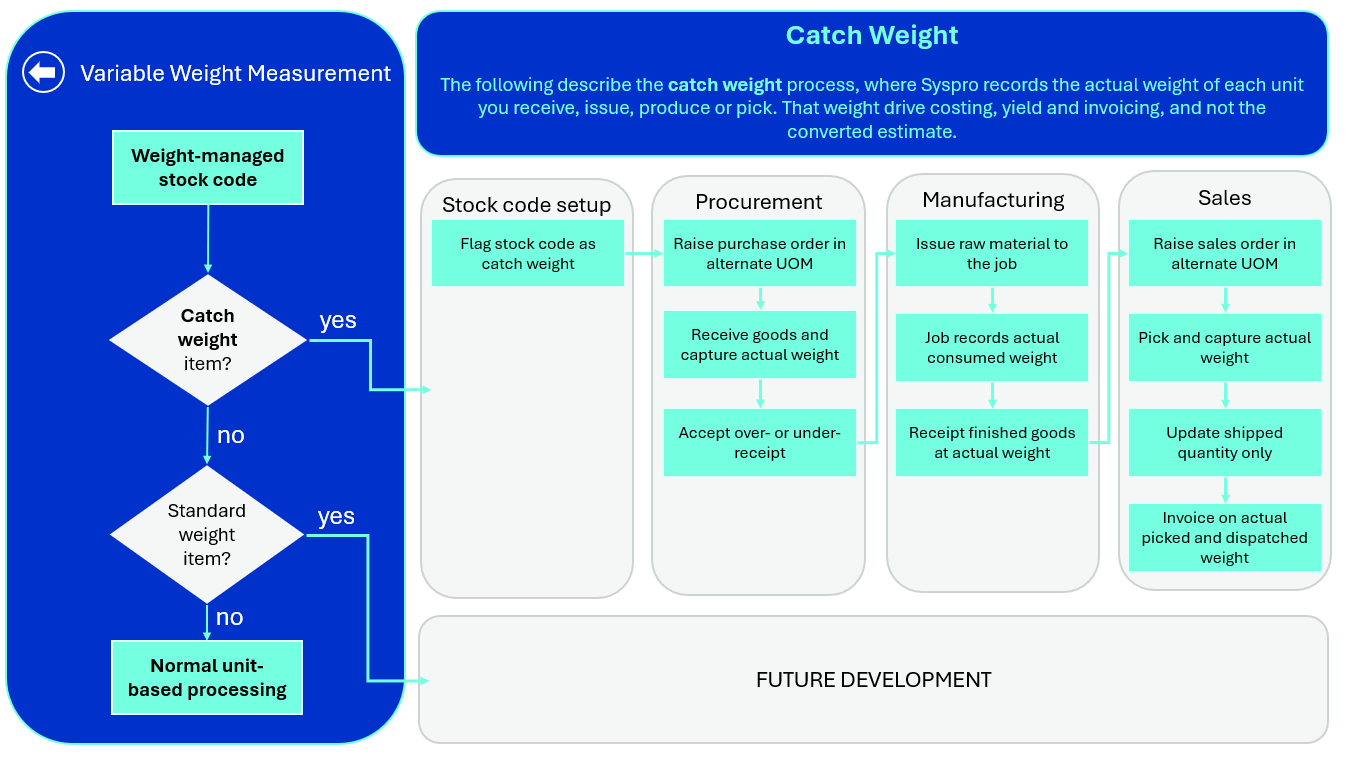
Catch Weight setup process
-
Using the Stock Code Maintenance program (Program List > Inventory > Setup), define the stock code's unit of measure according to how you source it:
-
A bought-out catch weight item must have an alternate unit of measure and a stocking unit of measure (e.g., alternate unit of measure BOX, stocking unit of measure KG, 1 BOX = 10 kg)
-
A made-in catch weight item must have a manufacturing unit of measure and a stocking unit of measure (e.g., manufacturing unit of measure BOX, stocking unit of measure KG, 1 BOX = 20 kg) The manufacturing unit of measure can also be the alternate unit of measure.
-
-
On the Stock Code Details form, enable the Catch Weight option.
-
Enable the Green Weight option where you want to identify the item as a green weight item. This is optional.
-
If catch weight receipts must update the stocking quantity to ship on linked sales orders, enable the Theoretical uom conversion setup option (Setup Options > Preferences > Distribution > Sales Orders)
-
If the stock code requires inspection, receipt it into WIP Inspection
Procurement
- Create the purchase order line in the alternate unit of measure. (i.e., 1 BOX)
- When the goods arrive, weigh them.
-
Your scanning solution passes the weight read from the barcode to the relevant Syspro business object as the actual stock quantity.
The stock quantity is used only when the catch weight requirements are met.
The scanning solution and the scanning hardware aren't part of Syspro. Syspro provides the business object support that lets a scanning solution submit the weight. - If the stock code is receipted directly in stock enter the quantity in the alternate unit of measure and the actual weight in the Stock Receipt Quantity field in the Purchase Order Receipts program (Program List > Purchase Orders > Purchase Order Processing) (i.e., 1 BOX and 11 kg). To receipt many lines at once, import both quantities using the Purchase Order Receipt Import program.
- If the stock code requires inspection, receipt it into inspection with both quantities. From then on, all purchase order inspection processing is done in the stocking unit of measure (e.g., quantity counted 11 kg, quantity accepted 11 kg)
The actual stock receipt quantity is passed to lot, bin and serial allocation, used wherever the expected stock quantity would otherwise be used, and written to the purchase order line
Manufacturing
-
Create the job using the Job Entry program (Program List > Work in Progress > Job Postings), selecting the Manufacturing unit of measure in the Unit of measure field under Job Details (e.g., 1 BOX). When a Manufacturing unit of measure is defined against the stock code, the Job Entry program uses it by default.
-
If you pick material for the job using the WIP Pick Maintenance program (Program List > Work in Progress > WIP Picking), you can pick more or less than required.
-
Issue material using the Job Issues program (Program List > Work in Progress > Job Postings). On a kit issue enter the Stock Quantity to issue for each line. On a specific issue, enter the Stock Quantity.
-
When the item is made, weigh it.
-
If the stock code is receipted directly into stock, enter the quantity in the Manufacturing unit of measure and the actual weight in the Stock Quantity field using the Job Receipts program (Program List > Work in Progress > Job Postings) (e.g., 1 BOX and 19 kg). To receipt man jobs at once, import both quantities using the WIP Job Receipts Import program (Program List > Administration > Import).
-
If the stock code requires inspection, receipt it into WIP inspection with both quantities using the Job Receipts program.
-
Then process the inspection using the WIP Inspection program. WIP inspection processing is done in the Stocking unit of measure, but you enter the Manufacturing unit of measure quantity as well (e.g., quantity accepted 1 BOX, 19 kg).
Sales
-
Enable the Theoretical uom conversion setup option (Setup Options > Preferences > Distribution > Sales Orders). This indicate that the relationship between the ordering and stocking units of measure isn't absolute.
-
Capture the sales order in the Alternate unit of measure using the Sales Order Entry program (e.g., 1 BOX). Syspro calculates the stocking quantity to ship using the conversion factor.
-
When you ship the goods, weigh them.
-
Your scanning solution passes the weight read from the barcode to the relevant Syspro business object as the actual stock quantity.
The stock quantity is used only when the catch weight requirements are met.
The scanning solution and the scanning hardware aren't part of Syspro. Syspro provides the business object support that lets a scanning solution submit the weight. -
If the actual weight differs from the converted quantity, maintain the sales order using the Sales Order Entry program, or the dispatch note using the Dispatch Note Maintenance program (Program List > Sales Orders > Dispatch Notes > Transaction Processing), and enter the actual weight in the Stocking Quantity to Ship field (e.g., 11 kg). You can do this only for orders in a status of 4 or 8, and when adding or changing dispatch notes.
-
If the sales order is linked to a purchase order or job, you don't need to enter the weight yourself. When the catch weight item is receipted against the purchase order or job, or accepted from WIP inspection, Syspro updates the stocking quantity to ship on the sales order with the actual stock quantity received.
-
Complete and invoice the order as normal.
Yield reporting
Yield is reported per job from the actual and estimated stock quantities:
-
Finished good yield is the percentage difference between the stock quantity manufactured and the estimated stock quantity manufactured. Producing more than estimated is a positive yield.
-
Co-product yield is calculated on the same basis for each co-product.
-
Material yield is the percentage difference between the estimated stock quantity issued and the stock quantity issued. Issuing more than estimated is a negative yield.
You view yield using the Job Catch Weight Yield report (Program List > Work in Progress > Reports ) or the Job Catch Weight Yield Query business object.
Affected programs
The following indicates areas in the product that may be affected by implementing this feature:
Setup programs
Stock Code Maintenance
Program List > Inventory > Setup
This program lets you capture and maintain details of stock items that your company uses or sells.
The following indicates areas in the product that may be affected by implementing this feature:
-
We've added the Catch Weight and Green Weight options to the Stock code information section of the Stock Code Details pane.
WIP Pick Maintenance
Program List > Work in Progress > WIP Picking
This program lets you maintain WIP picks.
The following indicates areas in the product that may be affected by implementing this feature:
-
For the catch weight items, picking is done in the Stocking unit of measure, and you can pick more or less than required. Picking less doesn't raise an error and doesn't create a new material allocation.
Transaction Processing programs
Inventory Demand Review
Program List > Inventory > Transaction Processing
You use this program to review demand for stock items from sales orders and job allocations (typically upon receiving a supply) and to reserve, allocate or issue quantities to satisfy these demands.
The following indicates areas in the product that may be affected by implementing this feature:
-
We've excluded catch weight items from this program.
Purchase Order Receipts
Program List > Purchase Orders > Purchase Order Processing
This program lets you process receipts against purchase orders that were captured using the Purchase Order Entry program.
The following indicates areas in the product that may be affected by implementing this feature:
-
We've added the Stock Receipt quantity field to the Receipt section of the Purchase Order Receipt pane and to the Receipt details section of the Receipt into Inspection pane. It lets you enter the actual quantity of a catch weight item in the stocking unit of measure as well as the receipt quantity in the order unit of measure.
Purchase Order Inspection
Program List > Purchase Orders > Purchase Order Processing
You use this program to receipt items from inspection into stock. You can inspect the goods and either accept, reject, or scrap them, before actually updating the stock on hand.
The following indicates areas in the product that may be affected by implementing this feature:
-
When the catch weight requirements are met, the actual stock receipt quantity is used for all calculations.
Shipment Receipt
Program List > Purchase Orders > Landed Cost Tracking > Transaction Processing
You use this program to record the receipt of items you have tracked and want to cost using the Landed Cost Tracking system.
The following indicates areas in the product that may be affected by implementing this feature:
-
When the catch weight requirements are met, you can enter the actual stock quantity when you receipt a shipment into stock or into inspection. No new fields are added. The actual stock quantity is written to the purchase order line.
Job Receipts
Program List > Work in Progress > Job Postings
This program lets you receive a manufactured item into stock from a Work in Progress job.
The following indicates areas in the product that may be affected by implementing this feature:
-
We have added the Stock quantity field to the Job Details pane. It lets you enter the actual quantity manufactured of a catch weight item in the Stocking unit of measure as well as the quantity in the Manufacturing unit of measure.
WIP Inspection
This program can't be run standalone and is accessed from the following program(s):
-
WIP Inspection Maintenance
From the Post function.
This program lets you inspect and maintain inspection references for made-in parent part items requiring inspection before actually accepting them into stock.
Once inspected, items can be accepted into stock, scrapped or returned for rework.
The following indicates areas in the product that may be affected by implementing this feature:
-
We've added the Stock quantity counted, Stock quantity inspected, Stock quantity scrapped, Stock quantity reworked, and Stock quantity accepted fields to the Count, Inspect, Scrap, Rework and Accept functions. Both quantities are stored, and each stock quantity is validated against the stock quantity manufactured, which it can't exceed.
Job Issues
Program List > Work in Progress > Job Postings
This program lets you issue all component parts and labor allocations to a confirmed job.The following indicates areas in the product that may be affected by implementing this feature:
We've added the Stock quantity column to the kit issue listview and the Stock quantity field to the Specific Issues section, both in the Kit/Specific Issues pane. Validation uses the actual stock quantity, which is passed to lot, bin and serial allocations.
Import programs
Purchase Order Receipt Import
Program List > Purchase Orders > Purchase Order Processing
You use this program to import purchase order receipts from a flat ASCII file. You can import this file, copy the data from Excel or enter the data directly into the Details grid pane.
The following indicates areas in the product that may be affected by implementing this feature:
-
We've added the Stock Receipt quantity column to the Details listview. It is used only when the catch weight requirements are met, and ignored otherwise.
WIP Job Receipts Import
Program List > Administration > Import
You use this program to import jobs and/or co-product receipts that were created using third party application software.
The following indicates areas in the product that may be affected by implementing this feature:
-
We've added the Stock Receipt Quantity column to the Details grid. It's used only when the catch weight requirements are met, and ignored otherwise.
Report programs
Job Catch Weight Yield
Program List > Work in Progress > Reports
This report lets you view the catch weight yield for a job. For the finished goods it shows the quantity to make, the quantity manufactured, the estimated and actual stock quantity manufactured, and the finished good yield. For each material allocation it shows the unit quantity required, the quantity issued, the estimated and actual stock quantity issued and the material yield.
Affected business objects
The following indicates the business objects that are affected by this feature:
Setup objects
Inventory Stock Code Maintenance
The Inventory Stock Code Maintenance business object is used to add, update or delete inventory stock codes.
Additional information
When defining stock codes, information can be captured about its replenishment, production, tracking and sales. If required, any additions, deletions and amendments to the stock file can be retained along with the name of the operator who made them by selecting the SYSPRO Inventory Setup option: Amendment journals required (Setup | Distribution Setup | Inventory | General tab).
Additionally, triggers can be defined (File | Customization | Trigger Programs) to automatically execute multiple actions such as running a NetExpress program, running an application or writing to the Message Inbox when a stock code is added, updated or deleted.
When adding a stock code and a value is not supplied against a non-mandatory element, the element value will default to that defined against the Global Defaults in SYSPRO Stock Code Maintenance. Alternatively, if Product Class Defaults have been defined in SYSPRO Stock Code Maintenance and a product class is supplied in the parameter ApplyProductClassDefault, these defaults will be applied.
The method used dictates which maintenance function is being performed on stock codes.
-
Add - Adds new stock code
-
Update - Updates existing stock code
-
Delete - Deletes existing stock code
Warehouses in which the stock code is stocked cannot be added or changed using this business object. In addition, the entry against the element WarehouseToUse is not validated. To define the stock warehouse records, use Inventory Stock/Warehouse Maintenance.
Only the stock code's list price code can be defined using this business object. To define both the list price record and additional price codes against the stock code, use Inventory Price Maintenance.
Transaction objects
PO Purchase Order Receipts
The PO Purchase Order Receipts business object is used to process positive receipts against purchase orders. Items can be receipted into stock or into inspection, if they have been defined as requiring inspection or they are lot traceable items. Non-stocked lines can optionally be receipted into inspection.
Additional information
The Goods in Inspection facilities allow for a two-stage receipt of stock. Goods receipted into inspection can be counted (using PORTIC), inspected (using PORTII), rejected (using PORTIR), returned (using PORTIX) or scrapped (using PORTIS) before actually updating the stock on hand with the accepted quantity.
If the purchase order is linked to a sales order, the applicable sales order can be updated by the receipt quantity and moved to the next status.
If the purchase order was created from a requisition, a notification of the receipt of goods will be sent to the originator of the requisition, according to the rule defined in Purchase Orders Setup (Setup | Distribution Setup | Purchase Orders | Requisition tab).
Serial numbers, bin locations, and lot numbers can be entered where applicable and a portion of the transaction value can be specified as comprising non-merchandise costs, which can be distributed to various ledger codes prior to posting to General Ledger. Cost multiplier entries cannot be posted if the Inventory Setup option: Apply cost multiplier when processing receipts (Setup | Distribution Setup | Inventory | Options tab) is not selected.
If the GRN suspense system is required, a GRN must either be entered for the transaction or it will be automatically generated according to the numbering method defined in Purchase Orders Setup (Setup | Distribution Setup | Purchase Orders | Numbering tab).
-
If a receipt is not associated with a purchase order, job, or a backflushing entry, use the business object INVTMR.
-
To process a job receipt, use the business object WIPTJR.
-
To process a backflushing transaction, use the business object INVTBF.
Goods in Inspection Counts
The Goods in Inspection facilities allow for a two-stage receipt of stock. Goods receipted into inspection can be counted, inspected, rejected, returned or scrapped before actually updating the stock on hand with the accepted quantity.
The Goods in Inspection Counts business object is used to capture the quantity counted in inspection. Items are receipted into inspection (using the business object PORTOR) if they have been defined as requiring inspection or they are lot traceable items (SYSPRO menu | Inventory | Setup | Stock Codes | Tracking tab). Non-stocked lines can optionally be receipted into inspection.
If the element CountedQuantityComplete is set to Y in PORTOR, the supplied quantity is moved to the quantity counted to date and the count is flagged as complete.
To capture the quantity inspected against a GRN, use the business object, PORTII.
To reject goods that are in inspection, use the business object, PORTIR.
To return previously rejected goods into inspection, use the business object, PORTIX.
To scrap goods that are in inspection, use the business object, PORTIS.
PO Purchase Order Inspections
The Goods in Inspection facilities allow for a two-stage receipt of stock. Goods receipted into inspection can be counted, inspected, rejected, returned or scrapped before actually updating the stock on hand with the accepted quantity.
The PO Purchase Order Inspections business object is used to capture the quantity inspected against a GRN. Items are receipted into inspection (using the business object PORTOR) if they have been defined as requiring inspection or they are lot traceable items (SYSPRO menu | Inventory | Setup | Stock Codes | Tracking tab). Non-stocked lines can optionally be receipted into inspection.
To capture the quantity counted in inspection, use the business object, PORTIC.
To reject goods that are in inspection, use the business object, PORTIR.
To return previously rejected goods into inspection, use the business object, PORTIX.
To scrap goods that are in inspection, use the business object, PORTIS.
Quality Management Return
The Quality Management Return business object lets you return items back to the supplier based on the results of a quality management inspection.
Goods in Inspection Rejects
The Goods in Inspection facilities allow for a two-stage receipt of stock. Goods receipted into inspection can be counted, inspected, rejected, returned or scrapped before actually updating the stock on hand with the accepted quantity.
The Goods in Inspection Rejects business object is used to reject goods that are in inspection. A reject code can be entered and the goods can optionally be returned to the supplier. If the item is serialized, the serial numbers to reject can either be entered or be automatically selected. Items are receipted into inspection (using the business object PORTOR) if they have been defined as requiring inspection or they are lot traceable items (SYSPRO menu | Inventory | Setup | Stock Codes | Tracking tab). Non-stocked lines can optionally be receipted into inspection.
To capture the quantity counted in inspection, use the business object, PORTIC.
To capture the quantity inspected against a GRN, use the business object, PORTII.
To return previously rejected goods into inspection, use the business object, PORTIX.
To scrap goods that are in inspection, use the business object, PORTIS.
Goods in Inspection Scraps
The Goods in Inspection facilities allow for a two-stage receipt of stock. Goods receipted into inspection can be counted, inspected, rejected, returned or scrapped before actually updating the stock on hand with the accepted quantity.
The Goods in Inspection Scraps business object is used to scrap goods that are in inspection. A reject code can be entered and if the supplier is paid for scrapped items (Setup | Distribution Setup | Purchase Orders Setup | General tab), this can be specified. If the item is serialized, the serial numbers to scrap can either be entered or be automatically selected. Items are receipted into inspection (using the business object PORTOR) if they have been defined as requiring inspection or they are lot traceable items (SYSPRO menu | Inventory | Setup | Stock Codes | Tracking tab). Non-stocked lines can optionally be receipted into inspection.
To capture the quantity counted in inspection, use the business object, PORTIC.
To capture the quantity inspected against a GRN, use the business object, PORTII.
To reject goods that are in inspection, use the business object, PORTIR.
To return previously rejected goods into inspection, use the business object, PORTIX.
Goods in Inspection Returns
The Goods in Inspection facilities allow for a two-stage receipt of stock. Goods receipted into inspection can be counted, inspected, rejected, returned or scrapped before actually updating the stock on hand with the accepted quantity.
The Goods in Inspection Returns business object is used to return goods into inspection that were previously rejected. Goods can be returned from the supplier if they were sent to the supplier when rejected. If the item is serialized, the serial numbers to return can either be entered or be automatically selected. Items are receipted into inspection (using the business object PORTOR) if they have been defined as requiring inspection or they are lot traceable items (SYSPRO menu | Inventory | Setup | Stock Codes | Tracking tab). Non-stocked lines can optionally be receipted into inspection.
To capture the quantity counted in inspection, use the business object, PORTIC.
To capture the quantity inspected against a GRN, use the business object, PORTII.
To reject goods that are in inspection, use the business object, PORTIR.
To scrap goods that are in inspection, use the business object, PORTIS.
PO Purchase Order Reverse Inspection
The PO Purchase Order Reverse Inspection business object is used to process negative receipts from purchase orders where the item has been placed in inspection. The Goods in Inspection facility allows for a two-stage receipt of stock. Goods receipted into inspection can be counted (using PORTIC) inspected (using PORTII) rejected (using PORTRR), returned (using PORTIX) or scrapped (using PORTIS) before actually updating the stock on hand with the accepted quantity. They can be reversed using this business object at any stage prior to accepting into stock.Items can only be placed into Inspection if the GRN suspense system is in use, and the appropriate GRN number is required to initiate the transaction.
PO Purchase Order Receipts Reversal
The PO Purchase Order Receipts Reversal business object is used to process negative receipts against purchase orders. It must be from an existing GRN if the GRN system is in use.
The Goods in Inspection facilities allow for an item that is in Inspection to be reversed, using the business object PORTRI.
If the purchase order is linked to a sales order, the applicable sales order can be updated by the negative receipt quantity, and the quantity will be reverted to back order.
Serial numbers, bin locations, and lot numbers can be entered where applicable and a portion of the transaction value can be specified as comprising non-merchandise costs, which can be distributed to various ledger codes prior to posting to General Ledger. Cost multiplier entries cannot be posted if the Inventory Setup option: Apply cost multiplier when processing receipts (Setup | Distribution Setup | Inventory | Options tab) is not selected.
To process a negative receipt that is not associated with a purchase order, job, landed cost tracking shipment or a backflushing entry, use the business object, INVTMR.
To process a negative job receipt, use the business object, WIPTJR.
PO Landed Cost Receipts
The PO Landed Cost Receipts business object is used to process positive receipts against shipments. Shipments can be receipted into stock or into inspection, if they have been defined as requiring inspection or they are lot traceable items. Sundry lines can also be receipted in.
Additional information
Goods requiring Inspection will still follow a two-stage receipt. They will be receipted into inspection via PORTLR and into stock either via SYSPRO > PORPRS or they can be counted (using PORTIC), inspected (using PORTII), rejected (using PORTIR), returned (using PORTIX) or scrapped (using PORTIS) before actually updating the stock on hand with the accepted quantity.
Serial numbers, bin locations, and lot numbers can be entered where applicable.
-
If the purchase order is linked to a sales order, the applicable sales order can be updated by the receipt quantity and moved to the next status.
-
If the purchase order was created from a requisition, a notification of the receipt of goods will be sent to the originator of the requisition, according to the rule defined in Purchase Orders Setup (Setup | Distribution Setup | Purchase Orders | Requisition tab).
-
If the GRN suspense system is required, a GRN must either be entered for the transaction or it will be automatically generated according to the numbering method defined in Purchase Orders Setup (Setup | Distribution Setup | Purchase Orders | GRN tab).
-
To process a receipt that is not associated with a shipment, use PORTOR. If a receipt is not associated with a purchase order, job, or a backflushing entry, use the business object INVTMR.
-
To process a job receipt, use the business object WIPTJR.
-
To process a backflushing transaction, use the business object INVTBF.
-
To maintain quantities, exchange rates, prices or add additional lines to a shipment use the business object PORTLM.
WIP Job Receipts
The WIP Job Receipts business object lets you process receipts against Work in Progress jobs for stocked items.
WIP Inspection Count
The WIP Inspection Count business object lets you perform the count transaction for Work in Progress (WIP) inspections.
WIP Inspection Quantity Maintenance
The WIP Inspection Quantity Maintenance business object is used to update the quantity inspected for a WIP inspection reference. This is a two-stage receipt facility for job receipts, similar to that found in purchase order receipts. This is only available if for stocked items that are flagged as Inspection required.
WIP Inspection Accept into Stock
The WIP Inspection Accept into Stock business object is used to accept a quantity of a job’s finished stock code into stock after completing an inspection. This is a two-stage receipt facility for job receipts, similar to that found in purchase order receipts. This is only available if for stocked items that are flagged as “Inspection required”. A ledger entry is made for the transaction if Work in Progress is integrated to general ledger.
WIP Inspection Rework
The WIP Inspection Rework business object lets you send a specified quantity of the inspected item for rework. This can be back to the original job, if it still exists, or to a new job and the job is created automatically.
A ledger entry is made for the transaction if Work in Progress is integrated to general ledger.
WIP Inspection Scrap Maintenance
Work in Progress has a two-stage receipt facility, similar to that found in purchase order receipts. This enables stock to be receipted into an inspection file from a job, in order to inspect the goods then accept, rework or scrap them. The remaining quantity can be received in to stock and update the stock on hand.
The WIP Inspection Scrap Maintenance business object is used to scrap a quantity for a WIP inspection reference together with a reason for scrapping. A ledger entry is made for the transaction if Work in Progress is integrated to general ledger.
The two stage receipting facility is only available if the Work in Progress setup option Work in Progress inspection required is checked on the General 1 tab.
WIP Job Specific Issues
The WIP Job Specific Issues business object lets you issue material to existing jobs and can be used to issue to both stocked and non-stocked material allocations.
WIP Pick Status Change
The WIP Pick Status Change business object lets you change the status of a WIP pick and a pick line from open to confirm, cancel or complete.
Job Catch Weight Yield Query
The Job Catch Weight Yield Query business object lets you view the catch weight yield of a job, comparing the actual weight manufactured and issued with the weight estimated from the unit of measure conversion.
Copyright © 2026 Syspro PTY Ltd.