Program: Warehouse Supplier Fulfillment Facility Maintenance

This program lets you capture fulfillment facilities in a cross-reference with both a supplier and a warehouse.
The cross-reference lets Syspro default the correct fulfillment facility when a purchase order or requisition is raised for a supplier and destination warehouse, applying lead time logic when more than one facility is active.
Exploring
 Where it fits in?
This program forms part of the Multi Fulfillment Facilities capability. Once a facility is defined in the Fulfillment Facility Maintenance program, you use this program to link that facility to a specific warehouse and supplier, so it can be defaulted and validated on purchase orders and requisitions.
Things you can do in this program include:
-
Add a fulfillment facility cross-reference for a warehouse and supplier.
-
Change the details of an existing cross-reference.
-
Delete a single cross-reference, or all cross-references for a warehouse/supplier.
-
View all fulfillment facilities defined for a warehouse/supplier in a listview.
This program is accessed from the Program List of the Syspro menu:
Program List > Purchase Orders > Multi Fulfilment Facility > Setup
Terminology
Cross-reference
The link between a warehouse, a supplier, and a fulfillment facility (Ship From address). It determines which facility is used to ship goods for that warehouse and supplier combination.
Multiple links can be created for the sames warehouse/supplier combination.
Lead time
The expected delivery time for a facility. When more than one active cross-reference exists, the facility with the lowest lead time is selected as the default.
Active Flag
Indicates whether the cross-reference created in Warehouse Supplier Fulfillment Facility Maintenance is available for use. It can be Y(es) or N(o) and defaults to N(o).
Only active cross-references are considered when defaulting a facility onto an order.
Starting
Prerequisites
-
The facilities must already exist in Fulfillment Facility Maintenance (Program List > Purchase Orders > Multi Fulfilment Facility > Setup ).
Security
eSignatures
You can restrict access to the eSignature transactions within a program at operator, group, role or company level (configured using the Electronic Signature Configuration Setup program).
Electronic Signatures provide security access, transaction logging and event triggering that gives you greater control over your system changes.
To use this feature, the following eSignatures must be defined accordingly in the Electronic Signature Configuration Setup program (as this allows for the various functions in the related programs:
PO Warehouse supplier fulfilment facility added
Controls access to the function that changes a warehouse/supplier fulfillment facility cross-reference.
PO Warehouse supplier fulfilment facility changed
Controls access to the function that changes a warehouse/supplier fulfillment facility cross-reference.
PO Warehouse supplier fulfilment facility deleted
Controls access to the function that deletes a warehouse/supplier fulfillment facility cross-reference.
PO Wh supplier fulfilment facility added e.net
Controls access to the function that adds a warehouse and supplier fulfillment facility cross-reference using the Warehouse Supplier Fulfilment Facility business object.
PO Wh supplier fulfilment facility changed e.net
Controls access to the function that change a warehouse and supplier fulfillment facility cross-reference using the Warehouse Supplier Fulfilment Facility business object.
PO Wh supplier fulfilment facility deleted e.net
Controls access to the function that delete a warehouse and supplier fulfillment facility cross-reference using the Warehouse Supplier Fulfilment Facility business object.
Restrictions and Limits
-
The First, Last, Next and Previous functions are hidden when the program loads.
-
Both a valid warehouse and a valid supplier must be entered before cross-reference can be added or before a toolbar deletion can be performed.
-
The fulfillment facility is validated first against the PorFulfilment table, then against the PorSupFulWh table.
Solving
Error messages
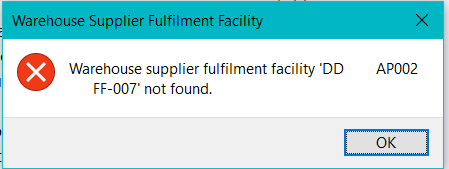
Fulfillment facility not found
Cause
The fulfillment facility entered could not be validated against the PorFulfilment table, or no cross-reference exists against the PorSupFulWh table.
Solution
Enter a fulfillment facility defined in the Fulfillment Facility Maintenance program, and confirm the warehouse and supplier are valid.
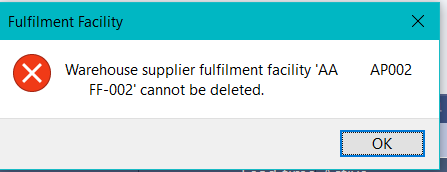
Active purchase orders exist for this facility
Cause
A deletion was requested for an active fulfillment facility that has active purchase orders associated with the warehouse/supplier and facility.
Solution
When deleting a single item, an error is returned and the cross-reference is retained. When deleting multiple items, that individual cross-reference is ignored and processing continues. The re-populated listview shows which items were ignored.
FAQs
Why can I not delete a fulfillment facility?
A facility that is active and associated with open purchase orders through a warehouse/supplier cross-reference cannot be removed while those orders remain active.
When you remove a cross-reference in Warehouse Supplier Fulfillment Facility Maintenance, the following checks apply:
-
To remove a single cross-reference, select Delete on the listview line. To remove all facilities for a warehouse and supplier, enter a valid warehouse and supplier and select Delete on the toolbar.
-
Where a facility is active, the system checks for active purchase orders for that warehouse, supplier, and facility.
-
On a single deletion with active orders, an error is returned and the cross-reference is retained.
-
On a multiple deletion with active orders, the affected cross-reference is ignored and processing continues. The re-populated listview shows which items were ignored.
What's the difference between the Fulfillment Facility Maintenance and Warehouse Supplier Fulfillment Facility Maintenance program?
Fulfillment Facility Maintenance defines the facilities themselves, and Warehouse Supplier Fulfillment Facility Maintenance cross-reference each facility to a specific warehouse and supplier, with an active flag and lead time.
To define a facility use the Fulfillment Facility Maintenance program.
The Fulfillment Facility Maintenance process is as follows:
- To create a new Fulfillment facility:
- At the Fulfillment facility field in the toolbar, enter a code to identify the facility.
- At the Name field, enter a name (or the same code) for the facility.
- In the Fulfillment facility address pane, enter the Building, Street, City, Locality, State, Country and Zip. Optionally, captured Geolocation.
- In the Fulfillment facility details pane, enter the Geographic area, Contact name, Telephone number, Supplier email address, Shipping instructions.
- Select Save.
To cross-reference each facility use the Warehouse Supplier Fulfillment Facility Maintenance program.
The Warehouse Supplier Fulfillment Facility Maintenance process is as follows:
-
At the Warehouse and Supplier fields in the toolbar, enter a valid warehouse and supplier.
Th e Warehouse Details and Supplier Details panes are populated, and the listview displays all fulfillment facilities defined for the warehosue and supplier combination.
-
To add a cross-reference:
-
At the Fulfillment Facility field, enter or browse for a facility. The facility is validated against the PorFulfilment table.
Facilities must first be defined in Fulfillment Facility Maintenance (Program List > Purchase Orders > Multi Fulfilment Facility > Setup ) to be available for selection.
-
-
At the Lead Time field, enter the lead time for the facility.
The lead time has no defined unit. Choose a unit (for example, days) and apply it consistently across all fulfillment facilities, as the lowest lead time is used to select the default facility. -
The Active check box is deselected by default. Select it to activate the cross-reference.
-
Select Save.
-
The new cross-reference is displayed in the listview.
Which facility becomes the default on an order?
Where more than one active cross-reference exists for the warehouse/supplier, the facility with the lowest lead time is selected.
Using
Hints and Tips
-
Columns in a listview are sometimes hidden by default. You can reinstate them using the Field Chooser option from the context-sensitive menu (displayed by right-clicking a header column header in the listview). Select and drag the required column to a position in the listview header.
-
Fields on a pane are sometimes removed by default. You can reinstate them using the Field Selector option from the context-sensitive menu (displayed by right-clicking any field in the pane). Select and drag the required fields onto the pane.
The captions for fields are also sometimes hidden. You can select the Show Captions option from the context-sensitive menu to see a list of them. Click on the relevant caption to reinstate it to the form.
If the Show Captions option is grayed out, it means no captions are hidden for that form.
-
Press Ctrl+F1 within a listview or form to view a complete list of functions available.
-
Enter both the warehouse and supplier first, the listview then populates with all fulfillment facilities defined for that combination.
-
Set the active flag to Y(es) only once the facility is ready for use on orders, it defaults to N(o).
Process
The Warehouse Supplier Fulfillment Facility Maintenance process is as follows:
-
At the Warehouse and Supplier fields in the toolbar, enter a valid warehouse and supplier.
Th e Warehouse Details and Supplier Details panes are populated, and the listview displays all fulfillment facilities defined for the warehosue and supplier combination.
-
To add a cross-reference:
-
At the Fulfillment Facility field, enter or browse for a facility. The facility is validated against the PorFulfilment table.
Facilities must first be defined in Fulfillment Facility Maintenance (Program List > Purchase Orders > Multi Fulfilment Facility > Setup ) to be available for selection.
-
-
At the Lead Time field, enter the lead time for the facility.
The lead time has no defined unit. Choose a unit (for example, days) and apply it consistently across all fulfillment facilities, as the lowest lead time is used to select the default facility. -
The Active check box is deselected by default. Select it to activate the cross-reference.
-
Select Save.
-
The new cross-reference is displayed in the listview.
Referencing



 Warehouse details pane
This pane relates to the warehouse entered for the cross-reference.
| Field | Description |
|---|---|
| Description | This warehouse details display the details of the entered warehouse once it is validated. |
Supplier details pane
This pane relates to the supplier entered for the cross-reference.
| Field | Description |
|---|---|
|
Name |
This displays the details of the entered supplier once it is validated. |
Fulfillment facility detail
Once a valid warehouse and supplier are entered, the Fulfillment Facility can be selected for the warehouse/supplier. This pane captures each cross-reference. All details are saved to the PorSupFulWh table.
| Field | Description |
|---|---|
|
Fulfillment Facility |
This lets you indicate the fulfillment facility. It is validated against the PorFulfilment table, then against the PorSupFulWh table. Fulfullment facilities must first be created in Fulfillment Facility Maintenance (Program List > Purchase Orders > Multi Fulfilment Facility > Setup ) before it can be selected from the browse view.
|
|
Name |
This indicates the fulfillment facility display name. |
|
Lead Time |
This lets you indicate the delivery lead time for the facility. It is used to select the default facility when more than one active cross-reference exists. The lead time has no defined unit. Choose a unit (for example, days) and apply it consistently across all fulfillment facilities, as the lowest lead time is used to select the default facility.
|
|
Active |
This lets you indicate whether the cross-reference is active. It can only be Y or N, and defaults to N. |
|
Fulfillment facility address |
|
|
Building |
This indicates the fulfillment facility building name. |
|
Street |
This indicates the fulfillment facility street name. |
| City | This indicates the fulfillment facility city |
| Locality | This indicates the fulfillment facility locality. |
| State | This indicates the fulfillment facility state. |
| Country | This indicates the fulfillment facility country. |
| Zip | This indicates the fulfillment facility zip code. |
| Geolocation | This indicates the fulfillment facility geolocation. |
Fulfillment facility Listview
Once a valid warehouse and supplier are selected, and the Fulfillment Facility selected the listview is populated with all fulfillment facilities for the warehouse/supplier selected.
| Field | Description |
|---|---|
|
Fulfillment Facility |
This indicates the fulfillment facility for the selected warehouse/supplier. |
|
Name |
This indicates the fulfillment facility display name. |
|
Lead Time |
This indicates the fulfillment facility lead time. |
|
Active |
This indicates whether the fulfillment facility is active or not active. |
|
Name |
This indicates the fulfillment facility building name. |
|
City |
This indicates the fulfillment facility city |
|
Name |
This indicates the fulfillment facility country. |
| GPS Latitude | This indicates the fulfillment facility's GPS latitude. |
| GPS Longitude |
This indicates the fulfillment facility's GPS longitude. |
| Locality | This indicates the fulfillment facility locality. |
| State | This indicates the fulfillment facility state. |
| Street | This indicates the fulfillment facility street name. |
| Zip |
This indicates the fulfillment facility zip code. |
Copyright © 2026 Syspro PTY Ltd.