Topic: WMS License Plate Numbering

We introduced an enhanced method for managing stock inventory within Syspro Warehouse Management ERP by enabling WMS License Plate Numbering (LPNs) to treat a pallet as a single, scannable unit while retaining item-level visibility. Teams scan one pallet (LPN) to receive, move, and pick, with real-time updates to pallet and item balances that accelerate put-away and picking and reduce scans and errors.

Exploring
 Where it fits in?
License Plate Numbering and Containerization System enhance warehouse control by assigning a unique, scan-ready identifier to each container (e.g., pallet, box, cage), enabling receiving, put-away, transfers, picking, and counting at the container level for improved accuracy, traceability, and throughput. It supports full-container movements to reduce capture effort, as well as partial (split) handling when needed, with container-aware label printing and validation throughout the process.
Syspro embeds LPNs across core workflows – automatic or selected LPNs during receipts, LPN-aware transfers and put-aways, allocation and picking by LPN, and stock take at LPN granularity, while Container Types (with dimensions, capacity limits, and label formats) govern operational controls and output. Enabling LPNs is a company-level change that cannot be reversed. A conversion step is provided to assign all existing on-hand stock to LPNs before routine processing continues.
Benefits
-
LPNs improve accuracy and traceability by uniquely identifying every item, case, or pallet, especially when adopting a one Stock code per LPN practice, making it easier to follow movements and manage recalls or other quality-control events.
-
It boosts efficiency and productivity by enabling quick scanning and automated updates during picking, packing, and put-away processes
-
It provides real-time visibility and control, giving warehouse teams instant insight into inventory movements and status for faster, smarter decision-making.
Functionality
-
This License Plate Numbering and Containerization System functionality forms part of the Syspro core Warehouse Management system.
-
Enabling LPNs is a one-way change that affects all inventory processing. Once the Use license plate numbers setup option (Setup Options > Configuration > Distribution > Inventory) has been selected, you will need to run an LPN conversion of existing stock using License Plate Number Conversion (Program List > Warehouse Management > License Plate Numbering and Containerization System > Setup) or Stock Take LPN Conversion (Program List > Warehouse Management > Stock Take System > Transaction Processing > License Plate Numbering and Containerization).
-
LPNs assign a unique identifier to each container (e.g., pallet, box, cage) holding stock. All core warehouse activities, receiving, put-away, transfers, allocations/picking, stock take, operate at the LPN level to drive accuracy, traceability, and efficiency.
-
LPNs are generated or selected during receiving, used within the PO, Job, and Inventory Receipts, where you can auto-generate an LPN or select an existing LPN in the receiving bin.
-
Inventory Movements support full container (whole LPN) transfers (no stock/lot/serial capture), and partial (split) moves with content validation. Destination LPNs must be valid for the target bin, and parent-child LPNs move together with ‘awaiting movement’ status when raised.
-
Allocation and picking by LPN – Sales Order and WIP allocations consume stock from specific LPNs, override allocation validates stock/lot/serial/location, and full LPN picks must be confirmed as a quantity of 1 (or 0), with marshalling and related picking views showing LPN columns.
-
Stock take at LPN granularity – LPNs can be selected, captured, and confirmed in stock take; any uncounted LPNs are either moved to Lost and Found Warehouse Review or adjusted to zero per setup, with detailed capture down to lots/serials when required.
-
Container type governance and labeling – Container Types define dimensions, capacity constraints, stacking/flexible flags, and label formats, and can be set as defaults; stock codes may carry a default container to streamline receipts and pallet make up, and dedicated browses/maintenance programs manage this data
The programs related to this feature are accessed from the Program List of the Syspro menu:
-
Program List > Warehouse Management > License Plate Numbering and Containerization System
Terminology
License Plate Number (LPN)
An LPN refer to an unique identifier assigned to a container that holds stock (e.g., pallet, carton, bin) for tracking through receiving, storage, movement, allocation/picking, dispatch, and counting.
An LPN may hold a single or multiple stock codes/lots depending on the setup options, Multiple stock codes per LPN, Multiple lots per LPN). Core metadata includes warehouse, bin, container, created date/by, and statuses (On Hold, Archived, Awaiting Put-away, In Transit, In Stock Take)
Container Type
This refers to the physical type of container or storage (e.g., Pallet, Box, Cage) associated with an LPN, configured with dimensions, capacity, and label templates. Container Types are maintained in the Container Maintenance program and LPN Container Setup business object, which include the description, dimensions, maximum weight/volume, flags (default, stacking allowed, flexible volume), and associated label format.
Parent LPN
This refers to an LPN that represents a larger container holding multiple child LPNs (e.g., a pallet holding boxes)
Child LPN
This refers to an LPN stored within a parent LPN. Only a single level of hierarchy is supported. Child LPNs are managed within the LPN Parent Child Relationship program and LPN Parent-Child Relationship business object.
LPN Conversion
LPN Conversion refers to a company-wide process performed after enabling the Use license plate numbers setup option (Setup Options > Configuration > Distribution > Inventory) to ensure that all existing stock items currently held in bins are placed into LPNs.
Run the License Plate Number Conversion or Stock Take LPN Conversion programs to complete the conversion.
Starting
Prerequisites
Setup Options
To use this feature, the following setup option(s) must be enabled/defined:
Setup Options > Configuration > Distribution > Inventory
Multiple bins
This requires entry of bins upon the receipt, issue or transfer of items and when capturing stock take information. The Purge and Archive program runs to ensure the default bin is inserted into existing lot records and their associated transactions against your traceable or ECC-controlled items. Run the Balance function of the Order Purge and Inventory Period End programs to ensure there are no quantities in ship without bin allocations and to transfer any qty on hand to the default bin.
Fixed bins
Only available in a SQL environment and if multiple bins is in use. Initially, all warehouses using multiple bins are flagged as fixed bin warehouses. The Show Warehouses hyperlink lets you switch off this facility selectively for warehouses. Fixed bins requires a bin to exist in the WhmBin table before you can transact against it. If the Create bins at inventory transaction option is switched on, bins can only be created at transaction time for warehouses not using fixed bins.
The Show Warehouses hyperlink is also used to maintain the WMS control options against the warehouse (Warehouse Maintenance).
Use license plate numbers
This indicates that WMS License Plate Numbering is required. When enabled, existing stock items in bins are placed in LPNs.
When this setup option is enabled, stock must be received into a warehouse and the Associate serials by bin setup option must be enabled. Run the License Plate Number Conversion or Stock Take LPN Conversion program to ensure all stock items that are currently in bins are placed into LPNs. Transactions can't be posted if the conversion wasn't done.
This setup option can't be disabled after the conversion was done or a license plate number was created.
:
Multiple stock codes per LPN
This indicates whether multiple stock codes can be allocated to one license plate number.
This setup option can't be disabled if multiple stock codes have been placed in an LPN.
Multiple lots per LPN
This indicates whether multiple lots can be allocated to one license plate number.
This setup option can't be disabled if multiple stock codes have been placed in an LPN.
Perform full LPN stock count
This indicates whether a stock count at license plate number level is required.
Setup Options > History > Distribution > Inventory
LPN archiving
Archive empty LPNs
This indicates whether archiving empty license plate numbers is required.
This only applies to LPNs with a zero stock level and where no stock movements have occurred within the number of days specified at the Number of days to retain LPNs setup option.
Number of days to retain LPNs
This indicates the number of days for which you want to retain empty license plate numbers.
Security
You can secure this feature by implementing a range of controls against the affected programs. Although not all these controls are applicable to each feature, they include the following:
- You restrict operator access to activities within a program using the Operator Maintenance program.
- You can restrict operator access to the fields within a program (configured using the Operator Maintenance program).
- You can restrict operator access to functions within a program using passwords (configured using the Password Definition program). When defined, the password must be entered before you can access the function.
- You can restrict access to the eSignature transactions within a program at operator, group, role or company level (configured using the Electronic Signature Configuration Setup program). Electronic Signatures provide security access, transaction logging and event triggering that gives you greater control over your system changes.
- You can restrict operator access to programs by assigning them to groups and applying access control against the group (configured using the Operator Groups program).
- You can restrict operator access to programs by assigning them to roles and applying access control against the role (configured using the Role Management program).
Restrictions and Limits
-
Enabling the Use license plate numbers setup option is a system-wide change. You can still switch this option off untill you run the LPN conversion (or create an LPN). However, once the conversion has been performed (or an LPN has been created), the option cannot be disabled.
After enabling, run either License Plate Number Conversion (Program List > Warehouse Management > License Plate Numbering and Containerization System > Setup) or Stock Take LPN Conversion (Program List > Warehouse Management > Stock Take System > Transaction Processing > License Plate Numbering and Containerization) programs to ensure that all stock items currently held in bins are placed in LPNs across the required warehouses, before you continue with day-to-day processing.
Solving
Error messages
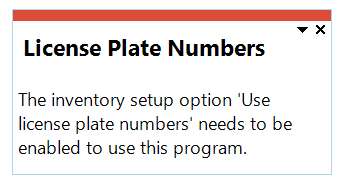
License Plate Number (LPN) not activated
Cause
This message is displayed when any of the License Plate Numbering and Containerization System programs are run, but the setup option has not been enabled.
Solution
Enable the setup option Use license plate numbers and follow the LPN Conversion process (License Plate Number Conversion ).
Warning messages
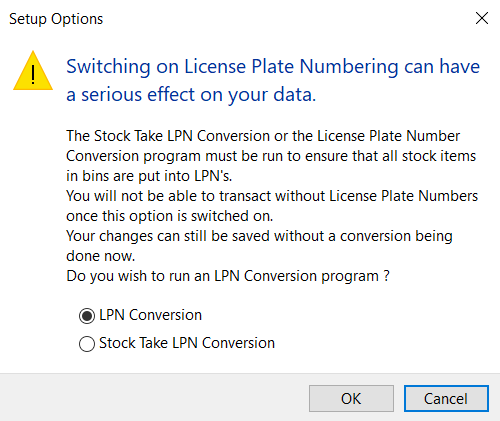
Enabling License Plate Number(s) (LPNs) is irreversible
Cause
This message is displayed when the setup option Use license plate numbers has been enabled.
Solution
Enabling LPNs is a one-way, company-wide change that cannot be reversed once conversion has been done or an LPN has been created. Proceed only after business sign-off and plan the LPN Conversion and rollout before enabling.
FAQs
How do I enable and configure the License Plate Numbering and Containerization System
Follow these steps to set up the License Plate Numbering and Containerization System:
-
Start by creating a single global default container type in Container Maintenance (Program List > Warehouse Management > License Plate Numbering and Containerization > Setup ). Multiple containers can be created, however, one default container is required for the LPN conversion process.
Containers can be created before enabling the setup option Use license plate numbers -
Enable the setup option Use license plate numbers and then configure the setup options (Multiple stock codes per LPN, Multiple lots per LPN, Perform full LPN stock count) (Setup Options > Configuration > Distribution > Inventory)
Enabling the Use license plate numbers setup option is a system-wide change. You can still switch this option off untill you run the LPN conversion (or create an LPN). However, once the conversion has been performed (or an LPN has been created), the option cannot be disabled. After enabling, run either License Plate Number Conversion (Program List > Warehouse Management > License Plate Numbering and Containerization System > Setup) or Stock Take LPN Conversion (Program List > Warehouse Management > Stock Take System > Transaction Processing > License Plate Numbering and Containerization) programs to ensure that all stock items currently held in bins are placed in LPNs across the required warehouses, before you continue with day-to-day processing. -
Select one of the LPN conversion processes to ensure that all stock items currently held in bins are placed into License Plate Number(s) (LPNs).
-
Save the setup option changes.
LPN conversion processes:
-
License Plate Number Conversion
The License Plate Number Conversion process is as follows:
-
Select the warehouse and indicate the bin selection to be converted.
-
Select Start Review to load the stock codes that require LPN conversion.
The conversion listview only displays stock codes with quantities that are not yet assigned to an LPN. Stock codes that are already fully assigned to an LPN are excluded from this list. -
The listview displays bin stock with Unassigned Quantities that require assignment to LPNs.
-
Define how stock is split into containers. For each listed row, enter the Quantity per container to control how many units are assigned to each generated LPN.
For example:
If the Unassigned quantity is 100 and you want 10 units per container, enter 10 in Quantity per container so that the conversion generates 10 LPNs of 10 units each. If you enter 15, the conversion generates 7 LPNs in total: 6 LPNs of 15 units and 1 LPN of 10 units (to allocate the remaining quantity).If no Quantity per container value is entered for a row, the conversion does not generate an LPN for that row. -
Select Generate LPNs
-
Select the View LPNs hyperlink to review the License Plate Number(s) (LPNs) generated for the stock code based on the Quantity per container value entered.
The License Plate Number (LPN) format is a date+sequence format (CCYYMMDD+sequence). This will indicate a visible creation date in the number itself and rolling sequential number. -
-
Stock Take LPN Conversion
The Stock Take LPN Conversion process is as follows:
You would typically follow this process to place existing stock codes into License Plate Number(s) (LPNs)
Stock take selection is the first step in the stock take process and saves a snapshot of quantities at the time you start the stock take. Inventory movements processed after selection are not reflected in the saved quantities.When the Use license plate numbers setup option is enabled, Syspro requires a conversion (using either License Plate Number Conversion or Stock Take LPN Conversion) to ensure stock currently held in bins is placed into LPNs.-
Select Stock Take Selection, and indicate the Warehouse (or list of warehouses) for which you want to start the stock take.
-
Select Start Stock Code Review to begin the stock take selection process. The selected warehouse and stock codes are placed into stock take.
-
Use the selection criteria to indicate the warehouse that is currently in stock take.
-
The Stock code listview is populated with the stock items in stock take that have not been allocated an LPN.
-
Select Create LPN to create LPNs to be used for the conversion. (or select LPNs with zero quantities)
-
The LPN Maintenance program will open.
-
Create or select the required LPNs.
-
If required, print the label for the LPNs.
-
-
In the Stock code listview, select the stock code you want to allocate to an LPN.
-
Update the Quantity to assign with the quantity you want to assign to the selected LPN.
If the quantity assigned is less than the quantity remaining for the stock code, the remaining quantity stays in the listview so that it can be assigned to another LPN. -
Select Assign selected. The selected stock code and quantity to assign is moved to the In License Plate Number (LPN) listview.
-
Select Confirm to allocate the staged stock code and quantity into the selected LPN
-
The program updates the LPN allocation and removes the stock code that are now fully allocated to LPNs from the Stock code listview.
-
Repeat this process until there are no remaining items for the warehouse that still require LPN allocation.
-
You can then proceed to count and capture the LPN quantities as part of the stock take capture process.
-
Is enabling LPNs reversible, and what must I do immediately after switching it on?
Enabling the Use license plate numbers setup option is a system-wide change. You can still switch this option off untill you run the LPN conversion (or create an LPN). However, once the conversion has been performed (or an LPN has been created), the option cannot be disabled.
After enabling, run either License Plate Number Conversion (Program List > Warehouse Management > License Plate Numbering and Containerization System > Setup) or Stock Take LPN Conversion (Program List > Warehouse Management > Stock Take System > Transaction Processing > License Plate Numbering and Containerization) programs to ensure that all stock items currently held in bins are placed in LPNs across the required warehouses, before you continue with day-to-day processing.
Do I need to pre-create LPNs, or will the system generate them for me?
You will be able to do both:
-
Automatic: LPNs are typically generated during PO receipts, Job receipts, Inventory receipts, and during bin/warehouse transfers when a destination LPN is required.
-
Manual: Use the LPN Maintenance when your process requires pre-printing/holding empty LPNs (e.g. labeling pallets before receiving)
Can an LPN contain multiple stock codes or multiple lots?
This is configuration-controlled. Ensure the Multiple stock codes per LPN or Multiple lots per LPN setup options under (Setup Options > Configuration > Distribution > Inventory) are enabled.
If disabled, the system blocks attempts to mix stock codes or lots within the same LPN
Using
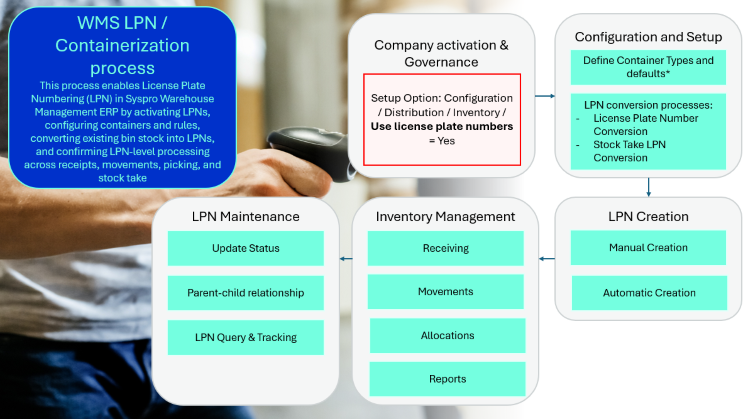
Process
Considerations
-
Enabling License Plate Number(s) (LPNs) is a one-way, system-wide change. You must run the License Plate Number Conversion program to place all current stock into LPNs immediately after enabling.
-
Ensure one default Container Type has been configured prior to running the License Plate Number Conversion program.
-
Plan the order of warehouses which existing stock must be converted to LPNs to avoid overlapping processes.
-
Conversion can’t be run for warehouses that already have an active stock take underway.
-
Decide, agree and set up operating rules up front determining whether you will enforceMultiple stock codes per LPN, Multiple lots per LPN, and whether to allow Perform full LPN stock count (boxes on a pallet). These setup options will control validations across receipts, put-aways, transfers, and allocations.
-
Ensure label formats have been configured by Container Type.
Configuration and setup of the WMS License Plate Numbering
Follow these steps to set up the License Plate Numbering and Containerization System:
-
Start by creating a single global default container type in Container Maintenance (Program List > Warehouse Management > License Plate Numbering and Containerization > Setup ). Multiple containers can be created, however, one default container is required for the LPN conversion process.
Containers can be created before enabling the setup option Use license plate numbers -
Enable the setup option Use license plate numbers and then configure the setup options (Multiple stock codes per LPN, Multiple lots per LPN, Perform full LPN stock count) (Setup Options > Configuration > Distribution > Inventory)
Enabling the Use license plate numbers setup option is a system-wide change. You can still switch this option off untill you run the LPN conversion (or create an LPN). However, once the conversion has been performed (or an LPN has been created), the option cannot be disabled. After enabling, run either License Plate Number Conversion (Program List > Warehouse Management > License Plate Numbering and Containerization System > Setup) or Stock Take LPN Conversion (Program List > Warehouse Management > Stock Take System > Transaction Processing > License Plate Numbering and Containerization) programs to ensure that all stock items currently held in bins are placed in LPNs across the required warehouses, before you continue with day-to-day processing. -
Select one of the LPN conversion processes to ensure that all stock items currently held in bins are placed into License Plate Number(s) (LPNs).
-
Save the setup option changes.
LPN conversion processes:
-
License Plate Number Conversion
The License Plate Number Conversion process is as follows:
-
Select the warehouse and indicate the bin selection to be converted.
-
Select Start Review to load the stock codes that require LPN conversion.
The conversion listview only displays stock codes with quantities that are not yet assigned to an LPN. Stock codes that are already fully assigned to an LPN are excluded from this list. -
The listview displays bin stock with Unassigned Quantities that require assignment to LPNs.
-
Define how stock is split into containers. For each listed row, enter the Quantity per container to control how many units are assigned to each generated LPN.
For example:
If the Unassigned quantity is 100 and you want 10 units per container, enter 10 in Quantity per container so that the conversion generates 10 LPNs of 10 units each. If you enter 15, the conversion generates 7 LPNs in total: 6 LPNs of 15 units and 1 LPN of 10 units (to allocate the remaining quantity).If no Quantity per container value is entered for a row, the conversion does not generate an LPN for that row. -
Select Generate LPNs
-
Select the View LPNs hyperlink to review the License Plate Number(s) (LPNs) generated for the stock code based on the Quantity per container value entered.
The License Plate Number (LPN) format is a date+sequence format (CCYYMMDD+sequence). This will indicate a visible creation date in the number itself and rolling sequential number. -
-
Stock Take LPN Conversion
The Stock Take LPN Conversion process is as follows:
You would typically follow this process to place existing stock codes into License Plate Number(s) (LPNs)
Stock take selection is the first step in the stock take process and saves a snapshot of quantities at the time you start the stock take. Inventory movements processed after selection are not reflected in the saved quantities.When the Use license plate numbers setup option is enabled, Syspro requires a conversion (using either License Plate Number Conversion or Stock Take LPN Conversion) to ensure stock currently held in bins is placed into LPNs.-
Select Stock Take Selection, and indicate the Warehouse (or list of warehouses) for which you want to start the stock take.
-
Select Start Stock Code Review to begin the stock take selection process. The selected warehouse and stock codes are placed into stock take.
-
Use the selection criteria to indicate the warehouse that is currently in stock take.
-
The Stock code listview is populated with the stock items in stock take that have not been allocated an LPN.
-
Select Create LPN to create LPNs to be used for the conversion. (or select LPNs with zero quantities)
-
The LPN Maintenance program will open.
-
Create or select the required LPNs.
-
If required, print the label for the LPNs.
-
-
In the Stock code listview, select the stock code you want to allocate to an LPN.
-
Update the Quantity to assign with the quantity you want to assign to the selected LPN.
If the quantity assigned is less than the quantity remaining for the stock code, the remaining quantity stays in the listview so that it can be assigned to another LPN. -
Select Assign selected. The selected stock code and quantity to assign is moved to the In License Plate Number (LPN) listview.
-
Select Confirm to allocate the staged stock code and quantity into the selected LPN
-
The program updates the LPN allocation and removes the stock code that are now fully allocated to LPNs from the Stock code listview.
-
Repeat this process until there are no remaining items for the warehouse that still require LPN allocation.
-
You can then proceed to count and capture the LPN quantities as part of the stock take capture process.
-
Status Codes
License Plate Number (LPN) statuses
The following indicates the possible status codes that can be assigned to a License Plate Number (LPN). These statuses are implemented on header-level flags on the LPN record (i.e. the field used to control whether an LPN can be selected/processed in receipts, movements, allocations, picking, and stock take)
| Status | Description |
|---|---|
|
On Hold |
This indicates that the LPN is temporarily blocked from operational processing. It is used to restrict processing until the relevant action/task is completed or the hold is cleared (e.g., it cannot be moved/allocated/picked while on hold) |
|
Awaiting Put-away |
This indicates the LPN has been created/received and is pending put-away. |
|
In Transit |
This status indicates that the LPN is in a transfer state (e.g., Goods-In-Transit processing) and is not available for normal selection until it is received/confirmed at the destination. |
|
In Stock Take |
This indicates the LPN is currently part of an active stock take process, and operations on an LPN are not allowed when this flag is set. |
|
Archived |
This indicates the LPN is no longer operationally active and is retained for audit/history purposes. Setup option LPN archiving (Setup Options > History > Distribution > Inventory) must be configured. |
Affected programs
The following indicates areas in the product that may be affected by implementing this feature:
Setup programs
LPN Maintenance
Program List > Warehouse Management > License Plate Numbering and Containerization > Setup
This program lets you create and maintain License Plate Number(s) (LPNs), either as a standalone program or when launched from other LPN-enabled processes. Generate empty LPNs, print LPN labels, and change the hold status for existing LPNs.
LPN Parent Child Relationship
Program List > Warehouse Management > License Plate Numbering and Containerization > Setup
This program lets you assign one or more child License Plate Number(s) (LPNs) to a parent LPN to create and maintain a parent-child relationship for container tracking, based on the parent LPN context passed from the calling program (License Plate Number Query).
Container Maintenance
Program List > Warehouse Management > License Plate Numbering and Containerization > Setup
This program lets you add and maintain container types (including dimensions/capacity and label template), set a single default container used when no stock code default is defined (selecting a new default clears the previous one), and define the label template to control the label format printed for the container.
Setup Options Configuration
Setup Options > Configuration > Distribution > Inventory
The following indicates areas in the product that may be affected by implementing this feature:
-
New setup options (Use license plate numbers) were added under Inventory to enable the use of WMS License Plate Numbering.
Setup Options History
Setup Options > History > Distribution > Inventory
The following indicates areas in the product that may be affected by implementing this feature:
-
A new LPN archiving setup option was added under Inventory to maintain the archiving settings used by the Inventory Period End program when evaluating which LPNs must be archived.
-
The LPN archiving setup option is only available after the setup option Use license plate numbers (Syspro Ribbon bar > Setup > Setup Options > Configuration > Distribution) is enabled.
Stock Code Maintenance
Program List > Inventory > Setup
This program lets you capture and maintain details of stock items that your company uses or sells.
The following indicates areas in the product that may be affected by implementing this feature:
-
A new Default container field has been added under Replenishment Details. This indicates the default container for the selected stock code, and not the global default container created under Container Maintenance. If no default container is defined the global default container will be used.
Pick Maintenance
Program List > Sales Orders > Picking
This program lets you maintain order picks.
The following indicates areas in the product that may be affected by implementing this feature:
-
The program has been enhanced to display the LPN selected during Sales Order Pick Allocation Override by adding a new License plate number column to the Pick Detail Lines listview.
Sales Order Pick Allocation Override
This program can't be run standalone and is accessed from Pick Maintenance
This program lets you override the stock item that was originally allocated to the pick.
The following indicates areas in the product that may be affected by implementing this feature:
-
The program has been enhanced for LPN processing by adding a new License Plate Number (LPN) field on the form and a new LPN column in the listview. This enables you to identify the LPN context when reviewing or changing pick allocations, alongside the existing allocation override information displayed.
Transaction Processing programs
LPN Pallet Makeup
This program lets you allocate the receipted quantity into one or more LPNs/containers (with optional label printing), by calling the LPN Pallet Make up business object for processing and validations. It remains active per line until the quantity is fully assigned, rolling back any created LPNs if the originating receipt/credit note processing fails or is canceled.
License Plate Number Conversion
Program List > Warehouse Management > License Plate Numbering and Containerization System > Setup
This program lets you convert existing stock items currently held in bins into License Plate Numbers (LPNs), so that all in-bin stock is placed into LPNs before you continue processing transactions.
You typically run this program after enabling the Use license plate numbers setup option to ensure all existing bin stock is placed into LPNs; transactions cannot be posted until the conversion is completed.
Stock Take by License Plate Number
Program List > Warehouse Management > Stock Take System > Transaction Processing > License Plate Numbering and Containerization
This program lets you capture stock take counts by License Plate Number(s) (LPNs), including drilling into LPN details to add or remove items within an LPN during counting.
Stock Take Capture LPN Details
Program List > Warehouse Management > Stock Take System > Transaction Processing > License Plate Numbering and Containerization
This program lets you maintain the details of a selected License Plate Number(s) (LPNs) during stock take by calling the LPN Stock Take Capture business object to add, change, or delete individual LPN detail lines (including enabling capture quantity/reference updates and, where applicable, lot expiry and ECC Revision and Release).
The program is only accessible from Stock Take by License Plate Number and cannot be run standalone.
Sales Order Entry
Program List > Sales Orders > Sales Order Processing
This program lets you record and maintain various types of sales orders.
The following indicates areas in the product that may be affected by implementing this feature:
-
The program was enhanced to invoke the LPN Pallet Makeup program immediately before the credit note invoice is printed. The related stock is only receipted back into inventory at the point of invoicing.
RMA Issues and Receipts
Program List > Sales Orders > Return Merchandise > Transaction Processing
The following indicates areas in the product that may be affected by implementing this feature:
-
The program was enhanced to invoke the LPN Pallet Makeup program when End Order has been selected. Relevant details must be captured first before the End Order screen displays.
Job Receipts
Program List > Work in Progress > Job Postings
The following indicates areas in the product that may be affected by implementing this feature:
-
The program was enhanced to invoke the LPN Pallet Makeup program when End Order has been selected. Relevant details must be captured first before the End Order screen displays.
Stock Take Capture
Program List > Inventory > Stock Take System > Transaction Processing
The following indicates areas in the product that may be affected by implementing this feature:
-
In a company where Use license plate numbers setup option is enabled, the Stock Take Capture process does not load program Stock Take Capture. Stock Take by License Plate Number will load instead.
Inventory Movements
Program List > Inventory > Transaction Processing
This program lets you process transactions against your stock items.
These transactions (although unrelated to any sales transaction) affect the movement of inventory throughout the company.
The following indicates areas in the product that may be affected by implementing this feature:
-
Receipt Transaction type
-
The following new fields were added:
-
Split to multiple LPNs check box (when this option is selected and Post, the LPN Pallet Makeup program will open)
-
Create new LPN check box
-
Container entry field
-
License Plate Number (LPN) entry field.
-
-
-
Adjustments Transaction type
-
The following new field was added:
-
License Plate Number (LPN) entry field.
-
-
-
Expense Issues Transaction type
-
The following new field was added:
-
License Plate Number (LPN) entry field.
-
-
-
Bin Transfers Transaction type
-
The following new fields were added:
-
From LPN
-
Move full LPN check box (when selected the From LPN will be disabled, and the full Quantity will be added). The check box can be unselected, and the Quantity be adjusted.
-
License Plate Number (LPN) details:
-
Create new LPN (Yes, No, Keep source LPN)
-
Destination LPN
-
Destination container
-
Parent LPN
-
-
-
Put-Away - Warehouse Transfer Transaction type
-
The following new field was added:
-
License Plate Number (LPN) entry field.
-
-
-
Put-Away - Bin Transfer Transaction type
-
The following new fields were added:
-
License Plate Number (LPN) entry field
-
License Plate Number (LPN)details:
-
Create new LPN (Yes, No)
-
Destination LPN
-
Destination container
-
Parent LPN.
-
-
-
-
Transfer OutTransaction type
-
The following new fields were added:
-
From LPN
-
Move full LPN check box
-
-
-
Immediate Transfers Transaction Type
-
The following new fields were added:
- From LPN
- Move full LPN
- License Plate Number (LPN)details:
Create new LPN (Yes, No)
Destination LPN
Destination container
Parent LPN.
-
-
No Destination Transfers Transaction type
-
The following new field was added:
-
License plate number
-
-
-
Backflushing Transaction type
-
The following new fields were added:
- License Plate Number (LPN)details:
Split to multiple LPNs
Create new LPN
License plate number
Destination container
- License Plate Number (LPN)details:
-
-
Purchase Order Receipts
Program List > Purchase Orders > Purchase Order Processing
This program lets you process receipts against purchase orders that were captured using the Purchase Order Entry program.
The following indicates areas in the product that may be affected by implementing this feature:
-
The program was enhanced to invoke the LPN Pallet Makeup program when End Order has been selected. Relevant details must be captured first before the End Order screen displays.
Bins, Lots & Serial Allocation
This program lets you capture lot, bin and serial details when issuing material allocations to jobs or releasing stock for customer orders.
The following indicates areas in the product that may be affected by implementing this feature:
-
The program was enhanced by adding a new License Plate Number (LPN) field on the form as well as a new LPN column in the allocation listview.
-
This enables you to associate and review allocations at LPN level where applicable.
WIP Reserve Lots & Serials for Job
You use this program to reserve lots and/or serials for parent parts and components or to maintain previously reserved lots and serials.
The following indicates areas in the product that may be affected by implementing this feature:
-
The program was enhanced by adding a new License Plate Number (LPN) form field (with a browse) and a new LPN column in the listview.
SO Add Serial Numbers
You use this program to capture serial numbers that you want to allocate to a sales order line or a job, or to reserve for a job.
The following indicates areas in the product that may be affected by implementing this feature:
-
The program was enhanced for LPN-enabled sales order processing so that when you add serial numbers from Bins, Lots & Serial Allocation (via the Create Serials function), the program can accept a License Plate Number (LPN) passed from the calling allocations program and add the newly captured serials against that LPN. This ensures that serials captured during allocations are associated with the correct container context, while retaining the existing capability to add either a single serial or a range of serial numbers using the program's standard New and Range functions.
Period End programs
Inventory Period End
Program List > Inventory
The following indicates areas in the product that may be affected by implementing this feature:
-
The program was enhanced to support License Plate Number (LPN) archiving by evaluating the LPN retention settings and automatically archiving qualifying LPNs during period end processing.
-
Archiving is only performed when LPN archiving is enabled in setup options (Setup Options > History > Distribution > Inventory)
-
The program validates the configured retention period (days) against each LPN and only archives an LPN if it has been completely inactive for the full retention period (for example, no movement activity for 100 days if retention is set to 100)
Batch programs
Pick Confirmation
Program List > Warehouse Management > Picking > Transaction Processing
This program lets you confirm lines on a sales order pick.
The following indicates areas in the product that may be affected by implementing this feature:
-
Two new columns have been added to the Pick listview:
-
LPN: This contains the LPN number.
-
Pick Full LPN: This indicates that the pick line was created as a full-container (parent LPN=pallet) pick, therefore the entire LPN must be picked and confirmed as a single unit rather than picking part quantities from it.
-
Marshalling
Program List > Warehouse Management > Picking > Transaction Processing
This program lets you consolidate, split, and package picks (i.e. place picks in an outer) in preparation for dispatch.
The following indicates areas in the product that may be affected by implementing this feature:
-
Two new columns have been added to the Available for Packing listview:
- LPN: This contains the LPN number.
-
Unit quantity: This refers to the quantity of the stock items inside the LPN. It can be split into different outers.
-
A new column has been added to the In Outer listview
Stock Take Selection
Program List > Inventory > Stock Take System > Transaction Processing
This program lets you select the stock codes you want to include in a stock take count. The selection of stock items to count is the first step in the stock take process.
The following indicates areas in the product that may be affected by implementing this feature:
- A new option, License Plate Number selection, has been added to the selection criteria. This option will filter on the LPNs that must be added to the stock take.
Cycle Count Maintenance
Program List > Inventory > Cycle Counting System > Transaction Processing
This program lets you create and maintain cycle counts.
The following indicates areas in the product that may be affected by implementing this feature:
-
The program has been amended to allow the capture of LPNs.
-
A new License Plate Number (LPN) selection criteria has been added to the Cycle Count Schedule Maintenance selection criteria.
-
A new License Plate Number (LPN) column has been added to the listview containing a hyperlink to count and confirm the contents of the LPNs.
LPN Stock Take Selection
Program List > Warehouse Management > Stock Take System > Transaction Processing > License Plate Numbering and Containerization
This program lets you select one or more warehouses into stock take as part of the Stock Take LPN Conversion process.
Import programs
Stock Take Import
The following indicates areas in the product that may be affected by implementing this feature:
-
In a company where Use license plate numbers setup option is enabled, the Stock Take Import process does not load program Stock Take Import. Stock Take by License Plate Number will load instead.
Report and Update
Sales Order Batch Invoicing
Program List > Sales Orders > Sales Order Processing
This program lets you generate sales order documentation in batch mode.
The following indicates areas in the product that may be affected by implementing this feature:
-
This program has been updated for LPN-enabled sales order processing to ensure that LPNs associated with a sales order line are correctly invoiced and that the related LPN shipping quantities are brought into line with the invoiced quantities.
-
Invoicing a sales order line, the program now reduces (or clears) the ship quantities held against the line’s LPN allocation record in the SorDetailLpn table, and when the full ship quantity has been invoiced the corresponding sales order line record is clear/removed to reflect completion of the shipment and invoice cycle.
Report programs
LPN Container Label Print
Program List > Warehouse Management > License Plate Numbering and Containerization > Reports
This report lets you print a container label by retrieving LPN details from the LPN Query business object.
Container Usage Report
Program List > Warehouse Management > License Plate Numbering and Containerization > Reports
This report lets you use the Container Query output to review container utilization, including container locations, counts in use by location, archived containers, empty containers, full/particaly filled containers, and dispatched containers.
LPN Detail Report
Program List > Warehouse Management > License Plate Numbering and Containerization > Reports
This report lets you produce a detailed License Plate Numbering report that list each LPN and provides a breakdown of its stock code contents and related lower-level detail (for example, lot/serial-level information where applicable)
LPN Container History Report
Program List > Warehouse Management > License Plate Numbering and Containerization > Reports
This report lets you review the transaction history and content changes for a specific License Plate Number (LPN) by using the LPN Querybusiness object to return and render the LPN activity details.
LPN Container Movement History Report
Program List > Warehouse Management > License Plate Numbering and Containerization > Reports
This report lets you generate an LPN movement history for a specific License Plate Number (LPN) or a list of LPNs by using the LPN Transfer business object to return and print relevant transaction history.
Query programs
License Plate Number Query
Program List > Warehouse Management > License Plate Numbering and Containerization System
This program lets you query and review License Plate Number(s) (LPNs) in a warehouse using a review criteria pane to filter the LPNs you want to see, and a results pane to drill into LPN details and history.
Container Query
Program List > Warehouse Management > License Plate Numbering and Containerization
This program lets you query and view container type details by calling the Container Query business object and returning the relevant container information for review.
The program forms part of the Warehouse Management functionality that improves visibility of inventory containers and their related usage.
Inventory Query
Program List > Inventory
The following indicates areas in the product that may be affected by implementing this feature:
-
A new hyperlink under Queries for License Plate Numbering will open the License Plate Number Query program. This program will display all LPNs associated with the in-memory stock code.
Warehouse Bin Query
Program List > Inventory > Warehouse Management
This program lets you browse warehouses and view the bins (and their contents) within those warehouses.
The following indicates areas in the product that may be affected by implementing this feature:
-
The Bin LPN Detail listview is included to display the License Plate Number (LPN) details
Pick Query
Program List > Sales Orders > Picking
The following indicates areas in the product that may be affected by implementing this feature:
-
The program was enhanced to return the License Plate Number (LPN) that are associated with the pick lines, improving visibility of container-based picking activity within the query results.
-
A new output indicator was added to identify whether the picker is picking the full License Plate Number (LPN) (whole-container pick) or picking single units from within the LPN, enabling clearer distinction between full-container and unit-based picking scenarios.
WIP Pick Query
Program List > Work in Progress > WIP Picking > Transaction Processing
This program lets you view WIP pick headers and detail lines.
The following indicates areas in the product that may be affected by implementing this feature:
-
The program was enhanced to return the License Plate Number (LPN).A new LPN column was added to the query output listview
Browse programs
LPN Container Browse
This program lets you browse and select LPN Container Types by loading all maintained container records from the container type WhmContainerType table into a listview for use in LPN-related processing.
License Plate Number Lots Browse
This program lets you select lot numbers within a specific License Plate Number (LPN) when performing a partial allocation (i.e., Not allocating the full LPN) from Bins, Lots & Serial Allocation.
This program cannot be run standalone.
License Plate Numbers Browse
This program lets you browse and select License Plate Number(s) (LPNs) across bins and warehouses as a reusable, review-type browse that can be launched standalone or from other programs.
Browse on Serial Numbers
The following indicates areas in the product that may be affected by implementing this feature:
-
The program was enhanced to let you filter serial numbers by License Plate Number (LPN)
-
A new License Plate Number (LPN) selection was added the selection criteria.
-
The License Plate Number (LPN) selection is only available in an LPN-enabled company. If the company is not configured to use LPNs, this selection is not loaded.
-
If the Browse on Serial Numbers program is launched from another program, the License Plate Number (LPN) selection is disabled to prevent changing the caller's context.
Browse on Lots
The following indicates areas in the product that may be affected by implementing this feature:
-
The program was enhanced to let you filter serial numbers by License Plate Number (LPN)
-
A new License Plate Number (LPN) selection was added the selection criteria.
-
The License Plate Number (LPN) selection is only available in an LPN-enabled company. If the company is not configured to use LPNs, this selection is not loaded.
-
If the Browse on Lots program is launched from another program, the License Plate Number (LPN) selection is disabled to prevent changing the caller's context.
Browse on Warehouses
The following indicates areas in the product that may be affected by implementing this feature:
-
The program was enhanced to load only the warehouses that are selected for Stock take when it is launched from Stock Take LPN Conversion
-
When loading Browse on Warehouses from Stock Take LPN Conversion, the browse list is restricted to warehouses that are either:
-
Currently being converted to use LPNs, or
-
already selected into Stock take for the conversion process.
-
Bins, Lots & Serial Capture
This program lets you capture lot, bin and serial details when performing stock receipts and inventory movements.
The following indicates areas in the product that may be affected by implementing this feature:
Browse on Serial Numbers
You use this program to view currently defined serial header details for serialized stock items.
The following indicates areas in the product that may be affected by implementing this feature:
Affected business objects
The following indicates the business objects that are affected by this feature:
Setup objects
LPN Container Setup
The LPN Container Setup business object lets you add, maintain, and delete container types used for LPN containerization.
LPN Setup
The LPN Setup business object lets you create and maintain LPN records and their container relationships (including pre-creating LPNs and assigning relationships), while preventing LPN deletion by design so LPNs can only be archived when no longer required.
Inventory Stock Code Maintenance
The Inventory Stock Code Maintenance business object is used to add, update or delete inventory stock codes.
Additional information
When defining stock codes, information can be captured about its replenishment, production, tracking and sales. If required, any additions, deletions and amendments to the stock file can be retained along with the name of the operator who made them by selecting the SYSPRO Inventory Setup option: Amendment journals required (Setup | Distribution Setup | Inventory | General tab).
Additionally, triggers can be defined (File | Customization | Trigger Programs) to automatically execute multiple actions such as running a NetExpress program, running an application or writing to the Message Inbox when a stock code is added, updated or deleted.
When adding a stock code and a value is not supplied against a non-mandatory element, the element value will default to that defined against the Global Defaults in SYSPRO Stock Code Maintenance. Alternatively, if Product Class Defaults have been defined in SYSPRO Stock Code Maintenance and a product class is supplied in the parameter ApplyProductClassDefault, these defaults will be applied.
The method used dictates which maintenance function is being performed on stock codes.
-
Add - Adds new stock code
-
Update - Updates existing stock code
-
Delete - Deletes existing stock code
Warehouses in which the stock code is stocked cannot be added or changed using this business object. In addition, the entry against the element WarehouseToUse is not validated. To define the stock warehouse records, use Inventory Stock/Warehouse Maintenance.
Only the stock code's list price code can be defined using this business object. To define both the list price record and additional price codes against the stock code, use Inventory Price Maintenance.
Transaction objects
LPN Transfer
The LPN Transfer business object lets you transfer stock by moving quantities from one LPN to another (or to a newly generated LPN), or by relocating the same LPN to a different bin/warehouse, while enforcing LPN content validations and updating the LPN movement and contents history tables.
LPN Parent-Child Relationship
This LPN Parent-Child Relationship business object lets you create and maintain parent-child LPN relationships by adding and removing child LPNs against a specified parent LPN.
LPN Pallet Make up
This LPN Pallet Make up business object lets you perform pallet make-up processing (allocating transaction quantities into one or more LPNs/containers) when invoked from the LPN Pallet Makeup program.
This business object cannot run standalone as it is called directly by the License Plate Number Conversion and LPN Pallet Makeup programs.
WIP LPN Allocations
This WIP LPN Allocations business object lets you allocate and deallocate WIP material quantities by LPNs (using Allocation type A-allocate and D-deallocate).
LPN Stock Take Capture
The LPN Stock Take Capture business object lets you capture and maintain LPN details during stock take. You can add, change, or delete a single item in the selected LPN.
Health Check Correction Control
The Health Check Correction Control business object can be used to control the various business objects, whose function is to correct issues are highlighted by the health check queries. It calls the relevant HC posting business objects (for example Inventory On Hand Balance Function) posting corrections and returning the information requested.
Additional information
Like the health check query functions an entry will be output to the AdmHealthLog for each of the functions processed giving the status of the function and whether there were problems whilst trying to apply the corrections.
Each individual function run will also output a detail log containing information of what has been changed/updated.
The functionality for this business object is only available in a SQL environment.
Common elements
These are elements which are standard for all the correction functions and occur in the relevant nodes.
UseBalanceResults (N,Y,L)
If you wish you can choose to only check and balance items which were previously found to be out of balance by the Health Check (for example InventoryHealthCheck). This will limit checking and posting to the entries found by the health check.
N – Recheck all items as part of the balance process. This is the default and the reason for this is due to the fact that in a high transaction environment quantities change very quickly so even if the query was run mere seconds before this function it may be that something has occurred that has changed the situation.
Y – Check all entities that have been written to the relevant health check log table in SQL.
L – Check the entities that were written to the relevant health check log table the last time it was run.
BalanceRunDate
If Y was selected against UseBalanceResults then you can, if you wish enter a specific date which will then process only those items that were written to the balance log at that date. If you do not enter a date then it will process all entries in the table.
BalanceRunTime
As per BalanceRunDate you can enter a specific time of when the balance query was run. If this is not submitted then it will process all entries found on the date.
InventoryOnHandOptions
This node contains the options related to running of the Inventory on hand balance. This object balances the on hand quantities between the Inventory Warehouse, Multiple bins, Lots and FIFO buckets. The options are as follows:
InventoryOnHandBalance
Select ‘Y’ if you want to run the inventory on hand balance correction.
Warehouse
If you wish you can run the balance correction for a single warehouse. This is the same as the warehouse selection available in the Inventory period end in SYSPRO. If left blank or not submitted then all warehouses are processed.
TransactionDate
If any imbalances are found then all postings done to the inventory journal and inventory movements tables will be done with this date. If left blank or not submitted then the current company date is used.
SetDefaultBin (Y/N)
Selecting this option will do the following:
1.Set the default bin on the InvWarehouse table to equal the warehouse if no bins exist for that stockcode/warehouse.
2.Create a default bin row in InvMultBin if no rows already exist
RecalcWhsCostsFromFifo (Y,N)
Please refer to the help on the option ‘Recalc. Current cost from FIFO buckets’ in the Inventory Period End program (INVP01) for an explanation of this element.
RecalcActCostsFromFifo
Please refer to the help on the option ‘Recalc. Actual cost from FIFO buckets’ in Inventory Period End program (INVP01) for an explanation of this element.
RecalcActRecQtyOnFifo
Please refer to the help on the option ‘Recalc. actual cost original receipt qty’ in Inventory Period End program (INVP01) for an explanation of this element.
DeleteFifoOrphans (Y,N)
Whilst very uncommon it is possible, with actual costing by lots, where you can have FIFO entries that are not associated with any lot for that stockcode/warehouse. This shows as an imbalance and can have an effect on inventory valuation.
Y – Select this if you wish for any orphan FIFO rows to be deleted. This is the default.
N – Select this if you do not want orphan FIFO rows to be deleted. NOTE that if these rows have a quantity on hand then the balance query will highlight these as having an imbalance.
GoodsInTransitOptions
This node contains the options related to running of the Goods in Transit balance. This object balances the quantities and values on the Goods in Transit tables as well as the in transit quantity and values on the Inventory Warehouse. The options are as follows:
GoodsInTransitBalance
Select ‘Y’ if you want to run the Goods in Transit balance correction.
Warehouse
If you wish you can run the goods in transit balance correction for a single warehouse. This is the same as is available in SYSPRO
ResetLocked
Set this to ‘Y’ if you wish to clear any locked goods in transit that are flagged as locked. It is important to note that this should not be chosen if operators are currently processing as they may be posting goods in transit receipts, in which case the locks are valid. The default is ‘N’
SalesQuantityOptions
This node contains the options relating to balancing the ship/reserved quantities on the sales order detail lines (SorDetail) and the related ancilliary tables (SorDetailLot, SorDetailBin, SorDetailSer).
SalesQuantityBalance
Select ‘Y’ if you want to run the Sales line quantity balance correction.
ResetInProcess
Set this to ‘Y’ if you wish to reset the order status of any orders that are currently in process. It is important to note that this should not be chosen if operators are currently processing as they may be maintaining orders, in which case the order being in process is valid. The default is ‘N’
SalesToInventoryOptions
This node contains the options relating to the balancing quantities on sales order detail lines (SorDetail, SorDetailLot, SorDetailBin, SorDetailSer) and inventory tables (InvWarehouse, LotDetail InvMultBins, InvSerialHead).
SalesToInventoryBalance
Select ‘Y’ if you want to run the Sales to Inventory balance correction.
ResetInProcess
Set this to ‘Y’ if you wish to reset the order status of any orders that are currently in process. It is important to note that this should not be chosen if operators are currently processing as they may be maintaining orders, in which case the order being in process is valid. The default is ‘N’
RecalcSerialQtyAvail
Set this to ‘Y’ if you wish to recalculate the quantities available on manual serials. If a serial is flagged as on loan, in service, or at the depot then it is included in the quantity allocated on the inventory warehouse table.
LockType
This is the type of locking you wish to apply in SQL when running the checks on the data in SYSPRO. The type of lock you select may improve the speed of the query but locking of the table is not recommended if used whilst operators are transacting.
The types of locking available are:
H – Acquire a hold lock on each row processed (HOLDLOCK). This prevents insertions taking place whilst accumulation of figures is taking place. This is the default
L – Acquire a shared lock on each row as it is processed.
T – Acquire a shared lock on each table as it is processed (TABLOCK)
X – Exclusively lock the tables whilst processing (TABLOCKX)
DetailOrSummary
D – Return details of changes made (default)
S – Return just the counts of rows changed
MaxItemsToReturn
Enter the number of detail rows to return. This is useful if a large number of rows are going to be affected by the changes.
If left as zero then all rows are returned.
XslStylesheet
The style sheet to be applied to the XML returned.
eSignature
GUID for eSignatures
Processing
The following conditions must be met for this business object to run correctly:
•The company must be a SQL company. If it is not then then an exception is raised with the message 'This function is not available in an ISAM environment'.
•If you are in an environment where inventory is shared then any of the functions that balance figures in inventory itself (i.e. INVTBL, INVTBG and INVTBS) will not process and a message indicating that these can only be run in the Inventory holding company will be returned
•An electronic signature will check the options selected to determine whether you have permission to run various functions.
•For each of the tests to be run the following occurs:
•An entry is output to the Health check log table (AdmHealthLog)
•The relevant business objects are then called (please refer to the relevant documents for details of the processing for each of these objects as well as the information returned and any exceptions and limitations).
INVTBL – Inventory On hand Balance
INVTBG – Goods in Transit Balance
SORTBL – Sales Order Line Quantity Balance
INVTBS – Sales to Inventory Balance (still in design)
•The results from the business object are added to the XML out according to the options selected
•The entry created in the Health check is updated with the end date and time, the status of the check and any relevant message.
Stock Take Selection
The Stock Take Selection business object lets you select the stock codes you want to include in a stock take count. The selection of stock items to count is the first step in the stock take process.
Stock Take Cancellation
The Stock Take Cancellation business object lets you cancel a stock take and clear the stock take tables. It is called when you run the Stock Take Cancellation program from the Syspro Desktop version.
Inventory Movements (Backflushing)
The backflushing The Inventory Movements (Backflushing) business object is used to record the manufacture of items without using a Work in Progress job. This enables the issuing of materials from inventory, applying standard labor costs, and receipting the finished good back into stock, all in one process.
Additional information
This function is particularly relevant in situations where the benefits derived from creating a job to track the activity on the job floor do not justify the cost of processing all the data normally required for a job.
The system uses the manufactured item's bill of materials to determine the material and labor charges to be included.
Inventory Movements (Adjust/Physical)
The Inventory Movements (Adjust/Physical) business object enables the capture of an inventory adjustment or physical count transaction.
Additional information
An adjustment transaction updates the on hand quantity of a stock item either positively (by entering a positive quantity) or negatively (by entering a negative quantity).
A physical count transaction updates the quantity on hand to equal the quantity entered. This type of transaction is not permitted if multiple bins are installed (Setup | Distribution Setup | Inventory | General tab).
Inventory Movements (Bin Transfers)
The Inventory Movements (Bin Transfers) business object lets you capture a bin transfer transaction, which records the transfer of items from one bin location to another.
Inventory Movements (Expense Issues)
The Inventory Movements (Expense Issues) business object enables the capture of an expense issue transaction, which records the miscellaneous issue of stock from inventory. The quantity on hand is reduced by the quantity issued and the transaction is valued at the current inventory cost. Entering a negative quantity can reverse any quantity issued in error.
Inventory Movements (WH Xfers IN)
When performing a non-immediate transfer of stock from one warehouse to another, items remain in transit until the transfer is recorded into the destination warehouse. The Inventory Movements (WH Xfers IN) business object enables items in transit to be received into the destination warehouse.
Additional information
To process an immediate transfer where items are transferred out of the source warehouse and into the destination warehouse in one transaction, use the Inventory Movements (WH Xfers OUT/IMM) business object.
If the Goods in Transit transfers facility is installed (Setup | Distribution Setup | Inventory | General tab), this function will be unavailable and the Inventory Movements (GIT Wh XFers IN) business object should be used instead.
Inventory Movements (GIT Wh XFers IN)
The Goods in Transit system provides a mechanism for greater management control over stock items that are in the process of being transferred between warehouses. It achieves this by monitoring warehouse transfers and supply chain transfers.
Stock is depleted from the source warehouse at the time of generating the GIT warehouse transfer out or completing a supply chain transfer and is placed in transit against the receiving warehouse. The Inventory Movements (GIT Wh XFers IN) business object controls the receipt of this stock at the receiving warehouse.
Additional information
The stock items may be serialized and/or lot traceable and non-merchandise costs may be distributed to various ledger codes prior to posting to General Ledger. If the quantity to be received into the destination warehouse is less than the total quantity outstanding and the GIT transfer in transaction is completed, the remaining quantity may be returned to the source warehouse via a stock adjustment or expensed out of stock via an expense issue transaction. If the quantity to be received into the destination warehouse exceeds the total quantity outstanding and the GIT transfer in transaction is completed, a stock adjustment is processed against the source warehouse.
If the target warehouse is defined as transfer supplied (SYSPRO menu | Inventory | Setup | Stock Codes | Edit pulldown | Warehouses), the system establishes whether any cost multiplier exists between the two warehouses. Cost multiplier entries defined against a specific stock code/warehouse combination take precedence. If these entries are not defined at stock code level, the program uses entries defined at warehouse level (SYSPRO menu | Inventory | Goods in Transit | Warehouse Move Matrix). If entries are not located in the matrix, a cost multiplier of 1 is used.
If the Goods in Transit transfers facility is not installed (Setup | Distribution Setup | Inventory | General tab), this function will be unavailable and the business object INVTMI should be used instead.
Please note that when processing partial receipts, the business object only caters for receipts into one lot number. In other words, only one lot and or bin per GtrReference (not multiple lots, or one lot/multiple source bins).
Inventory Movements (WH Xfers OUT/IMM)
The Inventory Movements (WH Xfers OUT/IMM) business object lets you record the transfer of items from one warehouse to another.
Inventory Movements (Receipts)
The Inventory Movements (Receipts) business object receipts items into stock that are not associated with a purchase order, job, landed cost tracking shipment or a backflushing entry.
Additional information
When processing receipts, a portion of the transaction value can be specified as comprising non-merchandise costs, which can be distributed to various ledger codes prior to posting to General Ledger. Cost multiplier entries cannot be posted if the Inventory Setup option: Apply cost multiplier when processing receipts (Setup | Distribution Setup | Inventory | Options tab) is not selected.
The parameter ManualSerialTransfersAllowed should only be used in special conditions when the quantity available on a serial number is > 0, but the quantity on hand is 0. This parameter won't allow you to transfer a manual serial number with zero quantity on hand and quantity available to a different warehouse as you can't use the same manual serial number in two different warehouses, regardless of the options governing serial tracking.
Entering a negative quantity can reverse a transaction.
purchase order receipt use the PO Purchase Order Receipts business object.
To process a job receipt use the WIP Job Receipts business object.
To process a backflushing transaction, use the Inventory Movements (Backflushing)business object.
Inventory Movements (GIT WH Xfers OUT)
The Inventory Movements (GIT WH Xfers OUT) business object controls the transfers of stock out of the warehouse.
Additional information
The Goods in Transit system provides a mechanism for greater management control over stock items that are in the process of being transferred between warehouses. It achieves this by monitoring warehouse transfers and supply chain transfers.
A transfer out from a warehouse creates goods in transit records indicating that stock was transferred from the source warehouse to the target warehouse. These records include any lots, bins or serials involved in the transfer.
Stock on hand is decreased at the source warehouse, while stock is placed in transit for the target warehouse.
Each goods in transit transfer is identified by a reference number that is generated according to the numbering method specified within the Inventory Setup options (Setup | Distribution Setup | Inventory | Numbering tab).
If the target warehouse is defined as transfer supplied (SYSPRO menu | Inventory | Setup | Stock Codes | Edit pulldown | Warehouses), the system establishes whether any lead time exists between the two warehouses. Based on the transaction date, this lead time is used to calculate the due date of the reference line. Lead time entries defined against a specific stock code/warehouse combination take precedence. If this entry is not defined at stock code level, the program uses the entry defined at warehouse level (SYSPRO menu | Inventory | Goods in Transit | Warehouse Move Matrix). If an entry is not located in the matrix, a lead time of zero (0) is used.
Lines can be appended to an existing GIT reference number provided that it is for the same warehouse combination and is not already complete.
If the Goods in Transit transfers facility is not installed (Setup | Distribution Setup | Inventory | General tab), this function will be unavailable and INVTMO should be used instead.Goods in Transit transfers facility is not installed (Setup | Distribution Setup | Inventory | General tab), this function will be unavailable and Inventory Movements (WH Xfers OUT/IMM) business object should be used instead.
Inventory Stock Take Import
The Inventory Stock Take Import business object captures and records the results of a stock count that was performed on a selected range of inventory items.
Additional information
The capture method can be set to Increase (where the supplied quantity is added to any previously captured quantity) or Replace(where the supplied quantity replaces any previously captured quantity).
This business object does not update the inventory files with the results of the stock take; however, the stock take can be confirmed using the Inventory Stock Take Confirmation business object.
Inventory Setup Transaction Posting
The Inventory Setup Transaction Posting business object lets you update inventory company setup options and save changes for a list of warehouses.
Inventory Stock Take Confirmation
The Inventory Stock Take Confirmation business object confirms details of the stock take capture process and updates the live inventory file with the captured quantities.
Additional information
The Inventory Stock Take Import business object can be used to perform the stock take capture process.
This business object performs two phases:
Phase 1:
This phase scans the stock take master and verifies that the stock update can be performed. The process is aborted if there are any missing ledger interface entries; missing warehouse records; missing bins; missing lots; or, if because of the update, stock will go negative (and negative stock is not allowed).
Phase 2:
This phase updates the inventory warehouse file with the captured quantities. Any difference between the saved and captured quantities is added to the month-to-date adjustments field and a journal record is created.
PO Landed Cost Receipts
The PO Landed Cost Receipts business object is used to process positive receipts against shipments. Shipments can be receipted into stock or into inspection, if they have been defined as requiring inspection or they are lot traceable items. Sundry lines can also be receipted in.
Additional information
Goods requiring Inspection will still follow a two-stage receipt. They will be receipted into inspection via PORTLR and into stock either via SYSPRO > PORPRS or they can be counted (using PORTIC), inspected (using PORTII), rejected (using PORTIR), returned (using PORTIX) or scrapped (using PORTIS) before actually updating the stock on hand with the accepted quantity.
Serial numbers, bin locations, and lot numbers can be entered where applicable.
-
If the purchase order is linked to a sales order, the applicable sales order can be updated by the receipt quantity and moved to the next status.
-
If the purchase order was created from a requisition, a notification of the receipt of goods will be sent to the originator of the requisition, according to the rule defined in Purchase Orders Setup (Setup | Distribution Setup | Purchase Orders | Requisition tab).
-
If the GRN suspense system is required, a GRN must either be entered for the transaction or it will be automatically generated according to the numbering method defined in Purchase Orders Setup (Setup | Distribution Setup | Purchase Orders | GRN tab).
-
To process a receipt that is not associated with a shipment, use PORTOR. If a receipt is not associated with a purchase order, job, or a backflushing entry, use the business object INVTMR.
-
To process a job receipt, use the business object WIPTJR.
-
To process a backflushing transaction, use the business object INVTBF.
-
To maintain quantities, exchange rates, prices or add additional lines to a shipment use the business object PORTLM.
PO Purchase Order Receipts
The PO Purchase Order Receipts business object is used to process positive receipts against purchase orders. Items can be receipted into stock or into inspection, if they have been defined as requiring inspection or they are lot traceable items. Non-stocked lines can optionally be receipted into inspection.
Additional information
The Goods in Inspection facilities allow for a two-stage receipt of stock. Goods receipted into inspection can be counted (using PORTIC), inspected (using PORTII), rejected (using PORTIR), returned (using PORTIX) or scrapped (using PORTIS) before actually updating the stock on hand with the accepted quantity.
If the purchase order is linked to a sales order, the applicable sales order can be updated by the receipt quantity and moved to the next status.
If the purchase order was created from a requisition, a notification of the receipt of goods will be sent to the originator of the requisition, according to the rule defined in Purchase Orders Setup (Setup | Distribution Setup | Purchase Orders | Requisition tab).
Serial numbers, bin locations, and lot numbers can be entered where applicable and a portion of the transaction value can be specified as comprising non-merchandise costs, which can be distributed to various ledger codes prior to posting to General Ledger. Cost multiplier entries cannot be posted if the Inventory Setup option: Apply cost multiplier when processing receipts (Setup | Distribution Setup | Inventory | Options tab) is not selected.
If the GRN suspense system is required, a GRN must either be entered for the transaction or it will be automatically generated according to the numbering method defined in Purchase Orders Setup (Setup | Distribution Setup | Purchase Orders | Numbering tab).
-
If a receipt is not associated with a purchase order, job, or a backflushing entry, use the business object INVTMR.
-
To process a job receipt, use the business object WIPTJR.
-
To process a backflushing transaction, use the business object INVTBF.
SO Back Order Releases Import
The SO Back Order Releases Import business object can be used to release back order quantities or alternatively, update or confirm ship quantities against a batch of existing sales order lines. It also allows the order status to be updated to reflect the new ship status.
Additional information
Releasing Back Orders
The business object will move the back order quantity to ship, adding the supplied quantity to any existing ship quantity against the sales order line. The supplied quantity cannot exceed the current back order quantity against the sales order line unless the element AdjustOrderQuantity is selected.
This business object can be used in conjunction with the business object, SORRBO, which builds and retrieves sales order back order release information.
Updating The Ship Quantity
This functionality makes it possible to update the sales order after picking has been completed to either confirm the ship quantity against the line and set the status of the order to an 8 (Released for invoice) or adjust the ship quantity against an order line.
It is only possible to update the ship quantity instead of the back order quantity under the following conditions:
The Sales Order Setup option: Allow changes to status 4 orders when import status is 8 (Setup | Distribution Setup | Sales Order Setup | General 3 tab) is selected.
The element ReleaseFromShip is set to Y.
The element OrderStatus contains an 8 (Released for invoice) or N unless either of the elements ZeroShipQuantity or AllocateSerialNumbers is selected.
The status of the sales order to be imported is 4 (Warehouse) unless either of the elements ZeroShipQuantity or AllocateSerialNumbers is selected, or the element OrderStatus contains an N.
The supplied quantity will replace the existing ship quantity against the sales order line. The supplied quantity cannot exceed the current ship quantity against the sales order line. If the ship quantity is reduced, the back order quantity against the sales order line will be increased. To reduce the ship quantity to zero, the element ZeroShipQuantity must be set to Y and the quantity supplied must be 0.
Note: In the parameters there is an element IgnoreAutoDepletion. This element is only relevant if the SYSPRO option to auto-deplete lots and bins for sales orders has been selected. If set to 'Y', then any processing will be carried out as if auto-depletion were not required, and the relevant lot and bin numbers must be supplied in the data XML The default is 'N'.
Updating the Stocking quantity to Ship
The element 'ActualShipQty' is used in conjunction with a setting of the 'ReleaseFromShip' element - 'A' for apply actual quantity to ship. This can only be used under the following conditions:
The element 'OrderStatus' must be 'N' - that is you cannot change the order status at the same time
The element 'ReleaseFromMultiplelines' cannot be 'Y'
the element 'ActualShipQuantity' must contain a value which will be in the stocking unit of measure
The order must be in a status 4 or 8
The line must be a stocked line
The S/O option 'Unit of measure conversion quantities are theoretical' must be selected
The order unit of measure must not equal the stocking unit of measure
The order line itself must contain a ship quantity (this means you must first move the line to ship, and then update the qty)
The quantity in ActualShipQuantity supplied must be different to the stocking quantity to ship on the sales order line
The stock code cannot be ECC or a kit
If the item is bin or serialized then the total quantity given in the bin and serial nodes must be in the stocking unit of measure, and must equal the difference between the stocking quantity to ship on the sales order line, and the contents of ActualShipQuantity.
If the difference is an increase, then there must be sufficient available in the warehouse, and in the supplied lot / bin / serial
If the difference is a decrease, then supplied lot / bin / serial must already be allocated to the order line
Lots
If the stock code is traceable, a lot number must be supplied when releasing back orders unless automatic depletion is required in Sales Orders (Setup | Distribution Setup | Inventory Setup | Depletion tab). Automatic depletion is not applicable if the stock code is both traceable and serialized. The lot expiry date supplied against the element LatestAcceptedLotExpiryDate will be used to verify the lot's expiry. The default for this element is the current date.
When reducing the ship quantity (but not setting it to zero) and placing items on back order, only the lot number that is to be de-allocated must be supplied.
If the element ZeroShipQuantity is set to Y, a lot number does not have to be supplied, as it will be automatically de-allocated.
If the element ReleaseFromMultipleLines is set to Y, the lot number will be allocated against the sales order lines from top to bottom in the file.
Multiple Bins
If multiple bins are installed (Setup | Distribution Setup | Inventory | General tab), bins must be supplied when releasing back orders unless automatic depletion is required in Sales Orders (Setup | Distribution Setup | Inventory Setup | Depletion tab). Automatic depletion is not applicable if the stock code is both traceable and serialized.
When releasing a back order quantity to ship, the quantities supplied for the bins must add up to the import quantity for the line. When reducing the ship quantity (but not setting it to zero) and placing items on back order, only the bins that are to be de-allocated must be supplied.
If the element ZeroShipQuantity is set to Y, bins do not have to be supplied, as these will be automatically de-allocated.
If the element ReleaseFromMultipleLines is set to Y, bins will be allocated against the sales order lines from top to bottom in the file.
Serial Numbers
When releasing a back order quantity to ship, the quantities supplied for the serial numbers must add up to the import quantity for the line. When reducing the ship quantity (but not setting it to zero) and placing items on back order, only the serial numbers that are to be de-allocated must be supplied.
If the element ZeroShipQuantity is set to Y, serial numbers do not have to be supplied, as these will be automatically de-allocated.
The serial number expiry date supplied against the element LatestAcceptedSerialExpiryDate will be used to verify the serial number's expiry. The default for this element is the current date.
The serial number scrap date supplied against the element LatestAcceptedSerialScrapDate will be used to verify whether the serial has been scrapped.
When updating a line containing a batch serialized item where serial numbers are recorded during order entry (SYSPRO menu | Inventory | Setup | Stock Codes | Tracking tab), the parameter AddQuantityToBatchSerial must be selected. In addition, this parameter must be selected when reducing the ship quantity to zero and no serial allocations have previously been entered.
When adding a new serial number for those items where serial numbers are recorded during order entry:
The serial creation date supplied against the element SerialCreationDate will be saved against the serial number. The default for this element is the current date.
The serial scrap date supplied against the element SerialScrapDate will be saved against the serial number.
The serial expiry date supplied against the element SerialExpiryDate will be saved against the serial number.
The serial location supplied against the element SerialLocation will be saved against the serial number.
If the element ReleaseFromShip is set to Y and the import quantity is equal to the current ship quantity against the line, the element AllocateSerialNumbers can be used to confirm the ship quantity and allocate the serials. In addition, to use this element, the Sales Order Setup option: Capture serial numbers for orders (Setup | Distribution Setup | Sales Order Setup | Details tab) must be deselected and the stock item must be setup to record serial numbers during order entry (SYSPRO menu | Inventory | Setup | Stock Codes | Tracking tab). This element cannot be used in conjunction with the elements: AdjustOrderQuantity, CompleteLine, ZeroShipQuantity or ReleaseFromMultipleLines.
If the element ReleaseFromMultipleLines is set to Y, serial numbers will be allocated against the sales order lines from top to bottom in the file.
Order Status
If an entry of 3 is made against the element OrderStatus, orders that are in status 2 (Open backorder) will be changed to status 3 (Released backorder) after releasing the back order quantity. If an entry of 8 is made against this element, the order will go to status 8 (Released for invoice) provided there are no serialized items with ship quantities for which serial numbers must still be allocated. If an entry of N is made against this element, the order status will remain the same as it was before the update.
Scheduled Orders
If a date is entered against the element ScheduleAllocateDate, this date will be used to check whether the number of days within which a scheduled order will be allocated has been exceeded. This check is only performed if the order is a scheduled order and the number of days within which scheduled orders will be allocated is not 999 (Setup | Distribution Setup | Sales Order Setup | General 1 tab).
If a date is entered against the element ScheduleLineShipDate, this date will be used as the line ship date for scheduled orders.
Additional Options
The element ReleaseFromMultipleLines enables a quantity to be specified that can be applied to every occurrence of the stock code on a sales order. This means that one Item instance can be created to ship a number of lines, instead of having an Item instance for each order line. The quantity is applied to each order line until there is no more quantity available to ship. The back order quantities are reduced in line number order. When using this element, the element SalesOrderLine must not be specified but entries must be specified against the elements StockCode and Warehouse. This element cannot be used in conjunction with the elements ReleaseFromShip, CompleteLine, AllocateSerialNumbers, AdjustOrderQuantity or if automatic depletion of bins/lots is required in Sales Orders (Setup | Distribution Setup | Inventory Setup | Depletion tab).
The element CompleteLine forces the sales order line to be marked as complete, regardless of whether there is a remaining back order quantity (i.e. the back order quantity against the sales order line is set to zero, even if there should have been a back order quantity remaining after releasing the required back order quantity or reducing the ship quantity). This element cannot be used in conjunction with the elements AdjustOrderQuantity and AllocateSerialNumbers.
The element AdjustOrderQuantity forces the order quantity against the sales order line to equal the entered quantity. This element cannot be used in conjunction with the elements ReleaseFromShip and AllocateSerialNumbers
SO Consolidate Dispatch Invoice Calculation
The SO Consolidate Dispatch Invoice Calculation business object lets you post invoices against consolidated dispatch notes.
The Dispatch Note Consolidation program creates the consolidation records against the invoice. When the invoice is posted, all required transactions and calculations are processed and saved to the SYSPRO database.
A copy of the invoice information is stored and can be printed/reprinted using the SO Consolidated Dispatch Inv Doc Query business object or the Sales Order Batch Invoicing program.
SO Dispatch Note Consolidation
The SO Dispatch Note Consolidation business object lets you consolidate dispatch notes for invoicing.
SO Credit Note lines
The SO Credit Note lines business object lets you add lines to an existing credit sales order.
Dispatch Note Add Lines from Sales Order
The Dispatch Note Add Lines from Sales Order business object lets you add sales order lines to a dispatch note.
SO Dispatch Note Cancel
The SO Dispatch Note Cancel business object lets you process dispatch notes.
SO Dispatch Note Maintenance
The SO Dispatch Note Maintenance business object lets you maintain the sales order dispatch note.
When the dispatch quantity is reduced, the back order quantity against the sales order line is automatically increased.
Allocations for traceable or serialized stock items must be de-allocated in the stocking unit of measure. Stock allocations against the dispatch line can be reduced or deleted, but can't be changed to a different lot, bin or serial.
Dispatch note creation from Sales Order
The Dispatch note creation from Sales Order business object lets you create dispatch notes from sales orders.
SO Invoice Calculation from Sales Order
The SO Invoice Calculation from Sales Order business object lets you process the sales orders that are created using the SO Sales Order Import or the Sales Order Entry program.
SO Dispatch Invoice Calculation
The SO Dispatch Invoice Calculation business object lets you invoice the dispatch notes that are created using the Dispatch note creation from Sales Order business object or the Dispatch Note Review program.
SO Order or Order Line Cancel
The SO Order or Order Line Cancel business object lets you process sales orders.
SO Pick Allocation Override
The SO Pick Allocation Override business object lets you override a stock item's original bin, lot or serial that was allocated for picking. The updated allocation information is saved in the SorPickAmendJnl table.
SO Release Sales Orders to Picking
The SO Release Sales Orders to Picking business object lets you create a new pick on the sales order line as well as add the sales order line to the existing pick.
SO Pick Status Change
The SO Pick Status Change business object lets you change the status of a pick from S - Started to F - Confirming, X - Cancelled or C - Picked.
The business object also changes the status of pick lines.
SO Create Pick From SO Released to Pick
The SO Create Pick From SO Released to Pick business object lets you create or add to an existing pick. The information that you can indicate when creating or adding to existing pick includes the bin, lot number, quantity required, sales order number, sales order line number and serial number.
SO Allocate Reserved Stock
The SO Allocate Reserved Stock business object enables lots, bins and/or serials to be allocated for reserved stock against a sales order line.
SO Release Kit Item from Back Order
This is a posting The SO Release Kit Item from Back Order business object which will release a Kit Item which is on back order. This business object is only designed to be used for Kit Type 'K' or 'S' - please use SORTBO to process Kit Type 'F' items. Please note: You can only assign one lot per component allocation per parent stock. In order to allocate more lots, you will have to post two (or more items depending on the number of lots) item nodes for the parent with the quantity per lot you wish to allocate.
SO Release Negative Back Order Lines
The SO Release Negative Back Order Lines business object is used to process and release negative quantity sales order lines from back order by validating the order details and applying the appropriate quantities, allocations, and stock controls.
Additional information
The default process is to ship a sales order line containing a negative quantity using the full back order quantity from the line. Detail allocations must be supplied for the line if it requires lots, bins, serials or revision/release quantities.
A quantity may be supplied which is less than or equal to the current back order quantity.
Stock code, customer and warehouse information may be supplied as a check that the correct line has been selected. If any one is supplied and is incorrect, then the line will not be processed.
Detailed validation:
Order header
Must be an active sales order, not in process, not credit or debit note, not forward order, not suspended
If customer is given, then must be the same as that on order, and must exist
Order line
Line must be present on order
Line must be type 1 or type 7
Line order qty must be negative
Line must have a backorder quantity. The quantities supplied must be in stocking unit of measure regardless of the order unit of measure. If the quantity is not supplied, or is zero, then the back order quantity on the line is used. The quantity is supplied as positive.
Cases and pieces must be valid if supplied. If not, and unit qty processing, then quantity must convert correctly
If order is scheduled, then line must be scheduled
If stock code or warehouse given mst be the same as on the order
Stock code and warehouse must be valid
Stock code not on hold
If on partial, treated as a warning
No kit parts or parents
If lot traceable, then lot must be supplied, and must have enough quantity to credit
If ECC then rev / rel must be supplied and must be valid
If warehouse uses bins, then quantity in bins must be given, and must total line quantity - bins must not be on hold. If bins in use but not in arehouse, entered bins ignored and dummy bin used.
If serials, then quantity for serials must be given, and must total line qty. If rev/rel then must match that for line. Serial must not be scrapped or expired (warning for both). Must be able to credit serial.
SO Release Backorder to Reserved
The SO Release Backorder to Reserved business object enables stock that is on back order against a sales order line to be reserved.
Additional information
When a sales order is captured or a back order released, the quantity can be shipped or if reserving stock is setup in the system, the quantity can be reserved. By reserving the stock it is allocated to an order but without necessitating the capture of any associated multiple bins, lot numbers and/or serial numbers.
This business object allows stock that is on back order against a sales order line to be reserved. Any associated multiple bins, lot numbers and/or serial numbers can optionally be reserved at the same time.
The setting against the Sales Order Setup option: Request lots/bin/serials when reserving stock (Setup | Distribution | Sales Orders | Details tab) determines the default entry against the parameter ReserveStockRequestAllocs, which controls whether lots/bins/serials are to be allocated by default when an associated sales order line is reserved. The default setting against this parameter can be overwritten per line using the element ReserveStockRequestAllocs. If lots/bins are to be allocated to a sales order line, this happens automatically if the Inventory Setup option: Apply automatic depletion in sales orders (Setup | Distribution | Inventory | Depletion tab) is selected and the parameter IgnoreAutoDepletion is not Y.
Automatic depletion allows the system to issue the stock automatically from the oldest/smallest lot or bin. If a traceable item does not permit blending i.e. only stock from a single lot can be issued, then the oldest lot that can satisfy the quantity is depleted. Depending on a setup option, the oldest lot can be based on receipt date or expiry date. The oldest bin is calculated from the receipt date unless the item is also traceable in which case, the bin(s) associated with the oldest lot is depleted.
If the parameter IgnoreAutoDepletion is Y or the stock code is serialized or the Inventory Setup option: Apply automatic depletion in sales orders (Depletion tab) is not selected, the applicable lots/bins/serials must be manually supplied for the detail line being reserved.
This business object can also be used to clear a previously reserved quantity from a sales order line and place the quantity on back order. Any associated multiple bins, lot numbers and/or serial numbers are automatically de-allocated.
Once stock against a sales order line has been reserved and any associated multiple bins, lot numbers and/or serial numbers have been allocated, it can then be shipped using the business object SORTRS (Release Reserved Stock to Ship). If any multiple bins, lot numbers and/or serial numbers have not been allocated, they must first be allocated using the business object SORTRA (SO Allocate Reserved Stock) before the line can be shipped using SORTRS (Release Reserved Stock to Ship).
Related business objects:
If stock against a sales order line has been reserved and any associated multiple bins, lot numbers and/or serial numbers have been allocated, it can then be shipped using the business object SORTRS (Release Reserved Stock to Ship).
If stock against a sales order line has been reserved and any associated multiple bins, lot numbers and/or serial numbers have not been allocated, they must first be allocated using the business object SORTRA (SO Allocate Reserved Stock) before the line can be shipped using SORTRS (Release Reserved Stock to Ship).
WHM Mission Complete/Cancel
The WHM Mission Complete/Cancel business object lets you complete or cancel a putaway (e.g. a warehouse or bin transfer) and is called from the WHM Review Mission Tasks program.
WMS Putaway Entry
The WMS Putaway Entry business object lets you add putaways to the WhmMissionTasks and WhmMission tables.
LPN Pallet Make up
This LPN Pallet Make up business object lets you perform pallet make-up processing (allocating transaction quantities into one or more LPNs/containers) when invoked from the LPN Pallet Makeup program.
This business object cannot run standalone as it is called directly by the License Plate Number Conversion and LPN Pallet Makeup programs.
LPN Transfer
The LPN Transfer business object lets you transfer stock by moving quantities from one LPN to another (or to a newly generated LPN), or by relocating the same LPN to a different bin/warehouse, while enforcing LPN content validations and updating the LPN movement and contents history tables.
WIP Inspection Accept into Stock
The WIP Inspection Accept into Stock business object is used to accept a quantity of a job’s finished stock code into stock after completing an inspection. This is a two-stage receipt facility for job receipts, similar to that found in purchase order receipts. This is only available if for stocked items that are flagged as “Inspection required”. A ledger entry is made for the transaction if Work in Progress is integrated to general ledger.
WIP Job Receipts
The WIP Job Receipts business object lets you process receipts against Work in Progress jobs for stocked items.
WIP Job Specific Issues
The WIP Job Specific Issues business object lets you issue material to existing jobs and can be used to issue to both stocked and non-stocked material allocations.
WIP Pick Allocation Override
The WIP Pick Allocation Override business object lets you override a stock item's original bin, lot or serial that was allocated for WIP picking. The updated allocation information is saved in the WhmPickDetail table.
WIP Create Pick
The WIP Create Pick business object lets you create a new WIP pick or add the lines to an existing WIP pick.
WIP Pick Status Change
The WIP Pick Status Change business object lets you change the status of a WIP pick and a pick line from open to confirm, cancel or complete.
WIP Reserve Lots and Serials
The WIP Reserve Lots and Serials business object lets you reserve lots and serials against jobs.
WIP LPN Allocations
This WIP LPN Allocations business object lets you allocate and deallocate WIP material quantities by LPNs (using Allocation type A-allocate and D-deallocate).
Query objects
Container Query
This Container Query business object lets you query and return container details based on the specified filter criteria.
LPN Query
This LPN Query business object lets you query and return License Plate Number (LPN) details for a specified LPN, with options to include the LPN movement history and/or the stock contents of the LPN.
LPN SO Allocations Query
This LPN SO Allocations Querybusiness object lets you query and return the sales order allocations for a specified full License Plate Number (LPN), including the lot and serial allocations associated with that full LPN.
WHM Pick Number Query
This WHM Pick Number Query business object lets you query and return pick details for a specified pick number, including the associated LPN information, and the related allocation details.
Inventory Query
The Inventory Query business object allows you to query details of a stock code
Allocated LBS Query Business Object
The Allocated LBS Query Business Object business object lets you query allocated bins, lots and serials for Work in Progress, Sales Orders, Return Merchandise, and Dispatch Notes .
Inventory Stock Take Query
The Inventory Stock Take Query business object returns information about stock codes that have been included in a stock take.
Additional information
The stock codes can be valued at the cost prevailing at the time the stock take selection was run or at the current warehouse cost. It is possible to only return exception lines where the difference between the captured quantity and the original quantity on hand exceeds the maximum permitted stock take variance defined in Inventory Setup. Stock codes that had an on hand quantity of zero at the time of running the stock take selection and stock codes against which a quantity has not yet been captured can be optionally included.
The following filters can be applied to restrict the amount of data returned:Stock codeBin locationUnit of measureProduct classTicket
The following options can be applied:Select the sequence in which data should be returned (i.e. stock code or bin location).Value stock at the cost prevailing at the time the stock take selection was run or at the current warehouse cost (this will be the last cost if the costing method (Setup | Distribution Setup | Inventory | General tab) is FIFO or LIFO). Only return exception lines where the difference between the captured quantity and the original quantity on hand exceeds the maximum permitted stock take variance defined in Inventory Setup (Setup | Distribution Setup | Inventory | Options tab).Include stock codes that had an on hand quantity of zero at the time of running the stock take selection.Include stock codes against which a quantity has not yet been captured.Include lot information associated with stock codes that are traceable or ECC controlled (SYSPRO menu | Inventory | Setup | Stock Codes | Tracking tab). Lot information can be excluded if both the original quantity on hand and captured quantity are zero.Include stock take ticket information.
Inventory Lost and Found Warehouse Query
The Inventory Lost and Found Warehouse Query business object lets you query inventory lost and found warehouse transactions.
SO Consolidated Dispatch Inv Doc Query
The SO Consolidated Dispatch Inv Doc Query business object returns all information that can be printed on a consolidated dispatch invoice. The number of invoices selected can be filtered.
SO Dispatch Note Documents Query
The SO Dispatch Note Documents Query business object returns all information that can currently be printed on Dispatch Notes.
Additional information
The number of dispatches selected can be manipulated by a number of filters, namely:All, Range or List of dispatch notesAll, Range or List of customersAll, Range or Single branchesAll, Range or Single selected date (dispatch or last printed)All or Single OperatorAll or single Customer Purchase Order numberSelection of dispatch status when reprinting
The option to reprint a document is available.
Note: This business object returns XML, it does not cause a printout of either the delivery note or order acknowledgement to be produced.
SO Sales Order Invoice Document Query
The SO Sales Order Invoice Document Query business object returns all information that can be printed on invoices, credit notes, debit notes and Goods in Transit SCT transfers.
SO Picking Slip Query
The SO Picking Slip Query business object lets you query picking lists and return the sales order lines, as well as the allocations for these sales order lines, in a required pick.
SO Pick Query
The SO Pick Query business object lets you query sales order picks and display the pick lines for the entered pick number. Pick line details include the quantity in picking, the sales order line attached to the pick, and the status of each pick line.
Copyright © 2026 Syspro PTY Ltd.