Software Upgrades Required

This article outlines the critical software upgrades and configuration steps required when updating to SYSPRO 8 2023 or SYSPRO 8 2025, both of which introduced significant enhancements that impact various aspects of the system - including reporting, emailing, and deployment architecture. These changes require additional preparation to ensure a smooth and successful upgrade.
The SYSPRO 8 2025 release requires a new SYSPRO product license prior to upgrading.

Overview
In the ever-evolving world of ERP software, staying current with software updates is essential to unlocking new capabilities and maintaining system stability. With the releases of SYSPRO 8 2023 and SYSPRO 8 2025, substantial enhancements were introduced that affect core components of the software - from reporting engines to emailing infrastructure and beyond.
This guide provides a detailed overview of the technical upgrades and configuration steps required when updating to either of these versions. It’s important to note that even if you're upgrading from a version prior to SYSPRO 8 2023 (e.g. to SYSPRO 8 2024), the foundational changes introduced in the SYSPRO 8 2023 release still apply. Therefore, the guidance in this article remains relevant and should be followed to avoid disruption and ensure compatibility with the latest system architecture.
From understanding what needs to be recorded before upgrading, to configuring new capabilities post-installation, this guide is designed to help you navigate the transition with clarity and confidence.

Prerequisite Check
Generic Prerequisites
 User Requirements
The following requirements must be met for the user performing the software upgrades:
-
Administrative access with elevated access permissions
Administrative access grants the necessary permissions to modify critical system files and settings. Without elevated access, the update process may encounter issues or fail to complete.
This administrative access is required only during the update process and does not need to be permanently assigned to the user. Once the update is successfully installed, standard user permissions can be resumed.
SYSPRO 8 2025 Specific
License Requirements
The SYSPRO 8 2025 release requires a new SYSPRO product license prior to upgrading.
Ensure that you follow your standard license request and application process.
Technology Requirements
Application Server
The following must be installed on the Application server:
-
New SYSPRO license
-
SYSPRO Runtime 10
-
Windows Server 2022 or later
-
Microsoft Core 3.1.12 or higher Windows Hosting Bundle
-
Microsoft .NET Framework 4.8.1
-
.NETDesktop Runtime 8.0.10 x64 or higher
-
.NETDesktop Runtime 8.0.10 x86 or higher
Microsoft SQL Server
The following must be installed on the Microsoft SQL Server:
-
Microsoft SQL Server 2019 or later
Client
The following must be installed on the client machine:
-
Windows 11
-
SYSPRO Runtime 10
-
.NET Desktop Runtime 8.0.10 x86 or higher
SYSPRO 8 2023 Specific
Technology Requirements
-
Microsoft .NET Framework 4.8
From SYSPRO 8 2023, its essential to have Microsoft .NET Framework 4.8 installed, which replaces the previous requirement of Microsoft .NET Framework 4.6. This new framework version ensures optimal performance and compatibility.
In addition, the latest version of the SYSPRO Installer Application (i.e. 1.0.0.59) requires Microsoft .NET Framework 4.8 as part of its prerequisites.
Therefore, please ensure that your system meets this requirement before running the latest version of the SYSPRO Installer Application (version 1.0.0.59) or attempting to update to SYSPRO 8 2023 (or later).
SYSPRO Reporting Software
The install and use of the SYSPRO Additional Reporting Software is dependent on your installed version of SYSPRO 8:
-
Additional Reporting Software 2013 (i.e. SAP Crystal Reports 2013):
Applies to SYSPRO 8 2020 R1 and prior versions.
Due to SAP Crystal Reports 2013 having reached the end of its life cycle, the Additional Reporting Software 2013 is no longer available for new installations from January 2024.
-
Additional Reporting Software 2016 (i.e. SAP Crystal Reports 2016):
Applies to SYSPRO 8 2020 R2, SYSPRO 8 2021 R1 and SYSPRO 8 2021 R2.
Due to SAP Crystal Reports 2016 having reached the end of its life cycle, the Additional Reporting Software 2016 is no longer available for new installations from January 2024.
-
Additional Reporting Software 2020 (i.e. SAP Crystal Reports 2020):
Applies to SYSPRO 8 2021 R2 to SYSPRO 8 2023.
From January 2024, the Additional Reporting Software 2020 is the only SAP Crystal Reports version available for new installations.
-
Additional Reporting Software 2020 SP4 (i.e. SAP Crystal Reports Server 2020 SP4 server-side and SAP Crystal Reports Server 2020 SP35 client-side):
Applies to SYSPRO 8 2023 and later versions.
This is only applicable within SYSPRO 8 2023 if Hotfix KB8100663 has been applied.
Additional Reporting Software 2020 is now required for the SYSPRO Client when using SYSPRO 8 2023 and later versions.
The following indicates the prerequisites for Additional Reporting Software 2020:
Operating System Requirements
Only 64-bit operating systems are supported from SYSPRO 8 2021 R2 onwards.
The following indicates the lowest OS supported for SYSPRO 8 2021 R2 and later releases:
-
Windows Server 2012 R2
-
Windows Server 2016
-
Windows Server 2019
-
Windows 8.1
-
Windows 10
-
Windows 11
Technology Requirements
-
Server Side Software:
-
Microsoft .NET Framework 4.8
-
SAP Crystal Reports Server 2020
-
SYSPRO 8 Runtime
-
SYSPRO 8 Reporting Host Service
-
-
Client-Side Software:
Requirements to print SYSPRO reports using the SRS technology, via client-side:
-
Microsoft .NET Framework 4.8
-
SAP Crystal Reports Runtime Engine
-
SYSPRO 8 Runtime
-
SYSPRO 8 Reporting Components
-
-
Designer Software:
Requirements to change the standard SYSPRO SRS reports or design your own reports / documents, via client-side:
-
Microsoft .NET Framework 4.8
-
SAP Crystal Reports Runtime Engine
-
SYSPRO 8 Runtime
-
SYSPRO 8 Reporting Components
-
SAP Crystal Reports 2020 SP2
-
BusinessObjects .NET SDK 64bit 4.3 SP2
-
SYSPRO 8 Reporting Designer Addin
-
Evaluate
Before attempting to update to SYSPRO 8 2023 or later, it is important to consider the following factors:
Impact on Machines and Users
-
Evaluate how the release update will affect specific machines and their locations.
Identify the users associated with these machines and their roles.
-
Only applicable when updating from SYSPRO 8 2022 or prior:
If client-side reporting is used, determine if any users can afford to be unavailable for a period of time.
Prioritize these users to minimize disruption.
SYSPRO Application Servers
-
If any SYSPRO Application servers provide additional services other than SYSPRO (e.g. an online shopping cart), plan for an ideal time to apply the SYSPRO update and to reboot these servers.
This may involve coordinating the reboot of multiple servers simultaneously.
Third-Party COBOL Applications
-
If you have any third-party COBOL applications integrated with SYSPRO, consider that they may require recompiling.
Make appropriate plans for recompiling these applications to ensure compatibility with the latest version.
By carefully evaluating these factors, you can minimize disruptions, prioritize critical users, and ensure the smooth transition to the respective version of SYSPRO.
Plan
To successfully update and upgrade the required software, a well-thought-out plan is essential. Therefore, to ensure smooth transitions and minimized disruption to client machines and user access; we recommend that you consider the following required aspects when devising your update strategy:
SYSPRO 8 2025
SYSPRO Runtime Update
-
Updating the runtime is a significant step for SYSPRO to introduce new functionality and support newer operating systems in SYSPRO 8 2025.
-
For large sites with distributed client machines, careful planning is required to tackle the task effectively. If the new runtime has not been deployed to client machines, users will be unable to use the SYSPRO 8 2025 client until the task is completed.
Reporting and Printing
The SYSPRO 8 2025 release marks a major milestone in our reporting capabilities with the introduction of our new Reporting Services solution. Designed for scalability, ease of use, and modern deployment, this new solution sets the foundation for the future of reporting in SYSPRO.
While Reporting Services is the recommended option moving forward, we understand that many customers are upgrading from earlier versions. That’s why we continue to support SAP Crystal Reports 2020 in this release, allowing you to transition at your own pace.
SYSPRO will officially deprecate support for SAP Crystal Reports in 2027. While these features remain available in SYSPRO 8 2025 for continuity, we strongly recommend planning your transition to the new Reporting Services solution to ensure future compatibility and support.
-
Reporting Services
View the following feature topic for more information on the deployment, user-friendly report design and maintenance.
 Read more...
If transitioning from Crystal Reports, allocate time for the uninstallation and setup, unless both solutions are intended to run in parallel.
-
Legacy Reporting (Crystal)
This release still allows the use of our legacy Reporting Software - SAP Crystal Reports 2020 - that was available from SYSPRO 8 2023 and includes Service Pack 4 (SP4) for server-side and Service Pack 35 (SP35) for client-side.
View the following article for details on the processes to follow when updating your reporting software:
Emailing
The SYSPRO 8 2025 release introduces our new Modern Emailing capability; a redesigned and more secure approach to managing outbound email communication from within the system, which supports Microsoft Office 365 and email address configurations per document.
This enhancement replaces legacy emailing components with a more robust, scalable solution - but it also requires some preparation to ensure a smooth transition.
Before upgrading, please review the following considerations and requirements, to avoid disruption to your emailing functionality:
Pre-Upgrade: Record your existing email configuration
During the upgrade process, certain existing email and SMTP configuration settings will be cleared. To avoid losing critical setup information, we strongly recommend that you document your current configuration before proceeding with the update.
Key details to record include:
| Location within SYSPRO | Company or System-wide or Operator level | Configuration to be recorded |
|---|---|---|
|
Setup Options > Company > General |
Company |
|
| Setup Options > System Setup > Connectivity | System |
|
| Personal Settings | Operator |
|
Upgrade: Install and configure the new Emailing capability
-
After updating to SYSPRO 8 2025:
Install the SYSPRO Email Service using the SYSPRO Installer Application and ensure that the service is configured correctly and running.
-
Launch SYSPRO 8 2025 and navigate to the Setup Options > System Setup > Connector Gateway form within the Setup Options program.
-
Select the Setup emailing hyperlink against the Email setup field.
The Emailing Profiles program is displayed.
-
Within the Profile pane, proceed as follows:
-
At the Profile toolbar field, enter the name of the new profile and press Tab.
The toolbar buttons, windows and listview are then enabled.
-
Enter the profile's description within the Description field.
-
Use the Select provider hyperlink to select the required provider.
The Profile settings section will be updated to display the fields associated with the selected provider.
-
Within the Apply to field, indicate whether the profile should be applied system-wide or per company.
If you select Company, the Select companies field will be enabled, from where you can indicate the companies to which the configured profile applies.
-
Check the Enabled field to activate the email profile.
-
-
In the Functionslistview:
-
Select all the functions that require the current profile configuration.
-
-
-
Within the Profile settings pane:
-
Complete all the relevant fields that are displayed once you have selected the provider:
-
SMTP Host name
-
Outgoing email address
-
User name
-
Password
-
Port
-
SSL
Ensure to double check sensitive fields as you can't view these again after saving.
-
-
If applicable, configure your delegate sender emailing by entering the following details:
-
Tenant ID
-
Client ID
-
Redirect URL
-
-
-
Save the email profile configuration.
The profile configuration is then immediately available to the SYSPRO Email Service.
More information
View the following topic on the SYSPRO 8 Help Site to learn more about this new capability:
Feature Deprecation
As part of our ongoing commitment to modernization and platform alignment, we’re streamlining the SYSPRO experience by retiring several older features. Please review the list below and take any necessary actions to ensure continued efficiency and support:
| Capability | Status as at SYSPRO 8 2025 | Next Step |
|---|---|---|
|
SYSPRO Analytics |
|
View the following topic on the SYSPRO 8 Help Site to learn more about and its requirements: |
|
Screen Customization Kit |
|
Use updated customization capabilities introduced in the latest releases. |
|
Microsoft Word Printing & "List of" SRS Reports |
|
Begin transitioning to SRS reports and SRS stationary formats. |
| SYSPRO 8 Web-based Product Configurator (legacy) |
|
View the following topic on the SYSPRO 8 Help Site to learn more about the updated Product Configurator and its requirements: |
|
SYSPRO Bot |
|
Stay tuned for our next-generation AI-driven agentic solutions. |
|
Executive Dashboard |
|
Switch to , available since the SYSPRO 8 2022 release. |
If you have an installed product that has been retired in the latest release, the application will prompt you to uninstall the retired product before proceeding with the update.
Once you have successfully uninstalled the retired product, you can proceed with updating to the latest release.
Important Considerations
-
Ensure to check the sizes of your transaction log directories and shrink the transaction logs if required.
This will ensure that you have enough disk space available for the database updates when they occur. -
Ensure to uninstall any Diagnostic Hotfixes before attempting to update your release of SYSPRO 8.
-
If you have a website residing on a server that has SYSPRO software, there is a chance that this server would require a reboot to release any locked runtime files.
Therefore, it’s important that you consider other software running on the machine and any impact it may have if rebooted (e.g. sales portal).
SYSPRO 8 2023
SYSPRO Runtime Update
-
Updating the runtime is a significant step for SYSPRO to introduce new functionality and support newer operating systems in SYSPRO 8 2023.
-
For large sites with distributed client machines, careful planning is required to tackle the task effectively.
If the new runtime has not been deployed to client machines, users will be unable to use the SYSPRO 8 2023 client until the task is completed.
Client-Side Reporting
-
If your site utilizes client-side reporting, then you must ensure that you are using Additional Reporting Software 2020 (i.e. SAP Crystal Reports 2020).
Therefore, if you currently use Additional Reporting Software 2013 or Additional Reporting Software 2016, this will need to be upgraded before you can update to SYSPRO 8 2023.
-
Large sites can adopt various methodologies, or a combination thereof, to achieve the desired outcome:
-
Running the SYSPRO Installer Application on each client machine
-
Utilizing Windows PowerShell scripts
-
Updating SYSPRO Client Software
-
Depending on your approach, it might be possible to update the SYSPRO Runtime and Additional Reporting Software without necessarily updating the entire SYSPRO Client software.
-
The SYSPRO Client software consists of two or three parts, depending on your usage of client-side reporting:
-
Runtime
-
SYSPRO Client Software
-
Crystal Reporting (If you use Additional Reporting Software earlier than 2020)
-
Important Considerations
-
It's crucial to avoid deploying both the Additional Reporting Software 2020 and new SYSPRO runtime together on the client over a gradual period.
The reason for this is that older versions of SYSPRO are incompatible with this combination, leading to reporting failures. Instead, address the outstanding software on the client machines on the day of the server update.
-
If the SYSPRO Application server has been updated, its crucial to update the SYSPRO runtime on the client machine as a minimum requirement. This enables SYSPRO 8 client users to continue transacting and carry out their day-to-day tasks effectively. However, its important to note that those users won't be able to access printing and reporting functionality until you perform the reporting software update to Additional Reporting Software 2020.
-
If you have a website residing on a server that has SYSPRO software, there is a chance that this server would require a reboot to release any locked runtime files.
Therefore, it’s important that you consider other software running on the machine and any impact it may have if rebooted (e.g. sales portal).
-
Due to SAP Crystal Reports 2013 and SAP Crystal Reports 2016 having reached the end of their life cycles, Additional Reporting Software 2013 and Additional Reporting Software 2016 are no longer available for new installations from January 2024.
Determining Your Approach
To assist you further, the following indicates two different update approaches for you to consider:
Big Bang Approach
The big bang approach aims to achieve a comprehensive update by addressing multiple components simultaneously. It streamlines the process but requires careful planning and execution to minimize any potential impact on business operations.
This approach involves the following steps for Server and Client Updates:
-
Uninstall previous software
-
Uninstall the existing runtime and, if applicable, older versions of Additional Reporting Software.
-
-
Install Runtime and Reporting Software
-
Install the newer runtime and Additional Reporting Software 2020 software.
-
-
Update to SYSPRO 8 2023
-
Update the SYSPRO Application server to SYSPRO 8 2023.
-
Update the SYSPRO Client software on each client machine to SYSPRO 8 2023.
-
The big bang approach, while efficient, can have a higher impact on the business due to the time required for uninstalling older software and installing the newer software on client machines, as well as upgrading the SYSPRO Application server.
Gradual Approach
The gradual approach is well-suited for sites where some client machines are remote and may require on-site personnel to facilitate the update process.
The gradual approach looks at the following two different methods, however its up to you to determine the route that suits you best with the least impact:
Scenario 1
This optimal approach involves the following steps:
-
Update to SYSPRO 8 2021 R2 or SYSPRO 8 2022
-
Updating to SYSPRO 8 2021 R2 or SYSPRO 8 2022 allows older versions of the SYSPRO Reporting Software to continue functioning.
-
This step ensures compatibility while preparing for the eventual update to the latest SYSPRO 8 version.
-
-
Gradual Client-side Reporting Update
-
Gradually update all client machines that use client-side reporting to Additional Reporting Software 2020 over a period of time.
-
This gradual approach minimizes disruption by spreading out the updates across multiple intervals.
-
-
Update the SYSPRO Application Server
-
Update the SYSPRO Application server to SYSPRO 8 2023.
-
-
Deploy the New Runtime
-
Deploy the new runtime on each client machine by uninstalling the old runtime and installing the new one.
-
-
Self-Healing of SYSPRO 8 Client 2023
-
Once the server is updated to SYSPRO 8 2023, the SYSPRO 8 Client will self-heal upon user logon.
-
This ensures a seamless transition for users and minimizes additional manual steps.
-
It's important to note that in this gradual approach, only two software components (the SYSPRO runtime and Reporting Software) are updated on the client machines.
Scenario 2
Another route to consider for sites that have client machines using Additional Reporting Software 2013 would be as follows:
-
Deploy the New Runtime
-
Deploy the new runtime on each client machine by uninstalling the old runtime and installing the new one.
-
-
Update the SYSPRO Application Server
-
Update the SYSPRO Application server to SYSPRO 8 2023.
-
-
Self-Healing of SYSPRO 8 Client 2023
-
Once the server is updated to SYSPRO 8 2023, the SYSPRO 8 Client will self-heal upon user logon.
-
This ensures a seamless transition for users and minimizes additional manual steps.
-
-
Client-side Reporting Update
-
Once the server is updated to SYSPRO 8 2023, update all client machines that use client-side reporting to Additional Reporting Software 2020.
-
By adopting the Gradual Approach, sites can achieve the necessary updates while managing potential disruptions and ensuring smooth compatibility throughout the transition.
Execute
Once you have constructed your update plan and check list, you're ready to begin with the update process.
The following instructions explain how to achieve the necessary updates (depending on your requirements) ensuring a seamless transition to the respective SYSPRO 8 version.
Generic Process Requirements
Uninstall the SYSPRO Runtime
To uninstall the previous SYSPRO runtime and reinstall the latest, proceed as follows:
-
Using the Windows Services program:
Ensure that all SYSPRO services and any other applications utilizing the SYSPRO runtime are stopped.
This helps minimize file locks.
-
From the Windows Control Panel:
Uninstall the following components:
-
Micro Focus COBOL Server
-
Micro Focus License Manager
Ensure to reboot your system once these components have been removed.
-
-
Utilizing the SYSPRO Installer Application:
Perform a system update to the respective release (SYSPRO 8 2023, SYSPRO 8 2024, or SYSPRO 8 2025).
This process will automatically deploy the selected SYSPRO runtime during the update.
Software Deployment
For efficient software deployment, larger sites can use Group Policy or Microsoft System Center to roll out the latest software. Whereas, other sites might benefit from using Windows PowerShell scripting to aid deployment, rather than go to each machine and run the SYSPRO Installer Application.
Exporting the .BAT file via the SYSPRO Installer Application
The SYSPRO Installer Application offers an effective method to deploy the software by generating a .BAT file.
View the SYSPRO Installer Application topic for detailed steps on how to use the Export function.
This file can be used to extract the information required for integration with Microsoft System Center or group policy, simplifying the deployment process. By leveraging the .BAT file, users gain the ability to install individual components or deploy the entire suite, based on their specific requirements.
SYSPRO Installation programs are designed to be easily deployed in silent mode or with a basic user interface (UI). However, it is important to be familiar with the properties that can be passed to each installation and their respective format to ensure accurate deployment.
Sample .BAT file
The following sample file reflects 2 installation files and their properties per the respective release:
-
SYSPRO 8 2025 = cs_100.exe and cs_100_pu01_364374.exe
-
SYSPRO 8 2024 = cs_80.exe and cs_80_pu05_318643.exe
-
SYSPRO 8 2023 = cs_80.exe and cs_80_pu05_318643.exe
Typically, the installation of the runtime is commented out in the .BAT file. However, for new clients, it is essential to uncomment this section to ensure a successful installation.
::SYSPRO RUNTIME
::To install the SYSPRO Runtime, uncomment the lines below.
::\\{MachineName}\SYSPRODeploy\syspro-8-2025\10.0.259\cs_100.exe -skipsafenet /Quiet /NoRestart
::SYSPRO RUNTIME PATCH
::To install the SYSPRO Runtime Patch, uncomment the lines below.
::\\ {MachineName}\SYSPRODeploy\syspro-8-2025\10.0.259\ cs_100_pu01_364374.exe /Quiet /NoRestart::SYSPRO RUNTIME
::To install the SYSPRO Runtime, uncomment the lines below.
::\\{MachineName}\SYSPRODeploy\syspro-8-2024\8.0.00189\cs_80.exe -skipsafenet /Quiet /NoRestart
::SYSPRO RUNTIME PATCH
::To install the SYSPRO Runtime Patch, uncomment the lines below.
::\\ {MachineName}\SYSPRODeploy\syspro-8-2024\8.0.00189\cs_80_pu05_318643.exe /Quiet /NoRestart::SYSPRO RUNTIME
::To install the SYSPRO Runtime, uncomment the lines below.
::\\{MachineName}\SYSPRODeploy\syspro-8-2023\8.0.00189\cs_80.exe -skipsafenet /Quiet /NoRestart
::SYSPRO RUNTIME PATCH
::To install the SYSPRO Runtime Patch, uncomment the lines below.
::\\ {MachineName}\SYSPRODeploy\syspro-8-2023\8.0.00189\cs_80_pu05_318643.exe /Quiet /NoRestartThese files can be downloaded prior to your update and placed in a location of your choice.
Use the Product File Downloads function within the app to speed up the installation process by first downloading the installation files to a folder that the SYSPRO Installer Application can use.
Scripting your Uninstall and Install Processes
Utilizing Windows PowerShell, you can script the uninstall and reinstall procedures to install new SYSPRO clients and update existing ones, as per the following examples:
Before running these scripts, ensure to replace the values in curly brackets with your own values specific to your environment.
For example:
'CUSTOMERCODE="{AccountCode}"' becomes 'CUSTOMERCODE="RSA-1234"'
Previous Runtime Uninstall
Depending on how the runtime was initially installed, the Micro Focus License Manager might also be present.
Therefore, the following Windows PowerShell commands will uninstall the previous SYSPRO Runtime components:
$Manager = Get-WmiObject -Class Win32_Product -Filter “Name = 'Micro Focus License Manager'"
$Manager.Uninstall()

start-process "C:\{Folderwhere the file resides}\cs_80.exe" -arg "-uninstall -quiet" -Wait$Manager = Get-WmiObject -Class Win32_Product -Filter “Name = 'Micro Focus License Manager'"
$Manager.Uninstall()
start-process "C:\{Folderwhere the file resides}\cs_30.exe" -arg "-uninstall -quiet" -WaitFollowing the uninstallation of the previous components, you can proceed with the installation of the new SYSPRO runtime and license manager using Windows PowerShell.
The script provided below exemplifies the installation process:
start-process "{Folder where the file resides}\cs_100.exe" -arg "-skipsafenet -quiet" -Waitstart-process "{Folder where the file resides}\cs_80.exe" -arg "-skipsafenet -quiet" -WaitExecuting the above script will install the newer SYSPRO Runtime components silently and wait for the installation process to be completed.
Install: New SYSPRO Client
To install a new SYSPRO client, you can utilize the following Windows PowerShell script.
PowerShell Script: Install New SYSPRO Client
$params = '/i', "{PathTomsi}\SYSPRO.8.Client.msi", 'GROUPID="{GroupIDGuid}"', 'RELEASEID="{ReleaseIDGUID}"', 'CONTACTID={ContactID}', 'CUSTOMERCODE={AccountCode}', ' MEDIASHAREFOLDER=\\{MachineName}\SYSPRODeploy\',’ WCFINSTANCE={ServerInstance}’, ‘HOSTNAME={SYSPROAppServer}’, ‘SYSPROCOMMSPORT={SYSPROPort}’,'UNINSTALLSYSPRO7=0' ,'INSTALLDIR="C:\SYSPROClient"', 'ACCEPTULA=Yes', '/qb!'
$p = Start-Process 'msiexec.exe' -ArgumentList $params -NoNewWindow -Wait -PassThru
$p.ExitCode
Executing the above script will install the new SYSPRO client with the specified parameters, ensuring a successful installation of the required release.
Install: Update for Existing SYSPRO Client
To update an existing SYSPRO client, you can use the following Windows PowerShell script:
PowerShell Script: Update Existing SYSPRO Client
$params = '/i', "{PathTomsi}\SYSPRO.8.Client.msi", 'REINSTALLMODE="vamus"', 'REINSTALL="ALL"' , '/qb!'
$p = Start-Process 'msiexec.exe' -ArgumentList $params -NoNewWindow -Wait -PassThru
$p.ExitCode
Running the above script will update the existing SYSPRO client, applying any necessary modifications.
Using the SYSPRO Installer Application, you can perform an export of the SYSPRO Client to a .BAT file and obtain the GroupID, ReleaseID and other values.
SYSPRO 8 2023 Specific
Uninstall and reinstall SYSPRO Additional Reporting Software
For comprehensive detail and scenario guidelines regarding the uninstalling and installing of SYSPRO's Reporting Software, please review the following article:
Uninstall Process
If you have existing reporting software installed, the following indicates how to uninstall the older versions using the SYSPRO Installer Application:
1. Login
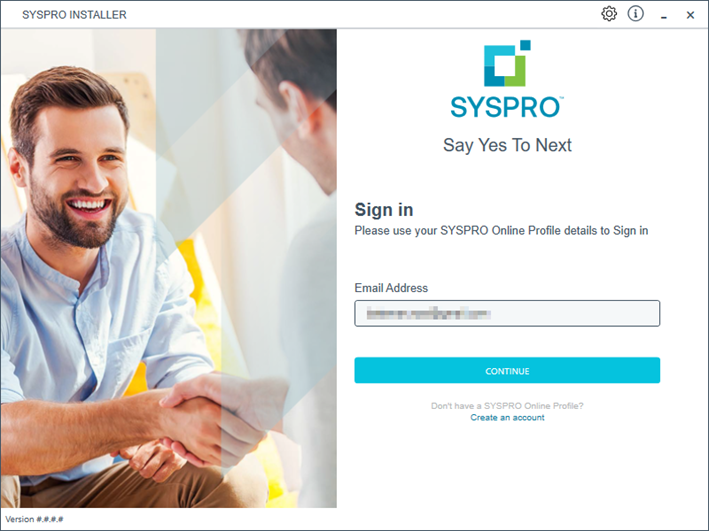
Log in to the application using your email address associated with the SYSPRO Online Profile. If you have access to your emails, enter the OTP received via email in the OTP or Fallback Password field. If you don't have access to your emails, enter the fallback password in this field.
-
The deployment fallback password allows customers that don't have access to the OTP (typically in highly secure sites) to set up a time limited password which can be used to log into the SYSPRO Installer without the OTP.
-
You can no longer use your InfoZone password to log into the SYSPRO Installer.
Enable the Save Customer Details checkbox option if you want the app to save your Customer Code and Customer PIN when logging in.
Partners
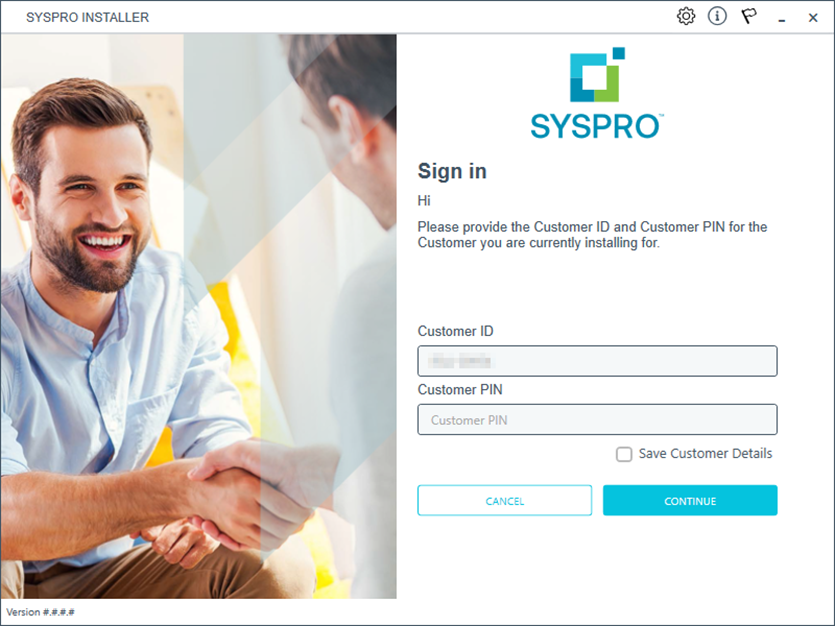
Ensure that you enter the Customer ID for the customer being installed.
The Customer ID defaults to the customer code retrieved from SYSPRO Online Profile, therefore you must ensure that it matches the SYSPRO account that you are installing.
The Customer PIN is the 6-digit code included in the email you received that contained your SYSPRO 8 license.
You can verify your customer ID and PIN against the CustomerId and CustomerPin elements of the license XML file.
2. Home screen
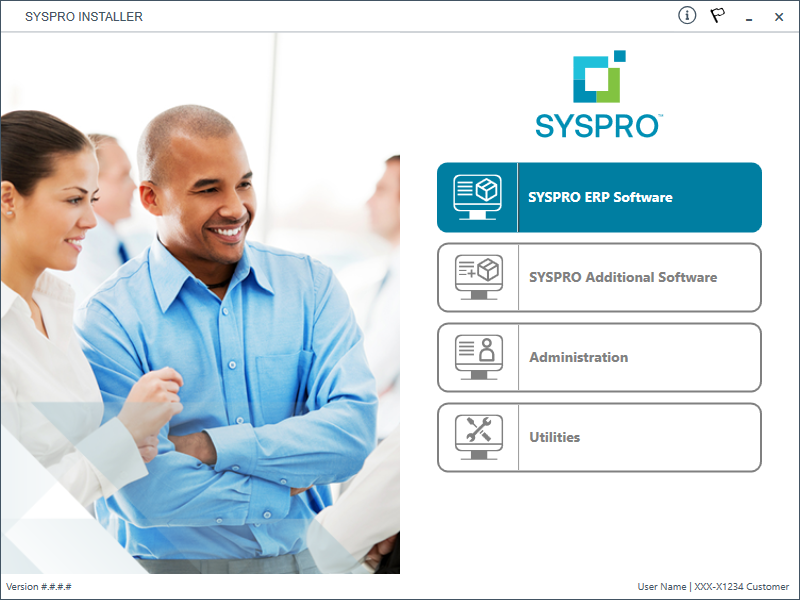
From the SYSPRO Installer home screen, select the SYSPRO Additional Software option.
You can navigate back to this home page from any point in the app by selecting the home icon ( ) from the toolbar at the top of each screen.
3. Additional Software Packages
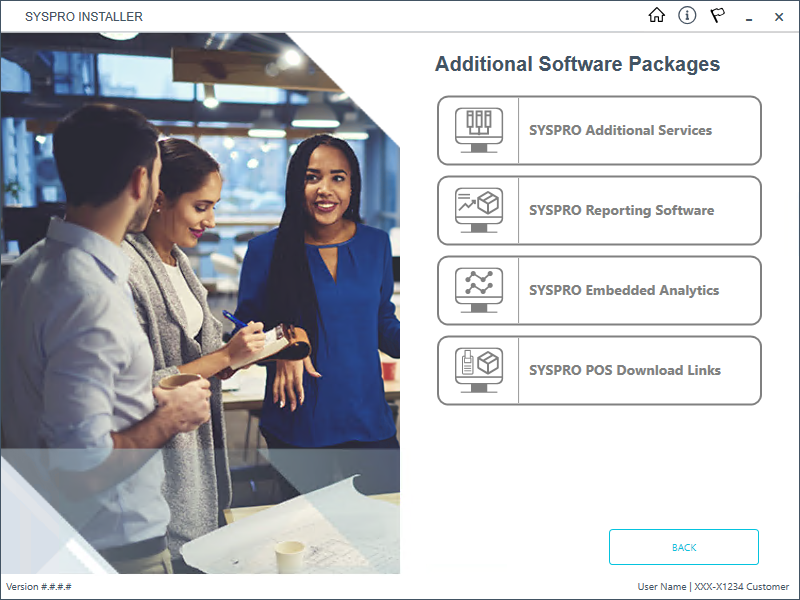
The Additional Software Packages screen provides you with a list of additional software available to install from the SYSPRO Installer application.
The installation files of these products are stored on the Deployment Share in the syspro-additional-software folder.
Currently, the following products are available:
-
SYSPRO Additional Services
-
SYSPRO Reporting Software
-
SYSPRO POS Download Links
-
SYSPRO Embedded Analytics
Select the SYSPRO Reporting Software option.
4. SYSPRO Reporting Software
When this page loads, the app verifies that it has access to the required folders. If these are not available, the service creates the folder structure. These files are then verified using a CHECKSUM. If the verification fails, you will not be able to continue and will be returned to the Deployment Groups page.
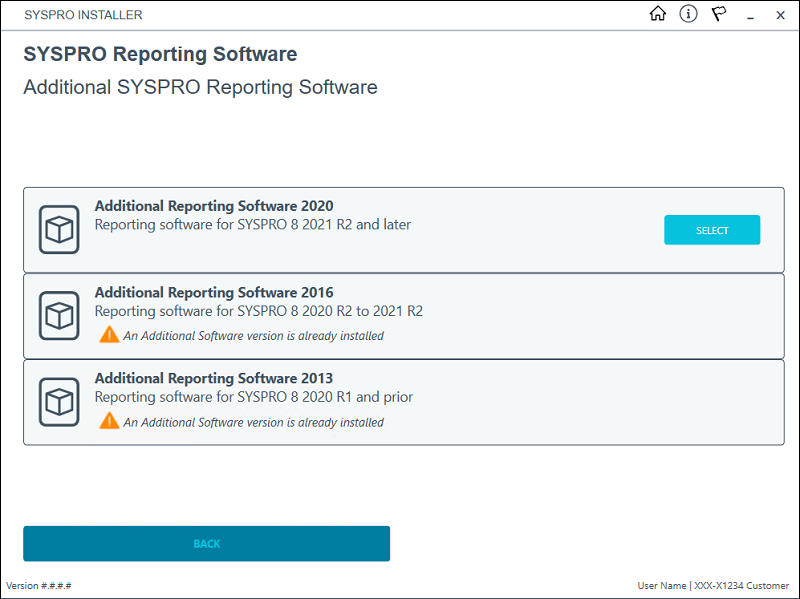
From the SYSPRO Reporting Software screen, select the reporting software version currently installed.
The remainder of this task uses Additional Reporting Software 2020 as the example.
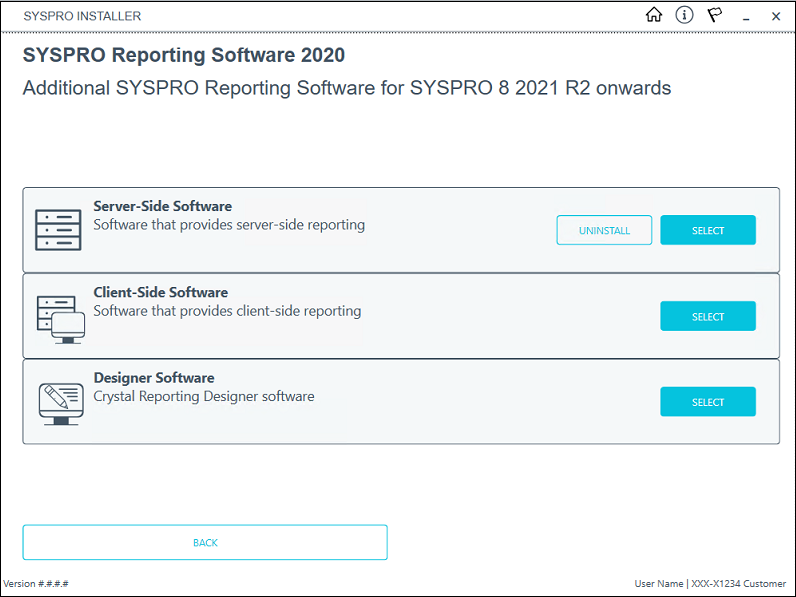
From the SYSPRO Reporting Software screen, select the Uninstall function against the software type that you want to remove.
5. SYSPRO Reporting Software Uninstall
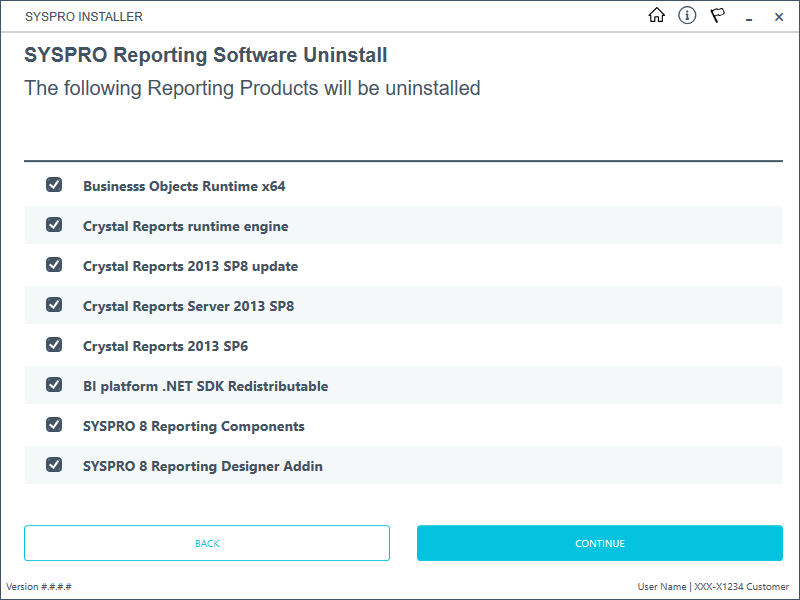
The SYSPRO Reporting Software Uninstall screen displays all products that will be uninstalled.
Review the list of products to be uninstalled and select Continue to proceed.
The app then proceeds with the uninstall process (which may take some time) and provides an informational message () once complete, as well as a list of all software that was uninstalled.
We recommend that you reboot the machine before attempting to install any new software.
Install Process
The following explains the steps to follow when updating to the latest reporting software version (i.e. SYSPRO Additional Reporting Software 2020) using the SYSPRO Installer Application:
1. Login
Log in to the application using your email address associated with the SYSPRO Online Profile. If you have access to your emails, enter the OTP received via email in the OTP or Fallback Password field. If you don't have access to your emails, enter the fallback password in this field.
-
The deployment fallback password allows customers that don't have access to the OTP (typically in highly secure sites) to set up a time limited password which can be used to log into the SYSPRO Installer without the OTP.
-
You can no longer use your InfoZone password to log into the SYSPRO Installer.
Enable the Save Customer Details checkbox option if you want the app to save your Customer Code and Customer PIN when logging in.
Partners
Ensure that you enter the Customer ID for the customer being installed.
The Customer ID defaults to the customer code retrieved from SYSPRO Online Profile, therefore you must ensure that it matches the SYSPRO account that you are installing.
The Customer PIN is the 6-digit code included in the email you received that contained your SYSPRO 8 license.
You can verify your customer ID and PIN against the CustomerId and CustomerPin elements of the license XML file.
2. Home screen
From the SYSPRO Installer home screen, select the SYSPRO Additional Software option.
You can navigate back to this home page from any point in the app by selecting the home icon () from the toolbar at the top of each screen.
3. Additional Software Packages
The Additional Software Packages screen provides you with a list of additional software available to install from the SYSPRO Installer application.
The installation files of these products are stored on the Deployment Share in the syspro-additional-software folder.
Currently, the following products are available:
-
SYSPRO Additional Services
-
SYSPRO Reporting Software
-
SYSPRO POS Download Links
-
SYSPRO Embedded Analytics
Select the SYSPRO Reporting Software option.
4. SYSPRO Reporting Software
When this page loads, the app verifies that it has access to the required folders. If these are not available, the service creates the folder structure. These files are then verified using a CHECKSUM. If the verification fails, you will not be able to continue and will be returned to the Deployment Groups page.
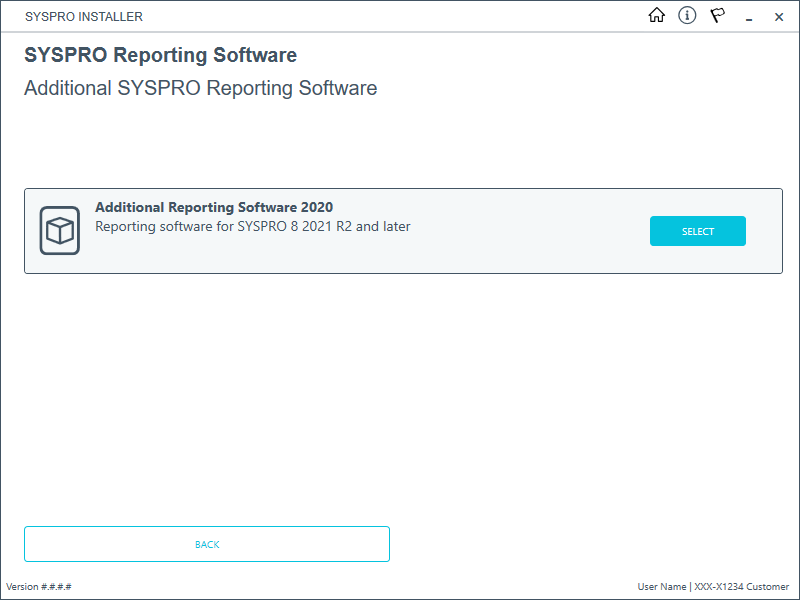
From the SYSPRO Reporting Software screen, select the Additional Reporting Software 2020 option.
5. SYSPRO Reporting Software 2020
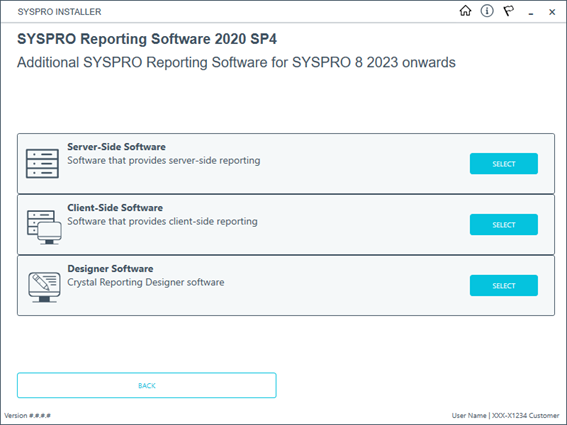
The SYSPRO Reporting Software {version} screen displays the various types of software available for the selected software version.
-
Select the type of software required:
-
Server-Side
-
Client-Side
-
Designer
The app then checks your local machine to verify if any of the software components are already installed.
Any existing components found will reflect as installed and not relevant for installing through the application.
-
-
Review the products to be installed and select the Continue button.
6. SYSPRO License Agreement
Read and accept the license terms and conditions before continuing with the install.
Select the Printable Version option to view a PDF version of the EULA in your default PDF software.
7. Products Ready to Install
A summary of all products to be installed is displayed for you to review.
If you have previously downloaded the install files and have them available on another form of media, these can now be copied into the SYSPRO Deployment Downloads folder.
Ensure that you copy your files to the correct location.
Once you are satisfied with the list, continue by selecting the Begin Install button. The silent download of install files and installation of all selected products then commences.
The appropriate status information is shown during the installation process.
The install for the Server-Side and Designer components may take some time due to the software being stored in ZIP files. As such, the install process may take longer than other components.
8. Install Complete
Once complete, the Install Complete screen is displayed with a summary of all products installed.
Select the Home button to return to the Additional Software Packages screen.
FAQs
Install and Uninstall Timings
How long do the uninstall and install processes take on each client machine?
The following benchmark times are based on our internal testing and provide an indication of how long each of these processes can take:
This may vary depending on your hardware and software configuration.
Uninstall Processes:
-
Uninstall of previous SYSPRO Runtime, directly followed by newer runtime install:
+- 5 minutes
-
Uninstall of previous Client-side Reporting Software 2013 and its associated components:
+- 10 minutes
-
Uninstall of previous Client-side Reporting Software 2016 and its associated components:
+- 15 minutes
-
Uninstall of previous Designer Reporting Software 2013 and its associated components:
+- 25 minutes
-
Uninstall of previous Designer Reporting Software 2016 and its associated components:
+- 30 minutes
Install Processes:
-
Install Client-side Reporting Software 2020 and its associated components:
+- 5 minutes
-
Install Designer Reporting Software 2020 and its associated components:
+- 20 minutes
Remote Users
How should remote users be managed during the update process?
The SYSPRO software requires elevation to install. Therefore, depending on your deployment method, you might require some remote access software, or a person on-site when managing your remote users.
Reporting Software
What configuration files are associated with SYSPRO Additional Reporting Software 2020?
The following .config files are related:
-
SYSPROReportViewer2020.exe.config
-
SYSPROReportingServices2020.exe.config
-
SYSPRODocumentArchiving2020.exe.config
-
SysproClient2020.exe.config
-
Syspro2020.exe.config
-
SRSServerThemeDesigner2020.exe.config
What happens when I uninstall Additional Reporting Software?
When you select to uninstall any version of the Additional Reporting Software, the application uninstalls all SAP Crystal products installed. This ensures that the uninstall process is performed in the correct order and without any components incorrectly being left behind.
Use the Windows Programs and Features panel if you only want to uninstall certain components.
The following process occurs when uninstalling Additional Reporting Software using the SYSPRO Installer Application:
-
The following services are stopped:
-
SYSPRO 8 Reporting Host Service
-
SYSPRO 8 RAS Management Service
-
SYSPRO 8 Report Print Service
i.e. BOEXI40CrystalReportApplicationServer(1)
-
SYSPRO 8 Document Print Service
i.e. BOEXI40CrystalReportApplicationServer(2)
-
All SRS RAS Server Services using a port number >= 20150
i.e. BOEXI40CrystalReportApplicationServer20150 and greater than 20150
-
-
The following services are disabled:
-
SYSPRO 8 Reporting Host Service
-
SYSPRO 8 RAS Management Service
-
SYSPRO 8 Report Print Service
-
SYSPRO 8 Document Print Service
-
All SRS RAS Server Services using a port number >= 20150
i.e. BOEXI40CrystalReportApplicationServer20150 and greater than 20150
-
-
The following services are deleted:
-
BOEXI40CrystalReportApplicationServer20150 and greater than 20150
i.e. All SRS RAS Server Services using a port number >= 20150
-
-
The following products are uninstalled:
Additional Reporting Software 2020 SP4:
-
SYSPRO 8 Reporting Components
-
SYSPRO 8 Reporting Designer Addin
-
SAP Crystal Reports 2020 SP4
-
BusinessObjects.NET SDK 64bit 4.3 SP4
-
SAP Crystal Reports Server 2020 SP4
-
SAP Crystal Reports runtime engine
Additional Reporting Software 2020:
-
SYSPRO 8 Reporting Components
-
SYSPRO 8 Reporting Designer Addin
-
SAP Crystal Reports 2020 SP2
-
BusinessObjects.NET SDK 64bit 4.3 SP2
-
SAP Crystal Reports Server 2020
-
SAP Crystal Reports runtime engine
Additional Reporting Software 2016:
-
SYSPRO 8 Reporting Designer
-
SYSPRO 8 Reporting Components
-
SAP Crystal Reports 2016 SP8
-
Business Objects Runtime x86
-
SAP Crystal Reports Server 2016 SP8
-
Business Objects Runtime x64
Additional Reporting Software 2013:
-
Business Objects Runtime x64
-
SAP Crystal Reports runtime engine
-
SAP Crystal Reports 2013 SP8 update
-
SAP Crystal Reports Server 2013 SP8
-
SAP Crystal Reports 2013 SP6
-
BI platform .NET SDK Redistributable
-
SYSPRO 8 Reporting Components
-
SYSPRO 8 Reporting Designer
-
Considerations:
-
Rebooting your machine after the above processes have completed is highly recommended.
-
Due to SAP Crystal Reports 2013 and SAP Crystal Reports 2016 having reached the end of their life cycles:
You will not be able to perform a reinstall of either Additional Reporting Software 2013 or Additional Reporting Software 2016 after removing them.
SYSPRO 7 Upgrade considerations
Take note of the following when upgrading from SYSPRO 7 Update 1:
Why are custom form fields not displayed, nor saved on the form when re-added?
All custom form fields added in SYSPRO 7 Update 1 are no longer displayed in the programs after converting from SYSPRO 7 Update 1 to SYSPRO 8 2025. When attempting to add existing or new custom form fields to programs in SYSPRO 8 2025, the changes are not saved.
Follow these steps to restore custom form fields to programs after converting from SYSPRO 7 Update 1 to SYSPRO 8 2025:
-
Select the SYSPRO button and choose the Run a program option from the menu.
The Run Program window is displayed.
-
At the Program name field enter IMPCFC CONVERT and select Run Program.
The ADMPRO file will be converted.
-
The custom form fields added to programs are saved in the ADMPRO file within the \Base\Settings folder on the application server.
-
Custom form fields added to programs are saved per program, system-wide and for all operators and roles.
-
Copyright © 2025 SYSPRO PTY Ltd.