Topic: Syspro Platform Manager

The Syspro Platform Manager provides infrastructure that establishes a secure, cloud-connected link between Syspro and every subscription customer's environment. It is not a standalone product but the foundation that enables Syspro to deliver new infrastructure capabilities, monitor environment health, and provide visibility into how your Syspro deployment is being used. It runs as a lightweight background service on your server. It is contractually included in all Syspro subscription agreements and is installed by your Syspro partner of record. Once installed, it operates silently and requires no day-to-day management.

Exploring
 Where it fits in?
The Syspro Platform Manager has been designed as a service which can be installed on any version of Syspro 8 (from version 2019 R1 onwards), Syspro 7 or Syspro 6.1. It is a requirement for any on premise subscription customer and is a light-touch service which connects to an API in the cloud, with a frontend which is administered by Syspro. The service will send a heartbeat to the API on an hourly basis, which allows Sysproto ensure the service is running.Syspro's administaror's will create tasks for plugins to be installed to perform metering functions, send Syspro Platform Manager log files or perform other functions as set out in the subscription contract.
Benefits
-
Licence visibility — understand exactly how your named user licences are being utilised
-
Proactive environment health monitoring — when used together with Syspro Insights (recommended)
-
Integration insights — track Business Object and API consumption against your token allocation
-
Future-ready delivery — new infrastructure capabilities delivered automatically without disruption or additional visits
Starting
Prerequisites
Hotfixes
For each of the below releases, the corresponding hotfix is required for installation of the Syspro Platform Manager .
| Syspro 8 version | Required hotfix (KB number) |
|---|---|
| 2026 R1 |
KB8130019 |
| 2025 |
KB8120637 |
| 2024 |
KB8111128 |
| 2023 |
KB8101330 |
| 2022 |
KB8091135 |
| 2021 R2 |
KB8081619 |
| 2021 R1 |
KB8071250 |
| 2020 R2 |
KB8061021 |
| 2020 R1 |
KB8051054 |
| 2019 R2 |
KB8040571 |
| 2019 R1 |
KB8030305 |
| 2018 R1 / 2018 R2 |
No hotfix is available.Please upgrade to at least Syspro 8 2019 R1 before installation |
Deploying
Standalone Installation
When you run the Syspro Platform Manager installer standalone, the InstallShield Wizard opens with a welcome screen for the Syspro Platform Manager .
Selecting Next loads the Syspro License Agreement. Once you have reviewed the terms and are in agreement with them, you may opt to accept. After doing so, you're presented with a "Choose your connection method" screen offering three options:
-
SQL Server Connection (Recommended)
Syspro 8 only. Connects directly to your SQL Server database. This is the fastest and most reliable method. You'll need: the Application Server instance and path, SQL Server address, username, and password.
-
Syspro e.net Communications Load Balancer (WCF)
Syspro 6.1 to 8.0. Connects through the Syspro e.net Communications Load Balancer service. You'll need: the Application Server instance and path, the Load Balancer endpoint URL, and a Syspro Operator login.
-
File system (Application path)
Syspro 6.1 to 7.0 only. Points directly to your Syspro Application folder on disk with no database or service connection needed. You'll need: the Syspro application instance and path (e.g. C:\SYSPRO).
1. Configure SQL credentials
This option is available for all Syspro 8 versions. However it isn't available if you're using Syspro 7 or Syspro 6.1.
| Installation Step | Explanation |
|---|---|
| SQl Server Connection: Enter your database credentials |
To configure your SQL credentials, the Syspro Platform Manager r requires a SQL login with read access to the system-wide database, along with the name of your SQL Server Instance. This screen collects the SQL Server name, an option to trust the server certificate, a choice between SQL Server Authentication or Windows Integrated Security, and the SQL user/password. A Test Connection button is available, and clicking Next also runs a connection test automatically.
|
| Syspro Application Details: Point to your Syspro Installation |
You're then prompted for the BaseDir of your Syspro instance and the Syspro Application Server Location. |
| Service Credentials: Choose the account under which the service will run |
If required, you can configure a user other than the local system account to run the service. This user must have read/write access to the folder where the Syspro application is installed, as well as to C:\Program Files\SYSPRO and C:\ProgramData\SYSPRO.
|
| Destination Folder | The Destination Folder defaults to C:\Program Files\SYSPRO\SYSPRO Platform Manager\ Select Change... to specify another destination folder to install the Syspro Platform Manager to. |
| Ready to Install the Program | Select Install to begin the installation. Once complete, a confirmation screen lets you Finish, with an option to view the Windows Installer log |
The Syspro Platform Manager service starts automatically after installation. It can be confirmed as Syspro Platform Manager with a Running status in the Windows Services list.
2. Configure e.net Load Balancer credentials
This option is available for all Syspro 8 versions, as well as Syspro 6.1 and Syspro 7 versions where the Syspro e.net Communications Load Balancer is installed.
| Installation Step | Explanation |
|---|---|
| Syspro e.net Communications Load Balancer: Connect to your Syspro application server |
You're prompted for the BaseDir of the Syspro instance, the Syspro install location, and the Syspro e.net Communications Load Balancer REST Endpoint. A Test Connection button is available, and clicking Next also triggers a test. |
| Syspro Login |
You're then prompted for the Syspro login credentials used by the Syspro Platform Manager to log in: Operator, Operator Password, Company, and Company Password. |
| Service Credentials: Choose the account under which the service will run |
If required, you can configure a user other than the local system account to run the service. This user must have read/write access to the folder where the Syspro application is installed, as well as to C:\Program Files\SYSPRO and C:\ProgramData\SYSPRO.
|
| Destination Folder | The Destination Folder defaults to C:\Program Files\SYSPRO\SYSPRO Platform Manager\ Select Change... to specify another destination folder to install the Syspro Platform Manager to. |
| Ready to Install the Program | Select Install to begin the installation. Once complete, a confirmation screen lets you Finish, with an option to view the Windows Installer log |
3. Configure Syspro application details
This option is available for all Syspro 6.1 and Syspro 7 versions where the Syspro e.net Communications Load Balancer isn't installed, or where you prefer not to use the Load Balancer.
| Installation Step | Explanation |
|---|---|
| Syspro Application Details: Point to your Syspro Installation |
You'll be prompted for the BaseDir of your Syspro instance and the Syspro Application Server Location. |
| Service Credentials: Choose the account under which the service will run |
If required, you can configure a user other than the local system account to run the service. This user must have read/write access to the folder where the Syspro application is installed, as well as to C:\Program Files\SYSPRO and C:\ProgramData\SYSPRO.
|
| Destination Folder | The Destination Folder defaults to C:\Program Files\SYSPRO\SYSPRO Platform Manager\ Select Change... to specify another destination folder to install the Syspro Platform Manager to. |
| Ready to Install the Program | Select Install to begin the installation. Once complete, a confirmation screen lets you Finish, with an option to view the Windows Installer log |
Using the Syspro Installer Application to install the Syspro Platform Manager
Installing Syspro Platform Manager
1. Login
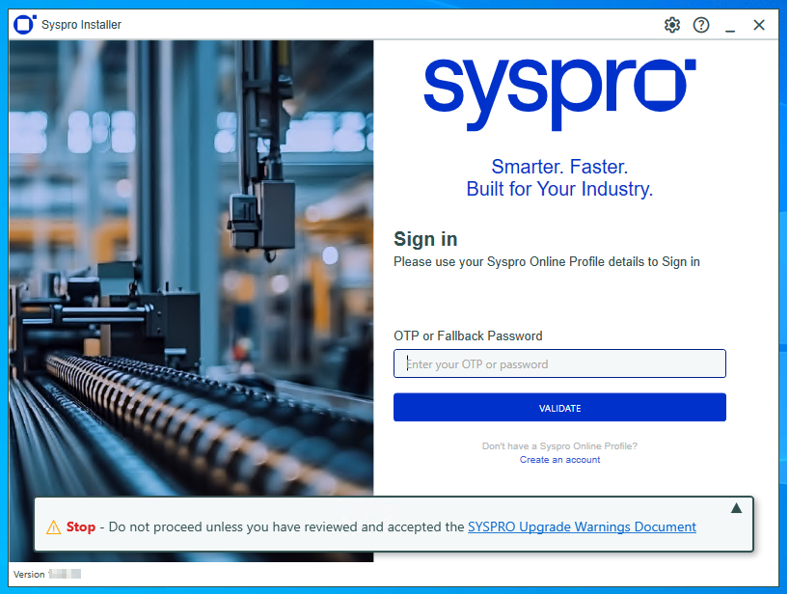
Log in to the application using your email address associated with the Syspro Online Profile. If you have access to your emails, enter the OTP received via email in the OTP or Fallback Password field. If you don't have access to your emails, enter the fallback password in this field.
-
The deployment fallback password allows customers that don't have access to the OTP (typically in highly secure sites) to set up a time limited password which can be used to log into the Syspro Installer without the OTP.
Enable the Save Customer Details checkbox option if you want the app to save your Customer Code and Customer PIN when logging in.
Partners
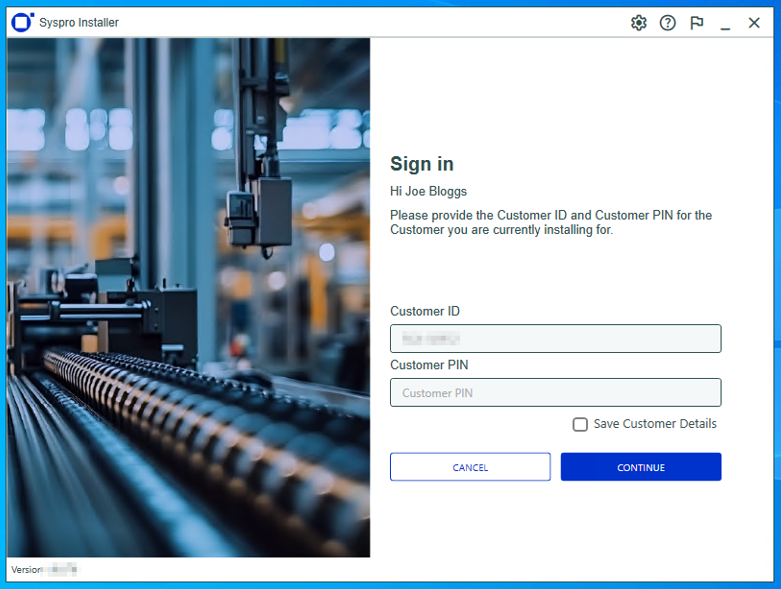
Ensure that you enter the Customer ID for the customer being installed.
-
The Customer ID defaults to the customer code retrieved from Syspro Online Profile, therefore you must ensure that it matches the Syspro account that you are installing.
-
Customer code changes are automatically detected, allowing you to enter the new PIN without providing the previous customer code PIN. You can manually update a customer code to correct an incorrect entry made during setup, but changes processed by the Licensing department can't be reversed and will result in subsequents prompts again at each login.
The Customer PIN is the 6-digit code included in the email you received that contained your Syspro 8 license.
You can verify your customer ID and PIN against the CustomerId and CustomerPin elements of the license XML file.
2. Home screen
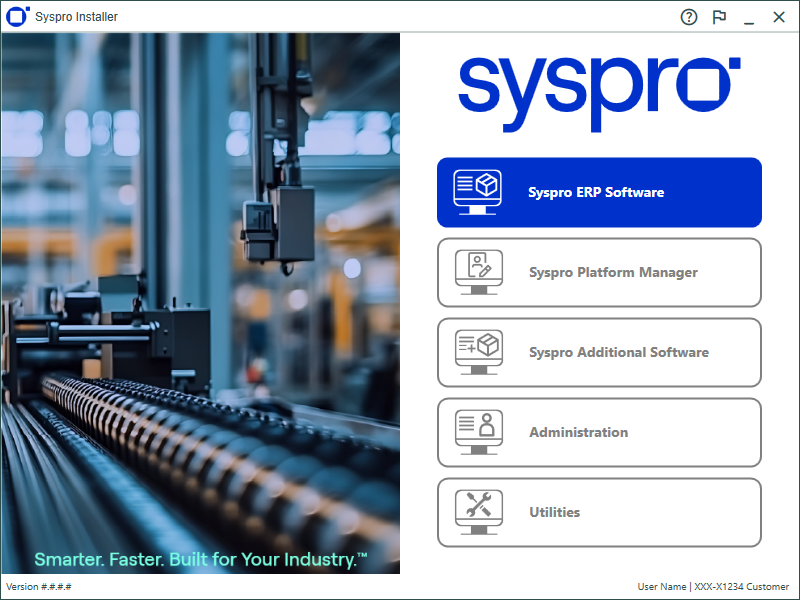
From the Syspro Installer Application home screen, select the Syspro Platform Manager option.
You can navigate back to this home page from any point in the app by selecting the home icon ( ) from the toolbar at the top of each screen.
3. Syspro Platform Manager
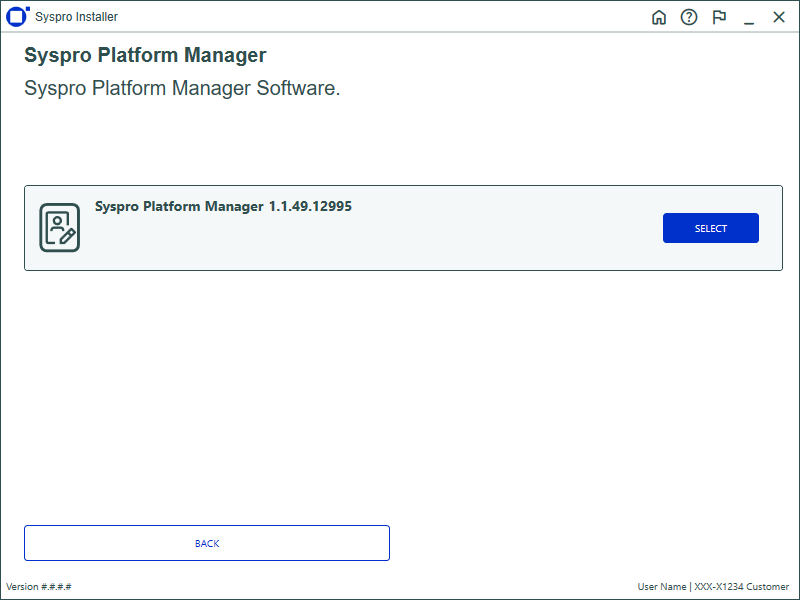
This displays the version of the Syspro Platform Manager. Press Select to review the product parameters.
If you have previously installed the Syspro Platform Manager, the Select button changes to an Update button to update the Platform Manager.
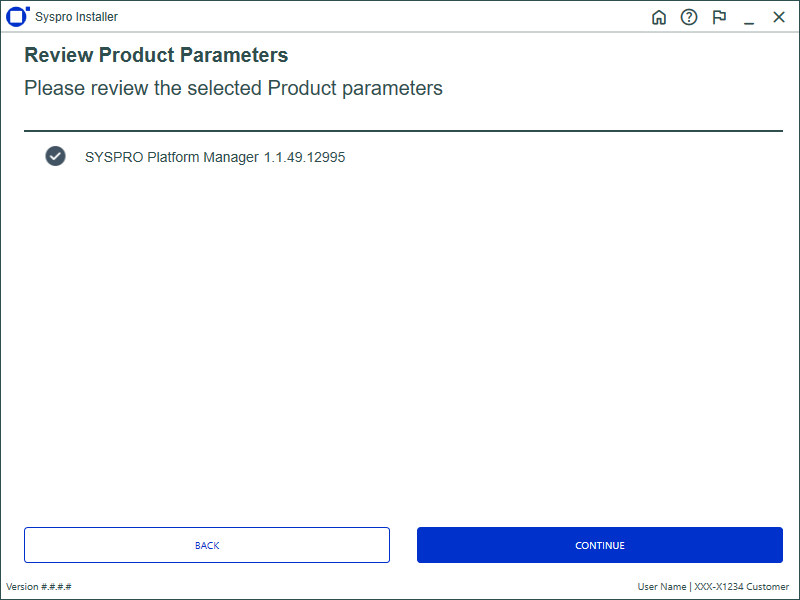
Select Review.
The following window is displayed where you have the option of connecting using SQL Server (recommended) or e.net:
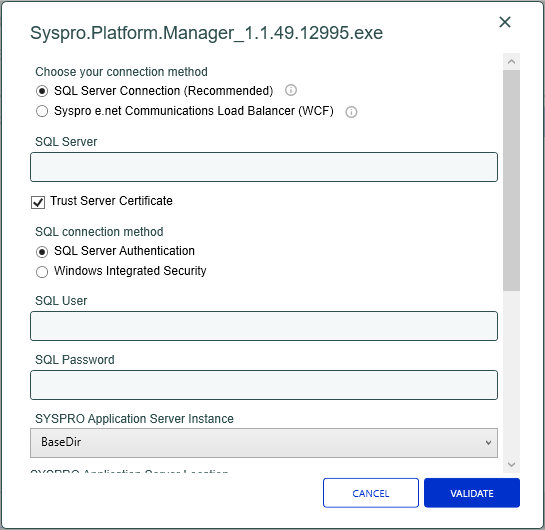
Configure SQL credentials
This option is available for all Syspro 8 versions and is the recommended option.
In order to configure your SQL credentials, the Platform Manager requires the name of your SQL Server Instance as well as a SQL login which has read access on the system wide database:
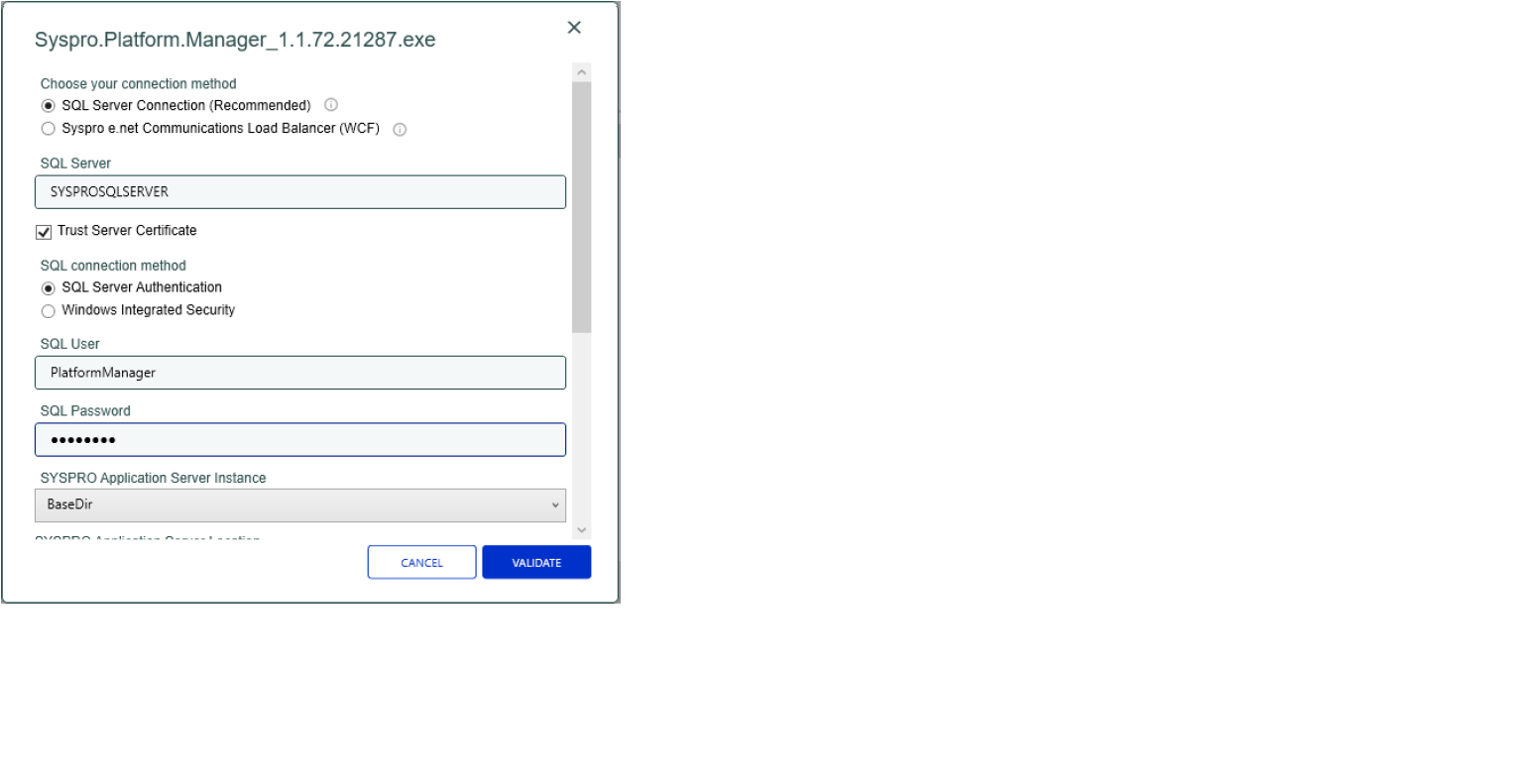
You will also be prompted for the BaseDir for your Syspro instance, as well as the ability to configure a user other than the local system user to run the service.
This user must have read/write access to the folder where the Syspro application is installed, as well as to the C:\Program Files\Syspro folder and the C:\ProgramData\Syspro folder
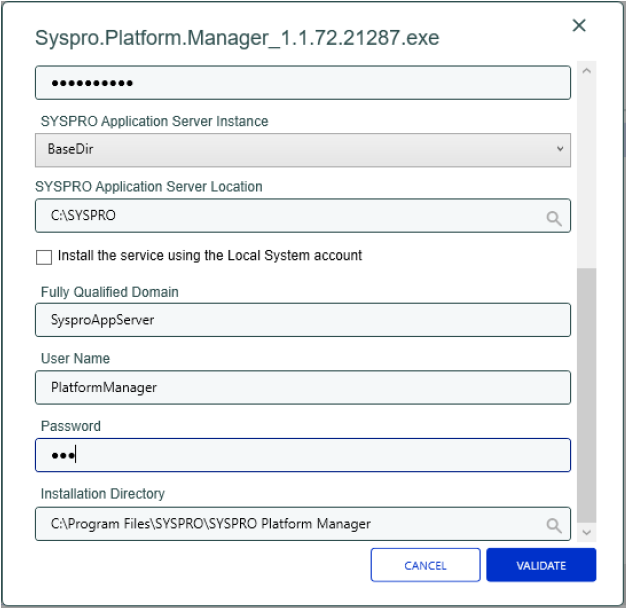
Select Validate to save and validate the SQL credentials and continue to install as usual.
Once installed, the Platform Manager service will automatically start running.
Configure e.net Load Balancer credentials
This option is available for all Syspro 8 versions as well as all Syspro 6.1 and Syspro 7 Update 1 versions where the Syspro 8 e.NET Communications Load Balancer service is installed.
You will be prompted for the BaseDir for the Syspro instance, as well as the location of the Syspro install and the REST endpoint for the Syspro 8 e.NET Communications Load Balancer service. In order to login to e.net, you will have to provide a valid Syspro operator and company, with the necessary passwords if they’ve been configured:
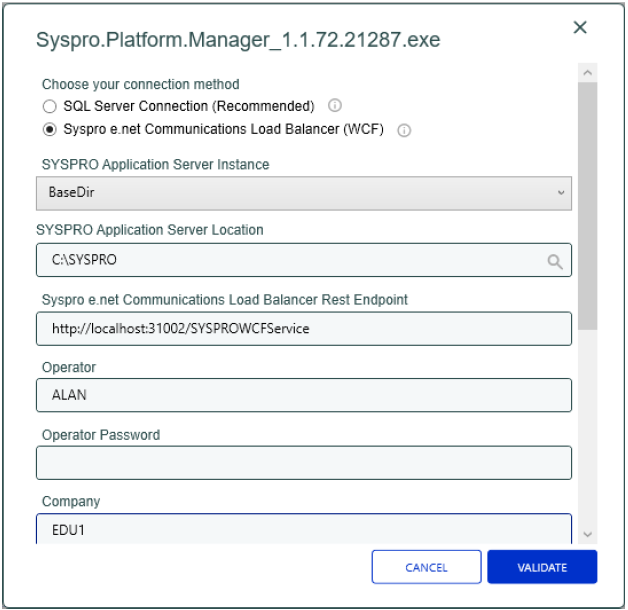
You can configure a user other than the local system user to run the service.
This user must have read/write access to the folder where the Syspro application is installed, as well as to the C:\Program Files\Syspro folder and the C:\ProgramData\Syspro folder
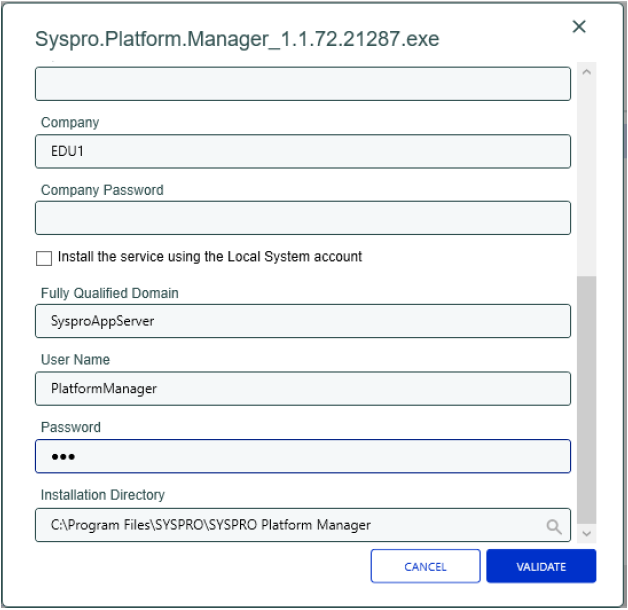
Select Validate to save and validate the e.net credentials and continue to install as usual.
Once installed, the Platform Manager service will automatically start running.
Solving
FAQs
Data, privacy, and trust
What data does the Syspro Platform Manager use?
Privacy and security are foundational to the Syspro Platform Manager . It does not collect business transaction data, financial records, or personal information. It focuses exclusively on environment health, licence utilisation, and integration activity, the operational data needed to support and improve your Syspro deployment.
All communication is encrypted in transit. Each installation is identified by a unique hardware fingerprint, and no host can connect to Syspro's cloud without explicit approval from Syspro's internal teams. Sensitive values stored on your server — credentials and connection details — are encrypted using your operating system's built-in protection and never stored as plain text. Syspro Platform Manager was independently penetration tested prior to release.
Using

Why don't you drop us a line with some useful information we can add here?
Copyright © 2026 Syspro PTY Ltd.