Topic: Container-Based Contract Selling Rules

Container-Based Contract Selling Rules introduces a structured way to define how each stock code is packed, layered, and stacked within specific container types. For every stock code and container combination, you can configure units per layer, layers per container, layer naming conventions, and stacking rules. By linking container rules directly to the item master, the system provides consistent packing standards across warehousing processes. This supports capacity planning, safer stacking practices, and improved operational guidance for enforcing selling rules in container multiples, while driving future functionality on picking, put-away, and storage decisions.

Exploring
 Where it fits in?
Benefits
-
Right-sized orders: Order quantities follow the way the stock code is packed, so customers order in full containers, half containers, or layers instead of quantities that leave short pallets.
-
Fewer warehouse corrections: Quantities are checked at order entry, so warehouse teams no longer fix bad quantities after the truck is loaded.
-
One rule for every order path: The rule is set once on the contract and checked the same way in Sales Order Entry, Sales Order Entry Express, Sales Order Import, and the order line build routine.
-
Flexible control: A contract can stop a non-conforming quantity outright, or warn the operator and let them continue.
-
Optional minimums: A contract can also set a minimum multiple quantity, for example no fewer than two pallets per order line.
Functionality
Container-Based Contract Selling Rules lets you control how much of a stock code a customer can order at a time, by tying the order quantity to the way the stock code is packed and shipped. It has two parts:
-
A packing setup that records, for each stock code and container type, how many units fit on a layer, how many layers fit on a container, and whether the container can be stacked.
-
A contract-level rule that enforces those container quantities (or half of them, or a layer at a time) whenever the customer orders the stock code.
The programs related to this feature are accessed from the Program List of the Syspro menu:
-
Program List > Warehouse Management > License Plate Numbering and Containerization System
-
Program List > Contact Management
-
Program List > Inventory
-
Program List > Sales Orders
Terminology
Container Type
This refers to the physical type of container or storage (e.g., Pallet, Box, Cage) associated with an LPN, configured with dimensions, capacity, and label templates. Container Types are maintained in the Container Maintenance program and LPN Container Setup business object, which include the description, dimensions, maximum weight/volume, flags (default, stacking allowed, flexible volume), and associated label format.
Containerization
This typically refers to using standardized containers for the storage and transport of materials within a manufacturing facility and between suppliers and manufacturers.
Materials are often ordered in multiples of a container quantity using Kanban.
Benefits include:
- Reduced product damage
- Reduced waste (by using reusable containers)
- Less handling
- Improved inventory accuracy (by simplifying counting processes)
Starting
Prerequisites
To use this feature, the following module(s) must be installed according to the terms of your software license agreement:
-
Warehouse Management
-
Accounts Receivable
-
Sales Orders
Security
You can secure this feature by implementing a range of controls against the affected programs. Although not all these controls are applicable to each feature, they include the following:
- You restrict operator access to activities within a program using the Operator Maintenance program.
- You can restrict operator access to the fields within a program (configured using the Operator Maintenance program).
- You can restrict operator access to functions within a program using passwords (configured using the Password Definition program). When defined, the password must be entered before you can access the function.
- You can restrict access to the eSignature transactions within a program at operator, group, role or company level (configured using the Electronic Signature Configuration Setup program). Electronic Signatures provide security access, transaction logging and event triggering that gives you greater control over your system changes.
- You can restrict operator access to programs by assigning them to groups and applying access control against the group (configured using the Operator Groups program).
- You can restrict operator access to programs by assigning them to roles and applying access control against the role (configured using the Role Management program).
Restrictions and Limits
This functionality does not apply to:
-
Credit notes.
Any quantity is accepted.
-
Kit components (K type kits).
Container multiples set up for the kit parent are ignored.
-
Components of S type and F type kits.
They are never checked individually, because the bill of material fixes their quantities.
-
Stock codes with no contract for the customer.
. Any quantity is accepted.
-
Copied sales order lines, when Apply best price rules is not selected.
Prices and quantities are copied as they were, with no further container check.
Solving
FAQs
Setting up containers and the matrix
Why does the message "Invalid Container" appear when I save a stock code and container record?
The container code you entered does not exist as a container type. Create the container type first, or check the code for a typo.
Why does the message "Stock code invalid" appear when I save a stock code and container record?
The stock code does not exist in Inventory. Confirm the stock code is set up before you link it to a container.
Why can't I save a stock code and container record that already exists?
A record for that exact stock code and container pairing already exists. The two fields form the key, so update the existing record instead of adding a new one.
Why is the Max stack height field greyed out?
This is expected. Stacking allowed is set to No, so Syspro disables Max stack height to avoid conflicting instructions. Set Stacking allowed to Yes if you want to enter a maximum stack height.
Why can't I delete a stock code and container record?
You can only delete the record when both of the following are true:
-
No License Plate Numbers (LPNs) reference the stock code and container combination.
-
No sales order contract price record references that container for the stock code.
Remove or reassign the dependent records first.
Entering orders
Why does the quantity clear and an error appear when I enter an order line?
The quantity does not divide evenly into the Selling multiple type on the contract, and the contract does not allow an override. Enter a valid multiple.
To let operators continue with a non-conforming quantity, clear Disallow container multiple override on the contract line.
Why does a "Container Multiple Compliance" warning appear when I enter a quantity?
The quantity does not match the required multiple, but the contract allows an override. Choose Yes to continue anyway, or No to enter the quantity again.
Why is an order line rejected when the quantity is a valid multiple?
Check the Minimum multiple quantity on the contract. The minimum applies on top of the multiple rule and cannot be overridden.
Why don't container multiples seem to apply to my order?
Check that the contract line has Enforce container multiples selected, and that the line price came from that contract.
If no contract prices the line, container rules never apply. Credit notes are also never checked.
How do I let an operator continue with a quantity that is not a valid multiple?
-
Open the contract in SO Contract Price Maintenance by Customer, SO Contract Price Maintenance by Buying Group, or SO Contract Price Maintenance by Price Group.
-
Clear Disallow container multiple override for the contract line.
-
Save the contract.
The operator then sees a warning. Choosing Yes saves the order using the contract price and the quantity as entered. A quantity below the Minimum multiple quantity is still an error.
Copying and importing
What happens to container multiples when I copy a sales order?
-
If Apply best price rules is selected, prices are recalculated. When a contract with container multiples applies to a copied line and the quantity does not conform, the operator is notified and that line, with any of its kit components, is left out of the copy.
-
If Apply best price rules is not selected, prices and quantities are copied exactly as they were on the original order, with no further container check.
How are container multiples checked when I import orders?
Orders brought in with SO Sales Order Import are checked the same way as orders keyed manually, including the warning or error behavior.
Where the source file supports an Ignore warnings flag, it works together with the contract's override setting.
Using
Process
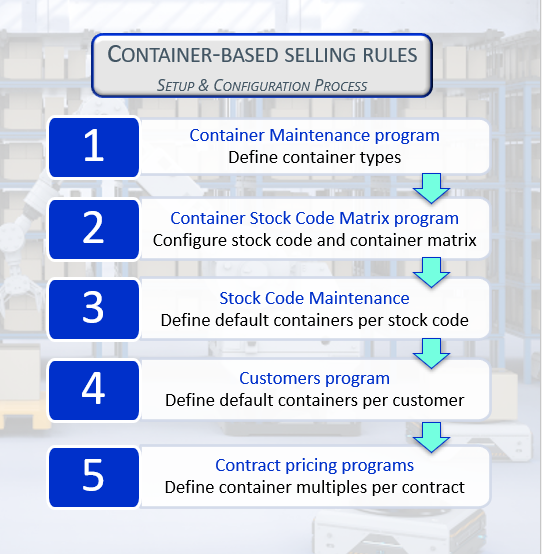
Setup and Configuration
-
In the Container Maintenance program, add a container type for each container your warehouse uses.
Enter a code and a description, set the default flag if the container is the standard one, and enter the width, depth, height, maximum weight, and maximum volume.
-
In the Container Stock Code Matrix program, add a record for each stock code you want to control.
Enter the stock code and the container code, then define the following:
-
Units per layer
-
Layer UOM
-
Layers per container
-
Stacking allowed
Enter Max stack height only if stacking is allowed.
-
-
Optional: In theStock Code Maintenance program, select a Default container for the stock code (Other tab> Warehouse Management section).
Defining a default container per stock code does not enforce any order rules. This is done in contract pricing programs in step 5.
-
Optional: In the Customers program, select a Default container for the customer (General Details tab > General Information section).
Defining a default container per customer does not enforce any order rules. This is done in contract pricing programs in step 5.
-
Enforce container multiples in the SO Contract Price Maintenance by Customer, SO Contract Price Maintenance by Buying Group, or SO Contract Price Maintenance by Price Group program.
Select the contract for the stock code (or stock code range or group).
-
In the Configure Contract section, select the Enforce container multiples option.
-
Select a Default container that already exists in the matrix for the stock code.
-
At the Selling multiple type field, select Full container, Half container, or Layer.
-
Select Disallow container multiple override if a non-conforming quantity must always be corrected.
-
Select Enforce minimum multiple quantity and enter a Minimum multiple quantity (a whole number, 0 for no minimum).
-
Save the contract.
-
Affected programs
The following indicates areas in the product that may be affected by implementing this feature:
Setup programs
Container Stock Code Matrix
Program List > Warehouse Management > License Plate Numbering and Containerization System > Setup
This program lets you define how a stock code is packed into a container type.
Stock Code Maintenance
Program List > Inventory > Setup
This program lets you capture and maintain details of stock items that your company uses or sells.
For the Container-Based Contract Selling Rules capability, we added the following:
-
The Default container field in the Warehouse Management section of the Other tab lets you define the default container for the stock code.
The default container must exist as a valid combination with the stock code. This is done in the Container Stock Code Matrix program.
Customers
Program List > Contact Management > Setup
You use this program to capture and maintain details of customers required within the system. The information captured is also used in the Customer Query program.
For the Container-Based Contract Selling Rules capability, we added the following:
-
The Default container field in the General Information section of the General Details tab lets you define the default container for the customer typically requires.
SO Contract Price Maintenance by Customer
Program List > Sales Orders > Contract Pricing > Setup
This program lets you define contracts for specific customers where you have negotiated the sale of inventory items at a fixed price over a specific period of time.
For the Container-Based Contract Selling Rules capability, we added the following fields in the Configure Contract section:
-
Enforce container multiples
-
Default container
-
Selling multiple type
-
Disallow container multiple override
-
Enforce minimum multiple quantity
-
Minimum multiple quantity
SO Contract Price Maintenance by Buying Group
Program List > Sales Orders > Contract Pricing > Setup
This program lets you define contracts for specific buying groups where you have negotiated the sale of inventory items at a fixed price over a specific period of time.
For the Container-Based Contract Selling Rules capability, we added the same additional fields in the Configure Contract section as described for SO Contract Price Maintenance by Customer.
SO Contract Price Maintenance by Price Group
Program List > Sales Orders > Contract Pricing > Setup
This program lets you define contracts for specific stock codes that are linked price groups.
To include contracts in the pricing hierarchy, the contract is added as a price rule against the price group. A price group rule then takes the contracts into consideration when determining the best price.
For the Container-Based Contract Selling Rules capability, we added the same additional fields in the Configure Contract section as described for SO Contract Price Maintenance by Customer.
Report programs
Contract Price List
For the Container-Based Contract Selling Rules capability, the following container fields are displayed on the report, so you can see which contracts enforce container multiples :
-
Container
-
Selling multiple type
-
Minimum multiple quantity
Affected business objects
The following indicates the business objects that are affected by this feature:
Setup objects
Container Stock Code Matrix Setup
The Container Stock Code Matrix Setup business object allows you to define how a stock code is packed into a container, i.e. you can define units per layer, layers per container and stacking options.
LPN Container Setup
The LPN Container Setup business object lets you add, maintain, and delete container types used for LPN containerization.
Transaction objects
SO Build Sales Order Line
The SO Build Sales Order Line business object lets you create a sales order line for a stocked item using the SO Sales Order Import business object. This business object returns sufficient data in order to populate the StockLine section of SO Sales Order Import.
SO Sales Order Import
The SO Sales Order Import business object lets you add a new sales order and change or cancel an existing sales order.
Query objects
SO Contract Price Query
The SO Contract Price Query business object is designed for use with the Contract Price List report.
Copyright © 2026 Syspro PTY Ltd.