SO Contract Pricing Maintenance
This program lets you maintain contracts for specific customers and/or buying groups.
The contract pricing system takes precedence over all other pricing systems and the lowest price is applied if an inventory item is included in more than one buying group or customer contract.
Toolbar and menu
| Field | Description |
|---|---|
| File | |
| Close |
This returns you to the previous screen. |
| New |
Adds the contract details for another stock code. This applies when you select to add a contract for a single stock code in SO Contract Price Maintenance by Customer or SO Contract Price Maintenance by Buying Group. |
| Save |
Saves any details that have changed. If you selected the: Load next stock code to add option (SO Contract Price Maintenance by Customer or SO Contract Price Maintenance by Buying Group) then each time you select to save, the next stock code is displayed. Otherwise all stock codes included in the contract are updated with the details entered for the first stock code. |
| Notes |
Uses the Admin Notepad Editor (Rich Text) program to add free format text to the contract. |
Contract Details (Buying group / Price group )
This screen is displayed when you maintain or select a contract for a buying group or price group.
The field captions indicate whether you are maintaining a contract for a buying group or a price group.
| Field | Description |
|---|---|
|
Configure contract |
|
|
Buying / Price group |
This indicates the buying group or price group for which you are maintaining the contract. |
|
Buying / price group description |
This indicates the name of the buying group or price group for which you are maintaining the contract. |
|
Stock code |
This indicates the stock code to which the contract price applies. |
|
Stock code description |
This indicates the description for the stock code to which the contract price applies. |
|
Contract |
This indicates the contract number you are maintaining. |
|
Supplier |
This indicates the supplier defined against the stock item. |
|
Product class |
This indicates the product class defined against the stock item. |
|
Price method |
This indicates the price method for the contract. Refer to Pricing Methods for additional details. |
|
Start date |
Indicate the date on which the contract becomes effective. |
|
Expiry date |
Enter the date on which the contract will no longer be valid. An entry of 00/00/00 indicates that there is no expiry date. The Basis for contract pricing option (Sales Orders Setup) uses these Start and Expiry dates to determine the validity of the price for the contract when you process a sales order. |
|
Discount percentage |
This indicates the discount percentage on the contract. |
Contract Details (Customer)
| Field | Description |
|---|---|
|
Configure contract |
If an automatic line discount is held against a contract pricing customer then the discount is not applied. However, you will be able to manually enter a discount. If an automatic order discount is held against a contract pricing customer, then the discount is applied upon completion of the order. |
|
Customer |
This indicates the code of the customer for whom you are maintaining the contract. |
|
Customer name |
This indicates the name of the customer for whom you are maintaining the contract. |
|
Stock code |
This indicates the stock code to which the contract price applies. |
|
Stock code description |
This indicates the description for the stock code to which the contract price applies. |
|
Contract |
This indicates the contract number you are maintaining. |
|
Supplier |
This indicates the supplier defined against the stock item. |
|
Product class |
This indicates the product class defined against the stock item. |
|
Price method |
This indicates the price method for the contract. Refer to Pricing Methods for additional details. |
|
Start date |
Indicate the date on which the contract is to become effective. |
|
Expiry date |
Enter the date on which the contract will no longer be valid. An entry of 00/00/00 indicates that there is no expiry date. The Basis for contract pricing option (Sales Orders Setup) uses these Start and Expiry dates to determine the validity of the price for the contract when you process a sales order. |
|
Discount percentage |
This indicates the discount percentage on the contract. |
Pricing Methods
The following options are displayed according to the price method defined against the contract in the previous screen (SO Contract Price Maintenance by Customer or SO Contract Price Maintenance by Buying Group):
Flat price
| Field | Description |
|---|---|
| Flat price method | |
| Flat price | Enter the flat price to assign to the contract for the selected stock items. |
| Price unit of measure |
Indicate the price unit of measure you want to use for the flat price. This must be a valid unit of measure that is held against the stock code. |
| Customer retail price |
Optionally enter the suggested customer retail price for the stock item. This field is used for notational purposes only. This value can be printed on the detail section of sales order documents (see SO Document Formats). This field is only enabled when the options: Contract pricing and Customer/stock code cross-reference required are enabled against the customer (Customers). |
Coded
| Field | Description |
|---|---|
| Coded | |
| Price code |
Enter the price code to assign to the stock items assigned to the contract. Price codes for stock items are maintained using the Pricing for a Stock Code program. |
Price list
| Field | Description |
|---|---|
| Price list | |
| Price list |
This lets you select the price list you want to assign to the stock items for the contract. Price lists for stock items are maintained using the Price List Maintenance program. |
Quantity Discount Breaks
Some of these fields may not be displayed depending on the pricing model that is used.
| Field | Description |
|---|---|
|
Quantity discount breaks |
|
|
Quantity |
Indicate the quantity to which the price code applies. The quantity entered must be in the stocking unit of measure. |
|
Price code |
Indicate the price code applicable to the corresponding quantity entered at the previous field. Price codes for stock items are maintained using the Pricing for a Stock Code program. |
|
Price list |
Indicate the price list that must be used for the value specified at the Quantity field. Price lists for stock items are maintained using the Price List Maintenance program. |
|
Unit of measure |
This displays the unit of measure for the Quantity and is always in the stocking unit of measure. |
|
Discount percentage |
Indicate the percentage discount applicable to the quantity and price code combinations entered. |
List Price Less a Percentage
| Field | Description |
|---|---|
| List price less a percentage | |
| Percentage discount | This indicates the percentage discount to apply to the list price for the stock items selected. |
List Price Less Chain Discount
| Field | Description |
|---|---|
| List price less chain discount | |
| First discount | Enter the first discount percentage to be applied to the list price of the stock item. |
| Second discount | Enter the second discount percentage to be applied to the list price of the stock item. |
| Third discount | Enter the third discount percentage to be applied to the list price of the stock item. |
Coded Less Chain Discount
| Field | Description |
|---|---|
| Coded less chain discount | |
| Price code |
Indicate the price code on which the chained discounts are based. Price codes for stock items are maintained using the Pricing for a Stock Code program. |
| First discount | Enter the first discount percentage to be applied to the price code for the stock item. |
| Second discount | Enter the second discount percentage to be applied to the price code for the stock item. |
| Third discount | Enter the third discount percentage to be applied to the price code for the stock item. |
Price list less chain discount
| Field | Description |
|---|---|
| Price list less chain discount | |
| Price list |
This lets you select the price list on which the chained discounts are based. Price lists for stock items are maintained using the Price List Maintenance program. |
| First discount | Enter the first discount percentage to be applied to the price list for the stock item. |
| Second discount | Enter the second discount percentage to be applied to the price list for the stock item. |
| Third discount | Enter the third discount percentage to be applied to the price list for the stock item. |
Mark-up Cost By a Percentage
| Field | Description |
|---|---|
| Mark-up cost by a percentage | |
| Percentage mark-up | Enter the percentage amount by which the cost of the stock items assigned to the contract must be increased. |
Coded Less Unit Discount
| Field | Description |
|---|---|
| Coded less unit discount | |
| Price code |
Indicate the price code from which the unit discount value must be deducted. Price codes for stock items are maintained using the Pricing for a Stock Code program. |
| Unit discount value | Enter the unit discount value to apply to the price code of the item. |
Price list less unit discount value
| Field | Description |
|---|---|
| Price list less unit discount | |
| Price list |
This lets you select the price list from which the unit discount value will be deducted. Price lists for stock items are maintained using the Price List Maintenance program. |
| Unit discount value |
Enter the unit discount value you want to deduct from the price list value. |
Mark-up List Price
| Field | Description |
|---|---|
| Mark-up list price | |
| Percentage mark-up | Enter the percentage amount by which the list price of the stock items assigned to the contract must be increased. |
Freight bracket rates
This pane is only available for contract prices for customers that are set up to use an active freight bracket profile.


| Field | Description |
|---|---|
|
FBP Tier |
This lets you select a valid freight bracket pricing tier. FBP tiers are saved on the SorFbpTiers table. |
|
Rate |
This lets you enter a rate, either a percentage or a fixed amount. These rates will be used when calculating the freight bracket price in the Sales Order Entry and Sales Order Entry Express programs. |
Notes and warnings
- You can add custom form fields in this program.
Program access
-
This program can be accessed by selecting the Change option from the SO Contract Prices program.
eSignature considerations
Electronic Signatures provide security access, transaction logging and event triggering. This enables you to increase control over your system changes.
Access to the following eSignature transactions within this program can be restricted at Operator, Group, Role or Company level. You configure this using the eSignature Setup program.
| eSignature Transaction | Description |
|---|---|
| SO Add contract pricing |
Controls access to the New and Add functions in the SO Contract Prices and SO Contract Pricing Maintenance programs. |
| SO Change contract pricing |
Controls access to the maintenance of contract pricing in the SO Contract Prices and SO Contract Pricing Maintenance programs. |
| SO Delete contract pricing |
Controls access to the Delete function in the SO Contract Prices and SO Contract Pricing Maintenance programs. |
 Sales contract can't be changed
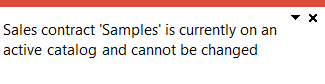
Cause
This message is displayed when you've attempted to modify a sales contract that is linked to an active price catalog.
Solution
Ensure that you select the correct price group and sales contract for the catalog and that the active dates of the catalog don't fall within the active dates of the sales contract you want to change.
FAQs
What rules apply to contract pricing when creating sales orders?
If a valid contract price is defined for the stock code in the SO Contract Prices program and contract pricing applies to the customer, then the following occurs:
-
The contract price is used over the list price.
If the customer qualifies for more than one contract price, then the lowest of the valid contract prices is used.
The contract price is based on the Order quantity and not on the Ship quantity or on the Stock quantity to ship.
-
You can optionally select to apply an expired contract price to a stocked line, providing that it is the lowest price.
This facility (which can be password-protected) is available when the Prompt for expired contracts setup option is enabled (Setup Options > Preferences > Distribution > Sales Orders ).
-
If contract pricing applies and a Flat price is defined for the contract, then the unit of measure defined against the contract in the SO Contract Pricing Maintenance program must be the unit of measure in which the stock code will be sold on the sales order.
-
Trade promotions pricing is not applied, irrespective of whether the option Trade promotions pricing is enabled against the customer.
-
Once a contract has been selected and applied, changing the line quantity does not cause the contract pricing system to apply another contract based on the new quantity.
The only exception to this is when a contract is defined as quantity discounted and the Quantity discount price update setup option is defined as Never (Setup Options > Configuration > Distribution > Sales Orders) in which case, the contract is reviewed.
-
For a Forward order, the prices are based on the order date.
Therefore, when processing a Forward order for a contract customer with multiple contracts, only the current contract is selected regardless of dates entered.
If the Forward order is then converted to a Scheduled order, the prices are not automatically recalculated.
The correct contract price will only be selected when the order is raised as a Scheduled order.
Which price is used when both TPM Promotions and Contract pricing apply to the order line?
The following order of processing is applied to the order line's price after you select the stock code and required quantity:
-
The system checks if the customer is configured for contract pricing and if there is a current/active contract that applies.
The Contract price is then applied to the order line (and supersedes any other pricing) if the following are true:
-
The Contract pricing option is enabled against the customer within the Customers program.
-
Valid contract prices have been maintained for the customer and stock code within the SO Contract Prices program.
-
-
If contract pricing doesn't apply, then the system checks if the customer is configured as a Trade Promotions Pricing customer.
The TPM price is then applied to the order line if the following are true:
-
There is no valid contract that applies to the customer and stock code.
-
The Trade promotions pricing option is enabled against the customer within the Customers program.
-
Valid TPM pricing has been maintained for the stock code within the TPM Prices program.
-
The Trade promotion pricing is defined against the stock code in the Stock Code Maintenance program.
-
-
If there is a TPM price break configured by percentage discount that qualifies for the stock code and customer in question, then the system checks if the Sales Pricing Engine feature is in use, and if the customer and stock code form part of a price group.
The Best price is then applied to the order line if the following are true, and the percentage discount configured on the TPM price break is then applied after you save the order line:
-
There is no valid contract that applies to the customer and stock code.
-
The Trade promotions pricing option is enabled against the customer within the Customers program.
-
A valid TPM price break is configured by percentage discount for the stock code within the TPM Prices program.
-
Your Pricing method setup option is defined as Price groups and the Price group level is configured accordingly within the Setup Options program.
-
A valid price group is configured against the customer within the Price Group Maintenance program and is defined accordingly against the sales order in the order header.
The SO Pricing Best Price Query business object calculates the best price using the price group defined in the sales order header along with the stock code and quantity entered on the sales order line.
-
-
If contract and TPM pricing don't apply, then the system checks if the Sales Pricing Engine feature is in use and if the customer and stock code form part of a price group.
The Best price is then applied to the order line if the following are true:
-
There is no valid contract that applies to the customer and stock code.
-
The customer is not configured as a Trade Promotions Pricing customer and there is no Trade Promotion Pricing defined for the stock code.
-
Your Pricing method setup option is defined as Price groups and the Price group level is configured accordingly within the Setup Options program.
-
A valid price group is configured against the customer, branch, geographic area or customer class within the Price Group Maintenance program and is defined accordingly against the sales order in the order header.
The SO Pricing Best Price Query business object calculates the best price using the price group defined in the sales order header along with the stock code and quantity entered on the sales order line.
-
-
If none of the above apply, then the system checks if the stock code is configured with a list price.
The List price is then applied to the order line if the following are true:
-
There is no valid contract that applies to the customer and stock code.
-
The customer is not configured as a Trade Promotions Pricing customer and there is no Trade Promotion Pricing defined for the stock code.
-
A valid List price code is defined against the stock code in the Stock Code Maintenance program.
-
-
Alternatively, you may override the price and enter your own price manually, in which case your entered price is used for the sales order line.
Then, when you save the order line, the following occurs:
-
The system checks if the Trade promotions customer option is enabled against the customer within the Customers program.
-
If this is enabled, the system then checks for any active promotions which apply to the sales order line.
-
If valid promotions are found, the system then applies these promotions to the order line and affects the price accordingly.
How do quantity discount breaks work?
Quantity discount breaks in Syspro operate on an up to and including principle.
This means the system selects the correct price code and discount based on where the order quantity falls within the defined break ranges, i.e. the best‑fit break is determined by finding the highest break that the order quantity does not exceed.
A break will apply when the order quantity falls within the range, as the breaks represent maximum quantities.
For example:
Quantity discount breaks:
up to 10 > 10% discount
up to 20 > 12.5 % discount
above 20 > 15% discount
3 stock items would fall within the up to 10 bracket and receive 10% discount, whereas 18 stock items would fall within the up to 20 bracket and receive 12.5% discount.
This ensures the correct price code and discount are applied based on the configured break structure.
Copyright © 2026 Syspro PTY Ltd.