Program: Unified Product Traceability Tracking

This program lets you select lot or serial transactions for the relevant transaction types allowed for critical traceability elements.
Solving

Why don't you drop us a line with some useful information we can add here?
Using
 Process
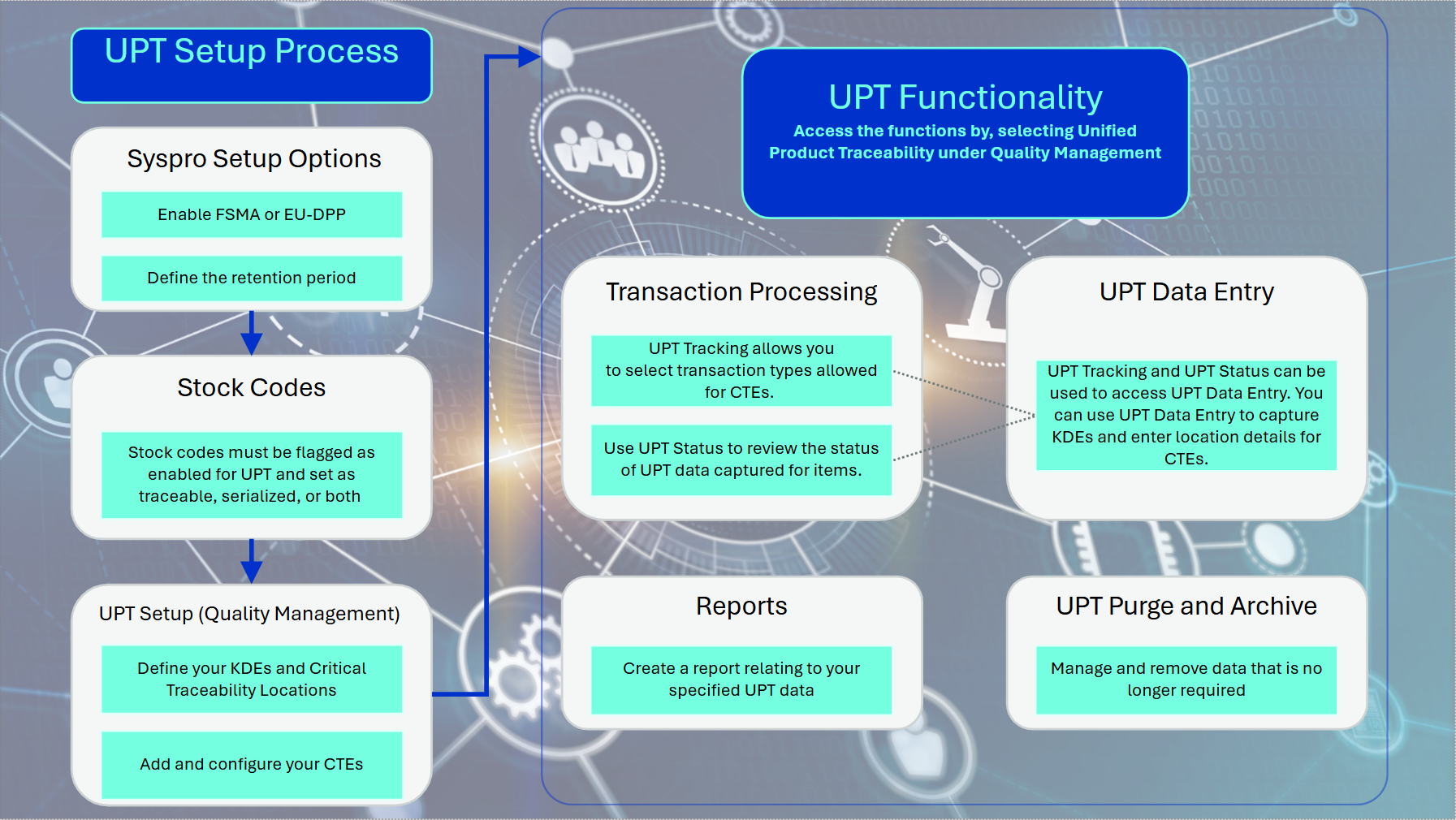
UPT Setup Process flow
-
In Setup Options define the following:
-
Unified product traceability as FSMA or ED-DPP (Setup Options > Configuration > Manufacturing > Quality Management)
-
Unified product traceability entries as the length of your retention period (Setup Options > History > Manufacturing > Quality Management)
-
-
Enable the following fields within the Stock Code Maintenance program:
-
UPT required checkbox.
Ensure the stock codes are traceable and/or serialized
-
-
Use the following programs to define :and configure the required critical traceability elements and key data elements:
-
Use the Key Data Element program to define your intended KDEs.
-
Use the Critical Traceability Element program to add your required CTEs.
-
Use the Critical Traceability Locations program to add your intended CTE locations of the defined CTEs and KDEs.
-
Use the Configure Critical Traceability Element to configure your CTEs by linking them to the selected KDEs and critical traceability locations.
-
UPT Functionality1. Transaction processing:
-
You can use the Unified Product Traceability Status program to review the status of the captured UPT data.
-
Use the Unified Product Traceability Tracking program to select transactions for the relevant transaction types allowed for CTEs.
-
The Unified Product Traceability Data Entry program can be accessed from both the Unified Product Traceability Status and Unified Product Traceability Tracking programs to capture KDEs and select and enter location details for CTEs.
-
2. For UPT data that is no longer required, use the UPT Purge and Archive program to manage or remove data by archiving or purging it.
3. Use the report function to build and customize a report from the selected UPT data.
Referencing
Menu and Toolbar
Change Criteria
Select this option to expand or collapse the review criteria panel.
Start Review
Once you have defined the review criteria you wish to process, select this option to start the review.
If the traceability type selected is Lots, the lot transaction table is read according to the review criteria, and the transactions review listview is populated with these transactions.
If the traceability type selected is Serials, the serial transaction table is read according to the review criteria, and the transactions review listview is populated with these transactions.
Copy as Image
Use this option to copy the transactions review listview as an image.
Download
Use this option to export the transactions review listview data to a file.
Filter
Use this option to filter the transactions review listview.
More Options
Use this option to access additional transactions review listview options.
UPT Data Entry
Select a row and use this option to capture the UPT data for the transaction. When more than one critical traceability element is associated with the transaction type, a listview is loaded with the critical traceability elements to select.
Review Criteria
| Field | Description |
|---|---|
| Traceability Type |
Select whether you want to review lot or serial transactions. |
| Transaction Types |
Select the transaction types to include in the review. The transaction types available are those allowed for critical traceability elements. |
| Stock Code Selections |
Select the stock codes to include in the review. |
| Warehouse Selections |
Select the warehouses to include in the review. |
| Lot Selection |
Select the lots to include in the review. This is only applicable if the traceability type selected is Lots. |
| Serial Selection |
Select the serials to include in the review. This is only applicable if the traceability type selected is Serials. |
| Transaction Date Selection |
Select the transaction date range to include in the review. |
| Job Selection |
Select the jobs to include in the review. |
| Purchase Order Selection |
Select the purchase orders to include in the review. |
| Sales Order Selection |
Select the sales orders to include in the review. |
Transactions Review Listview
The transactions review listview has the following columns, most of which are derived from the lot/serial transaction table. The UPT data captured and UPT data archived columns are the only columns not sourced from that table.
| Field | Description |
|---|---|
| Stock Code |
This displays the stock code of the transaction. |
| Lot |
This displays the lot number of the transaction. This is only applicable if the traceability type selected is Lots. |
| Serial |
This displays the serial number of the transaction. This is only applicable if the traceability type selected is Serials. |
| Transaction Type |
This displays the transaction type of the transaction. |
| Transaction Date |
This displays the date of the transaction. |
| Warehouse |
This displays the warehouse of the transaction. |
| Bin |
This displays the bin of the transaction. |
| Quantity |
This displays the quantity of the transaction. |
| Reference |
This displays the reference of the transaction. |
| Notation |
This displays the notation captured for the transaction. |
| Job |
This displays the job associated with the transaction, if applicable. |
| Purchase Order |
This displays the purchase order associated with the transaction, if applicable. |
| Purchase Order Line |
This displays the purchase order line associated with the transaction, if applicable. |
| Supplier |
This displays the supplier associated with the transaction, if applicable. |
| Certificate |
This displays the certificate associated with the transaction, if applicable. |
| Customer |
This displays the customer associated with the transaction, if applicable. |
| Invoice |
This displays the invoice associated with the transaction, if applicable. |
| Sales Order |
This displays the sales order associated with the transaction, if applicable. |
| Sales Order Line |
This displays the sales order line associated with the transaction, if applicable. |
| Dispatch Note |
This displays the dispatch note associated with the transaction, if applicable. |
| Narration |
This displays the narration captured for the transaction. |
| UPT Data Captured |
This indicates whether UPT data capturing has occurred for the transaction, displaying Yes or No. A Yes does not mean that data capturing is complete, as more than one critical traceability element can be required against a lot or serial transaction. |
| UPT Data Archived |
This indicates whether UPT data has already been archived for the transaction, displaying Yes or No. A Yes means that maintenance cannot occur against the archived UPT data. When more than one critical traceability element is associated with the transaction, this column is indicated with a Yes when at least one set of UPT data entries has been archived, even if not all critical traceability elements have been archived. |
UPT Data Entry Listview
When more than one critical traceability element is associated with the selected transaction, this listview is loaded with the critical traceability elements to select from.
| Field | Description |
|---|---|
| Traceability Element |
This displays the critical traceability element associated with the transaction. |
| UPT Data Captured |
This indicates whether UPT data capturing has occurred for the transaction against this critical traceability element, displaying Yes or No. A Yes does not mean that data capturing is complete. |
| UPT Data Archived |
This indicates whether UPT data has already been archived for the transaction against this critical traceability element, displaying Yes or No. |
Copyright © 2026 Syspro PTY Ltd.