Program: Unified Product Traceability Data Entry

This program lets you capture key data elements as well as select and enter location details for critical traceability elements.
Exploring
Starting
 Security
eSignatures
Security
eSignatures
You can restrict access to the eSignature transactions within a program at operator, group, role or company level (configured using the Electronic Signature Configuration Setup program).
Electronic Signatures provide security access, transaction logging and event triggering that gives you greater control over your system changes.
UPT Data added
Controls access to the adding of unified product traceability data in the Unified Product Traceability Data Entry program.
UPT Data changed
Controls access to the updating of unified product traceability data in the Unified Product Traceability Data Entry program.
Solving

Why don't you drop us a line with some useful information we can add here?
Using
Process
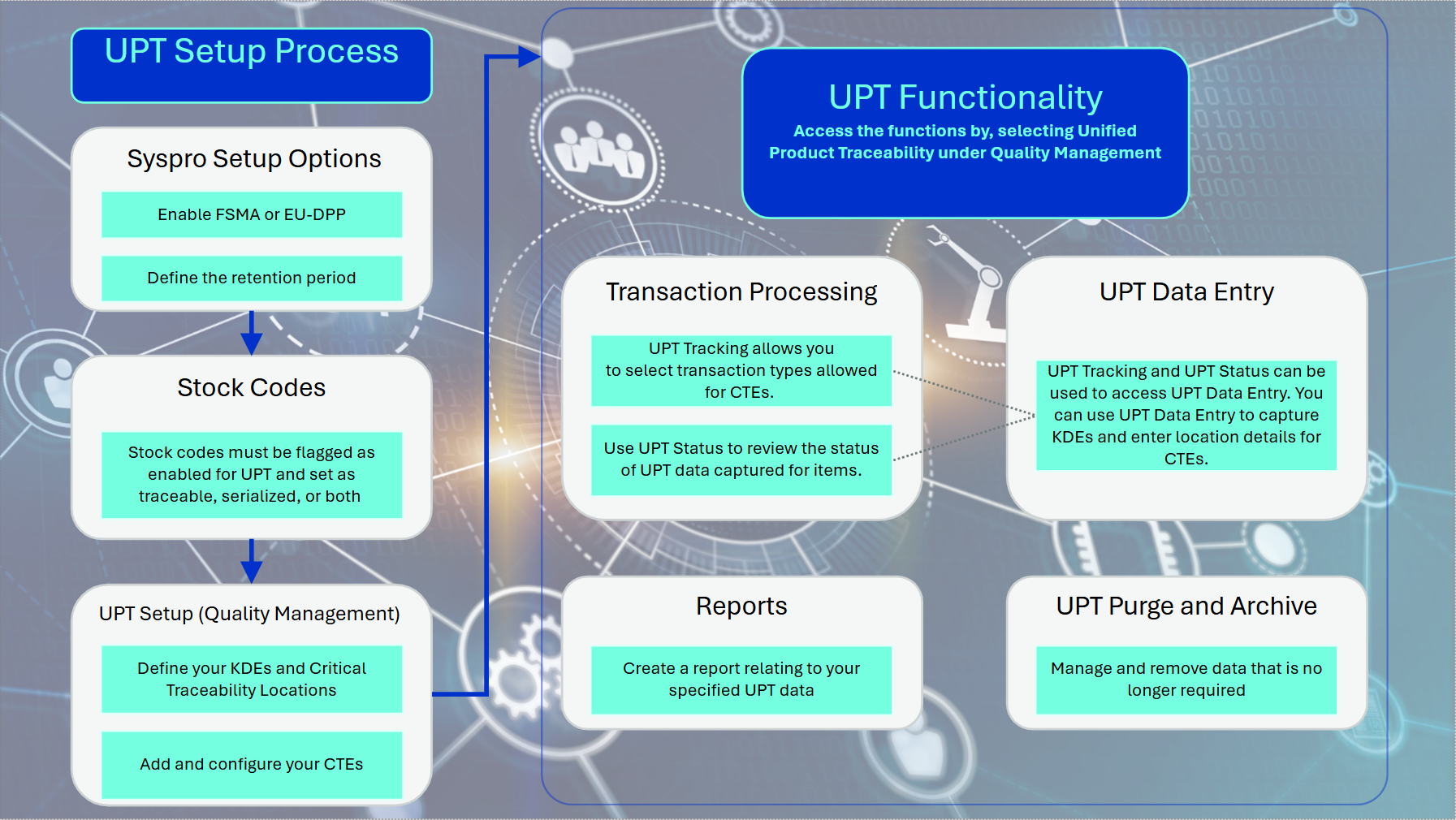
UPT Setup Process flow
-
In Setup Options define the following:
-
Unified product traceability as FSMA or ED-DPP (Setup Options > Configuration > Manufacturing > Quality Management)
-
Unified product traceability entries as the length of your retention period (Setup Options > History > Manufacturing > Quality Management)
-
-
Enable the following fields within the Stock Code Maintenance program:
-
UPT required checkbox.
Ensure the stock codes are traceable and/or serialized
-
-
Use the following programs to define :and configure the required critical traceability elements and key data elements:
-
Use the Key Data Element program to define your intended KDEs.
-
Use the Critical Traceability Element program to add your required CTEs.
-
Use the Critical Traceability Locations program to add your intended CTE locations of the defined CTEs and KDEs.
-
Use the Configure Critical Traceability Element to configure your CTEs by linking them to the selected KDEs and critical traceability locations.
-
UPT Functionality1. Transaction processing:
-
You can use the Unified Product Traceability Status program to review the status of the captured UPT data.
-
Use the Unified Product Traceability Tracking program to select transactions for the relevant transaction types allowed for CTEs.
-
The Unified Product Traceability Data Entry program can be accessed from both the Unified Product Traceability Status and Unified Product Traceability Tracking programs to capture KDEs and select and enter location details for CTEs.
-
2. For UPT data that is no longer required, use the UPT Purge and Archive program to manage or remove data by archiving or purging it.
3. Use the report function to build and customize a report from the selected UPT data.
Referencing
 Critical Traceability Element Details Pane
| Field | Description |
|---|---|
| Stock Code |
This displays the stock code of the transaction. |
| Lot |
This displays the lot number of the transaction. |
| Serial |
This displays the serial number of the transaction. |
| Traceability Element |
This displays the critical traceability element. |
| Version |
This displays the configured version of the critical traceability element. |
| Tracking Date |
This displays the tracking date of the transaction. |
| Description |
This displays the description of the critical traceability element. |
| Warehouse |
This displays the warehouse of the transaction. This caption is not visible by default. |
| Bin |
This displays the bin of the transaction. This caption is not visible by default. |
| Transaction Date |
This displays the date of the transaction. This caption is not visible by default. |
| Transaction Line |
This displays the transaction line of the transaction. This caption is not visible by default. |
| Complete Date |
This displays the date the UPT data was marked as complete. This uses the company date and is populated when you select Complete. |
| Complete |
Select this option to set the UPT data for the critical traceability element to complete. |
Key Data Elements
The key data elements available for entry are as per the configuration against the critical traceability element. All key data elements are saved regardless of whether a value is entered or not.
Critical Traceability Locations Listview
The Critical Traceability Locations listview is populated with the critical traceability locations configured for the critical traceability element, as well as any data saved against the Location Details.
| Field | Description |
|---|---|
| Location Description |
This displays the description of the critical traceability location. |
| Edit Location Details |
Select this option to open the Location Details window, where you can enter individual location field values. You can also double-click on the row to open the Location Details window. |
| Business Name |
This displays the business name for the location, if already captured through the Location Details window. |
| Telephone |
This displays the telephone number for the location, if already captured through the Location Details window. |
| Address |
This displays the address for the location, if already captured through the Location Details window. |
Location Details Form
| Field | Description |
|---|---|
| Business Name |
Enter the business name for the location. |
| Telephone |
Enter the telephone number for the location. |
| Building |
Enter the building for the location. |
| Street |
Enter the street for the location. |
| City |
Enter the city for the location. |
| Locality |
Enter the locality for the location. |
| State |
Enter the state for the location. |
| Country |
Enter the country for the location. |
| Zip |
Enter the zip code for the location. |
| Geolocation |
Enter the geolocation for the location. |
Copyright © 2026 Syspro PTY Ltd.