Exemption Certificates Setup
Exploring
 Where it fits in?
This program only applies to the Tax Connector - Avalara.
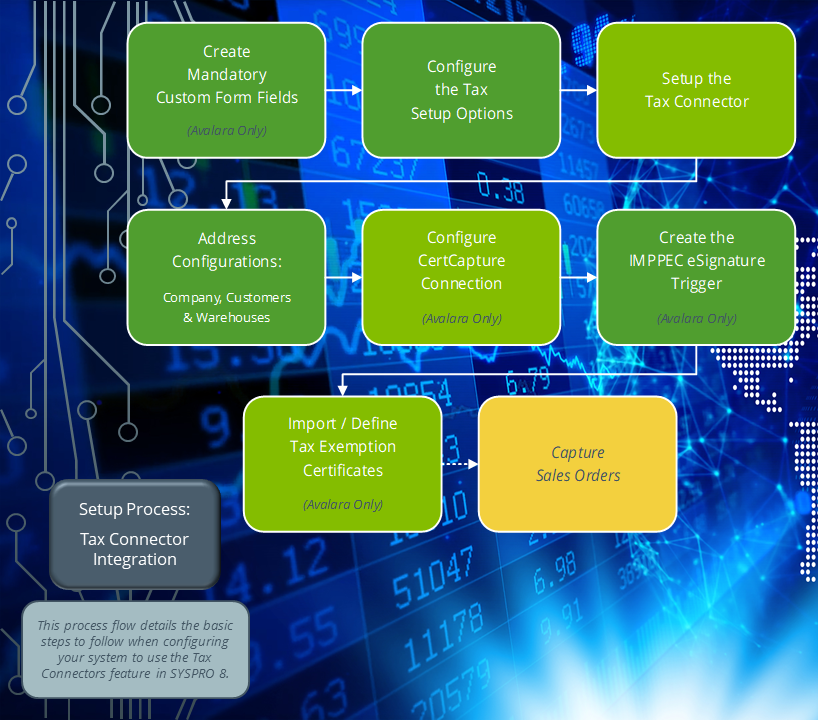
This program lets you configure and test your connection to CertCapture for access to tax exemption certificates, to avoid failed transactions when you add, change or delete a customer.
This program is accessed from the Program List of the Syspro menu:
- Program List > General Ledger > Tax > Tax Interface
Terminology
Avalara
The Avalara platform is a powerful and easy-to-use API that helps businesses automate the calculating, storing, auditing and reporting of transactional taxes.
The CertCapture component helps you maintain compliance by creating, validating, storing and managing sales tax exemptions and reseller certificates.
Tax Connectors
Tax Connectors provide a connection for establishing a direct link between Syspro and compatible cloud-based tax calculation systems (e.g. Avalara ).
Tax Connectors manage the export of data to these systems so that quarterly and annual sales tax returns can be produced for state filing purposes.
Starting
Prerequisites
The following module must be licensed and installed to access this program:
-
Tax Connector - Avalara
Security
Groups
You can restrict operator access to programs by assigning them to groups and applying access control against the group (configured using the Operator Groups program).
Configuring
The following configuration options in Syspro may affect processing within this program or feature, including whether certain fields and options are accessible.
Setup Options
The Setup Options program lets you configure how Syspro behaves across all modules. These settings can affect processing within this program.
Company General
Setup Options > Company > General
- Nationality code
Company Tax Options
Setup Options > Tax > Company Tax Options
- Tax system
Sales and Use Tax
Setup Options > Tax > Sales and Use Tax
- Sales and use tax system required
- Interface type
Solving
FAQs
How do I configure a valid CertCapture Connection?
Ensure that you have a valid connection to CertCapture to avoid failed transactions when you add, change or delete a customer:
-
Open the Exemption Certificates Setup program (Program List > General Ledger > Tax > Tax Interface).
-
Capture your connection details.
With Syspro 8 2026 R1 and onwards you are required to select an environment (Production or Sandbox) and re-enter your password.
Login credentials are stored securely in Azure Key Vault. -
Select the Test Connection function to ensure all entries are valid.
-
Save and exit the program.
Using
Hints and Tips
-
Fields on a pane are sometimes removed by default. You can reinstate them using the Field Selector option from the context-sensitive menu (displayed by right-clicking any field in the pane). Select and drag the required fields onto the pane.
The captions for fields are also sometimes hidden. You can select the Show Captions option from the context-sensitive menu to see a list of them. Click on the relevant caption to reinstate it to the form.
If the Show Captions option is grayed out, it means no captions are hidden for that form.
-
Press Ctrl+F1 within a listview or form to view a complete list of functions available.
-
With the Syspro 8 2026 R1, when you access this program you are required to select an environment (Production or Sandbox) and re-enter your password. Syspro now stores user name and passwords, and account numbers and license key pairs, securely in Azure Key Vault.
Referencing
| Field | Description |
|---|---|
|
Test connection |
This lets you test the connection to CertCapture based on the connection details entered. |
Avalara Exemption Certificates Setup
| Field | Description |
|---|---|
| Exemption Certifications URL |
Select the environment you want to connect to:
You can no longer enter a full website URL, the address is determined by the environment you select.
|
| Login details |
Enter your credentials for connection to CertCapture. These credentials are stored securely in Azure Key Vault. With the Syspro 8 2026 R1 release you are required to select an environment and re-enter your password.
|
Copyright © 2026 Syspro PTY Ltd.