Dimension Budgets Import

This program lets you import and capture dimension budgets against ledger codes.
Exploring
 Where it fits in?
Things you can do in this program include:
-
Manually capture dimension budgets using the data grid.
-
Import a text (txt) file to populate the data grid.
-
User can also paste the contents of the spreadsheet in the data grid.
-
Create new budget entries by replacing existing entries.
-
Add dimensions budget entries to an existing budget type.
-
Create multiple budgets for ledger codes and dimensions.
This program is accessed from the Program List of the Syspro menu:
- Program List > General Ledger > Dimension Anaysis > Setup
Terminology
Dimension accounting
Dimension accounting uses a standard chart of accounts for all segments of the business, which typically only consists of the natural account (i.e. the Ledger Code Details section of the GL structure definition).
All other attributes required for the analysis of financial data, are configured as dimensions.
Dimension category
Dimension categories are reporting levels that are defined according to the unique requirements of your business.
For example:
If your business wants to report financial data per branch, then you would create a Branch dimension category.
Dimension code
Dimension codes are reporting units that are configured against a dimension category (i.e. reporting level).
For example:
If your business wants to report financial data per branch, and your have branches in various cities, then each of these cities will be created as a dimension code.
To simplify the recording of dimensions against transactions, we suggest that you define default dimension codes against master data elements.
If a master data element forms part of a transaction, SYSPRO pre-populates the dimensions based on the defaults defined, resulting in minimal operator interaction.
Starting
Security
Groups
You can restrict operator access to programs by assigning them to groups and applying access control against the group (configured using the Operator Groups program).
Roles
You can restrict operator access to programs by assigning them to roles and applying access control against the role (configured using the Role Management program).
Configuring
The following configuration options in Syspro may affect processing within this program or feature, including whether certain fields and options are accessible.
Setup Options
The Setup Options program lets you configure how Syspro behaves across all modules. These settings can affect processing within this program.
General Ledger Codes
Setup Options > General Ledger Integration > General Ledger Codes
-
Dimension analysis
-
When this is defined as Transaction entry level:
Transactions are tagged with dimensions when posted in the sub module.
Sub-module tables will not be tagged with dimension codes.
-
When this is defined as GL entry level:
Transactions are tagged with dimensions when posted to the ledger.
-
-
Integration level
We recommend that the Integration level of all ledger codes you want included in Dimension Analysis is defined as Control account in detail.
General Ledger Preferences
Setup Options > Preferences > Financials > General Ledger
-
Budget descriptions
Solving
FAQs
Importing Dimension Budgets
Are dimension categories or codes validated when imported?
No.
We don't validate dimension categories or dimension codes and codes when importing dimension budgets using the Dimension Budgets Import program. We also don't validate the Active to and Active from dates on dimension codes that are specified within the Dimension Code Maintenance program.
Can I import dimension budget data by pasting from a spreadsheet?
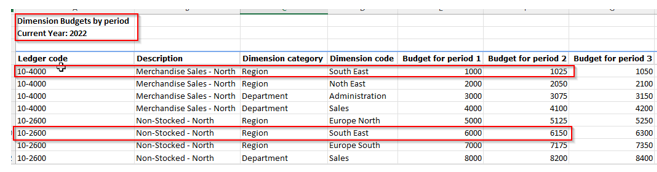
Yes, you can. Keep the following in mind when importing using a spreadsheet:
-
Prepare your spreadsheet to have a similar structure as the following:
-
Select the Budget type before selecting the file you want to import.
-
All rows should contain valid data.
Using
Hints and Tips
-
Columns in a listview are sometimes hidden by default. You can reinstate them using the Field Chooser option from the context-sensitive menu (displayed by right-clicking a header column header in the listview). Select and drag the required column to a position in the listview header.
-
Press Ctrl+F1 within a listview or form to view a complete list of functions available.
File formats
The table below indicates the structure of the import file that must be defined to successfully import budgets from third party application software.
| Field | Start position | Field length and description |
|---|---|---|
| Header | ;SYSPRO IMPORT - Version=001 - GENP19 Mandatory entry of this comment on the first line of the import file to distinguish it from a SYSPRO 6.1 layout file. This comment is not case-sensitive. |
|
| Line type | 1 | 1 The first character of each line in the import file must start with the character B. |
| Ledger code | 2 | 35 Valid General Ledger account code. |
|
Dimension dategory |
37 |
20 Valid Dimension Category |
|
Dimension code |
57 |
20 Valid Dimension Code |
| Budget value 1 | 72 | 15 Budget amount for 1st ledger period |
| Budget value 2 | 87 | 15 Budget amount for 2nd ledger period. |
| Budget value 3 | 102 | 15 Budget amount for 3rd ledger period. |
| Budget value 4 | 117 | 15 Budget amount for 4th ledger period. |
| Budget value 5 | 132 | 15 Budget amount for 5th ledger period. |
| Budget value 6 | 147 | 15 Budget amount for 6th ledger period. |
| Budget value 7 | 162 | 15 Budget amount for 7th ledger period. |
| Budget value 8 | 177 | 15 Budget amount for 8th ledger period. |
| Budget value 9 | 192 | 15 Budget amount for 9th ledger period. |
| Budget value 10 | 207 | 15 Budget amount for 10th ledger period. |
| Budget value 11 | 222 | 15 Budget amount for 11th ledger period. |
| Budget value 12 | 237 | 15 Budget amount for 12th ledger period. |
| Budget value 13 | 252 | 15 Budget amount for 13th ledger period. |
| Budget value 14 | 267 | 15 Budget amount for 14th ledger period. |
Referencing

 Options
| Field | Description |
|---|---|
| Data source | |
| Import method |
From file
This lets you import data from a file. Use data grid
This lets you enter the import data directly into the grid of the Details pane You can paste the contents of an Excel spreadsheet into the grid. A blank line is created as the first line in the grid because by default, focus is set on the first editable line for all import program grids. |
| File location |
Server
Select this if the import file resides on the server. Client
Select this if the import file resides on the client machine. |
| File name |
This lets you indicate the name of the import file (include the full path). Select the Review file hyperlink to load the contents of the import file into the Details pane. This lets you validate the lines on the grid prior to importing the file. The Import button is only enabled when all lines are valid. |
| Options | |
| Import only if all rows are valid | When enabled, records
can only be imported when the entire import file is valid. The import process is aborted if errors are encountered. When disabled, only valid records are imported and invalid records are ignored. |
| Budget to import | This lets you indicate the type of budget you want to update with the information you are importing. |
| New revision level | Enter up to 15 characters if you selected to update any of the available alternate budgets. |
| After processing complete | |
|
Print the Details |
Generate a report of the contents of the Details entry grid. |
|
Email the Details |
Generate an email of the contents of the Details entry grid. |
|
Print the Import Results |
Generate a report of the contents of the Import Results pane. |
|
Email the Import Results |
Generate an email of the contents of the Import Results pane. |
Details
| Field | Description |
|---|---|
|
Ledger code |
This indicates the ledger code for which you are maintaining the dimension budget amounts. |
|
Description |
This indicates the description of the ledger code. |
|
Dimension category |
This indicates the dimension category for which you are maintaining the dimension budget. |
|
Dimension code |
This indicates the dimension code for which you want to maintain dimension budgets. |
|
Period 1-14 |
This lets you enter budgets for the number of accounting periods in the year that are defined for your company at the Accounting periods setup option (Setup Options > Company > General). |
Import Results
This pane displays a summary of the results of the validation/import.
The contents of the grid can be printed or emailed providing you did not select to Close the application in the After processing completed section.
Copyright © 2026 Syspro PTY Ltd.